Key takeaways
- A valuable addition to your toolbox: TMDL scripts and notebooks join Tabular Editor and the other tools you already use.
- This part covers how it fits together: You'll see how these tools relate to each other and to the wider BI ecosystem.
- Tabular Editor is an IDE for semantic models: It's designed to help developers save time and boost productivity.
- The TMDL view unlocks UI-less features: You can use features that have no user interface in Power BI, without needing third-party tools.
- Scaling comes next: The next article explains how to use TMDL scripts and notebooks to scale your tasks within a single model and across many.
This summary is produced by the author, and not by AI.
Recently, Microsoft has released features in Power BI and Fabric which support Power BI developers to do more and save time. These include the DAX query view, TMDL view, notebooks in Fabric (specifically, the libraries semantic link and semantic-link-labs), and various Copilot experiences for Power BI (which also requires Fabric). We introduce these tools later in this article, but you should already know that they are a welcome and valuable addition to your toolbox. At Tabular Editor, our mission is to help you make better data models, faster… not just with our tools, but across your entire data platform.
That’s why we are releasing free introductory training courses about these new tools and features in our learning hub at Tabular Editor Learn.
We strongly believe that these new features will and already are helping many Power BI users get more value from their models and reports. So that you can orient yourself, here is a small diagram that depicts at a high level where these tools sit in the Power BI (and Fabric) ecosystem, and how they intersect with one another. Note that this isn't a comprehensive list; rather, it is a simple and conceptual starting point:
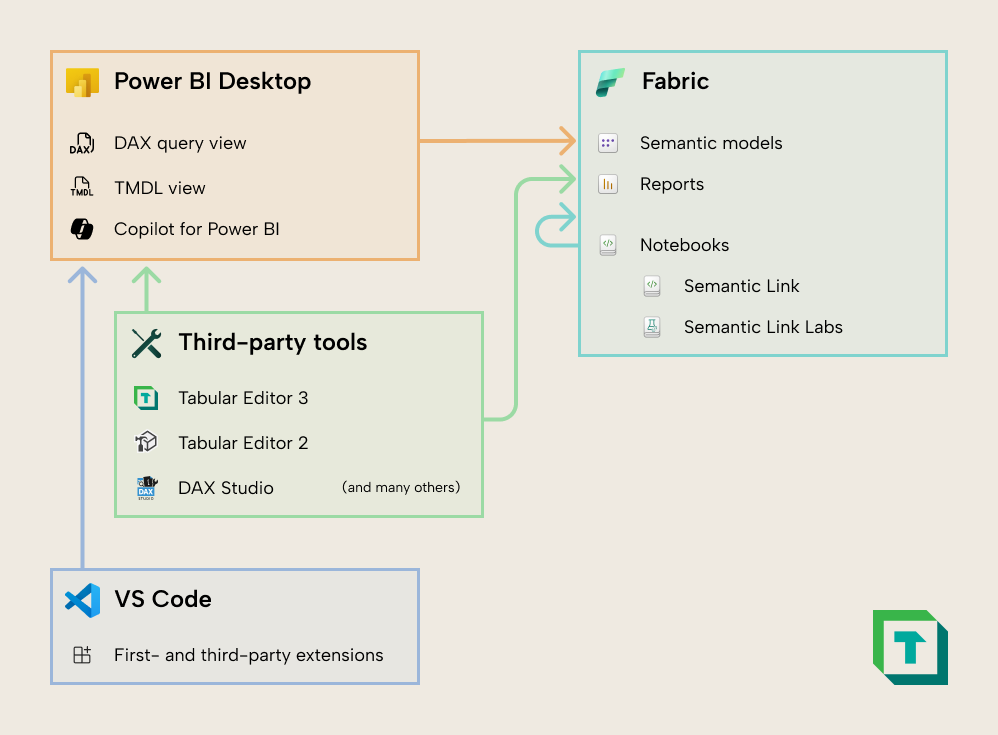
However, we’ve also had a lot of questions from the Power BI community about these new tools and features, such as how they fit in with Tabular Editor:
- What’s the difference between TMDL scripts, Tabular Editor C# scripts and DAX scripts?
- When would I use the DAX query view in Power BI Desktop, compared to DAX studio, or the DAX query view that’s in Tabular Editor 3? Are they different or the same thing?
- If I have Fabric, can I use semantic link to develop a model instead of third-party tools?
- Can’t I use Copilot or other AI tools to develop my semantic model?
- Do I still need third-party tools?
In the next few articles, we will not only introduce some of these new tools and features but also answer some of these questions. We’ll also explain how Tabular Editor fits well into this evolving tool ecosystem.
First: No, you don’t need third-party tools
As our CTO and creator of Tabular Editor Daniel Otykier wrote in his LinkedIn blog post published last year, you can develop and manage a semantic model perfectly fine by using only Power BI Desktop. To make a useful semantic model and to work productively, you don’t need to rely on third-party tools. Power BI has a rich ecosystem of third-party tools because building semantic models and reports is a complex process that involves many parts and pieces. You encounter a lot of scenarios or problems during development that simply aren’t well addressed by the out-of-the-box Power BI features; that’s why third-party tools exist.

To say it another way: third-party tools are specialized. They help you solve specific problems or address specific scenarios. They give you an advantage when you encounter those problems or scenarios. For instance, Tabular Editor is a tool that’s intended to support professionals who focus on semantic model development, so that they have every advantage to be as effective and productive as possible.
Tabular Editor is an integrated development environment for semantic models
Tabular Editor is a tool designed from the bottom up to help semantic model developers by giving them every advantage, every assistance, and every feature they need to have success in their job. It’s an integrated development environment (IDE) laser-focused on semantic modelling and the semantic model developer experience (DX). Since we develop semantic models ourselves, we know about all the pains and challenges that you experience when building, managing, or optimizing a data model.
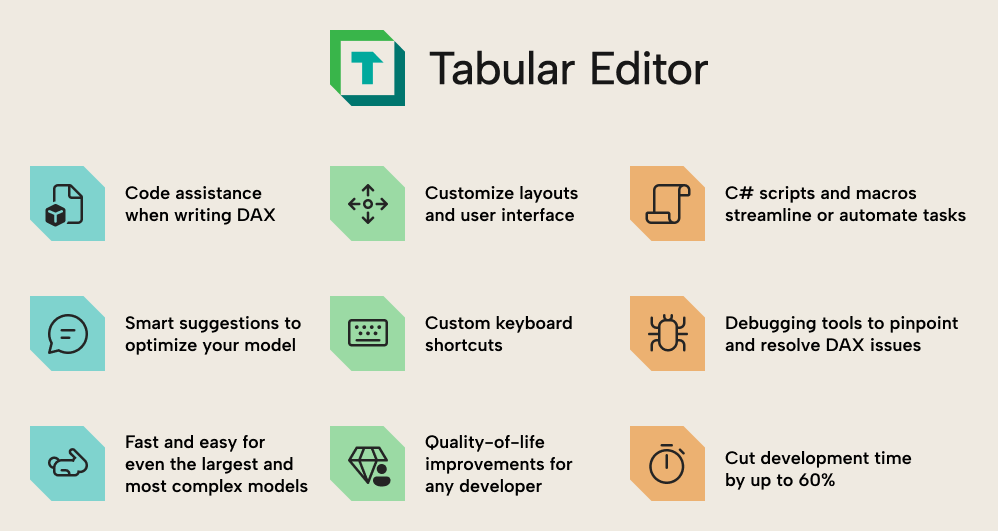
Here are some simple examples:
- When developing a model, you need a multi-tool; a Swiss army knife loaded with different specialized instruments that can help you in a pinch. For example, Tabular Editor 3 has a swathe of DAX code assistance features that help you write, improve, and optimize DAX code:
- Smart suggestions with calltips, syntax, and other explainers to help you understand functions and their arguments.
- Shortcuts to quickly refactor code by renaming or finding and replacing substrings, references, or entire code patterns.
- Shortcuts to more quickly check code (like peek definition), navigate between references (like go to definition), and view documentation or examples.
- Code actions to suggest code improvements and warnings to alert you to issues before they become a problem in implementation.
- Customizing your development environment is key. Popping out and rearranging windows, setting up and saving custom layouts, toolbars, and shortcuts all can lead to massive productivity gains for an experienced developer who can waste less time on menial tasks and focus on just getting work done.
- When we work, we don’t want to wait for “working on it…” to stop spinning. Tabular Editor is lightning-fast, even with the largest and most complicated models, because you are only ever working with metadata. Even big changes like deleting tables are instant, and you don’t have to wait while refreshing one or more model tables to continue your work.
- In any developer tool, you will make mistakes and want to undo your changes. In Tabular Editor, Ctrl + Z will undo any change, even deleting a model data table.
These are just a few examples. If you want more details, we have a new course Tabular Editor for Beginners which we are releasing on Tabular Editor Learn. This course walks you through the basics of semantic models and Tabular Editor, including the features and how they help you.
So, do you need Tabular Editor? No, much like how you don’t need a gym membership, coaching, or supplements to get in shape. However, if you’re serious about something, then you want tools and resources that give you the upper hand and increase your chances of success. That’s what Tabular Editor is all about; giving developers the instruments and advantages to help you succeed with semantic models.
We don’t think that anyone should be forced to use third-party tools just because Power BI has features and properties that its user interface doesn’t reveal or support. That just locks out user segments from getting more value from their models. Thankfully, now, that’s no longer the case.
Using features that don’t have a user interface in Power BI
Historically, Power BI semantic models have supported many features, despite these features and properties not being exposed in Power BI Desktop. Many users felt they were forced to use third-party tools or miss out on these features, altogether. The most well-known example of this was calculation groups, which you can now add and manage by using the model explorer.
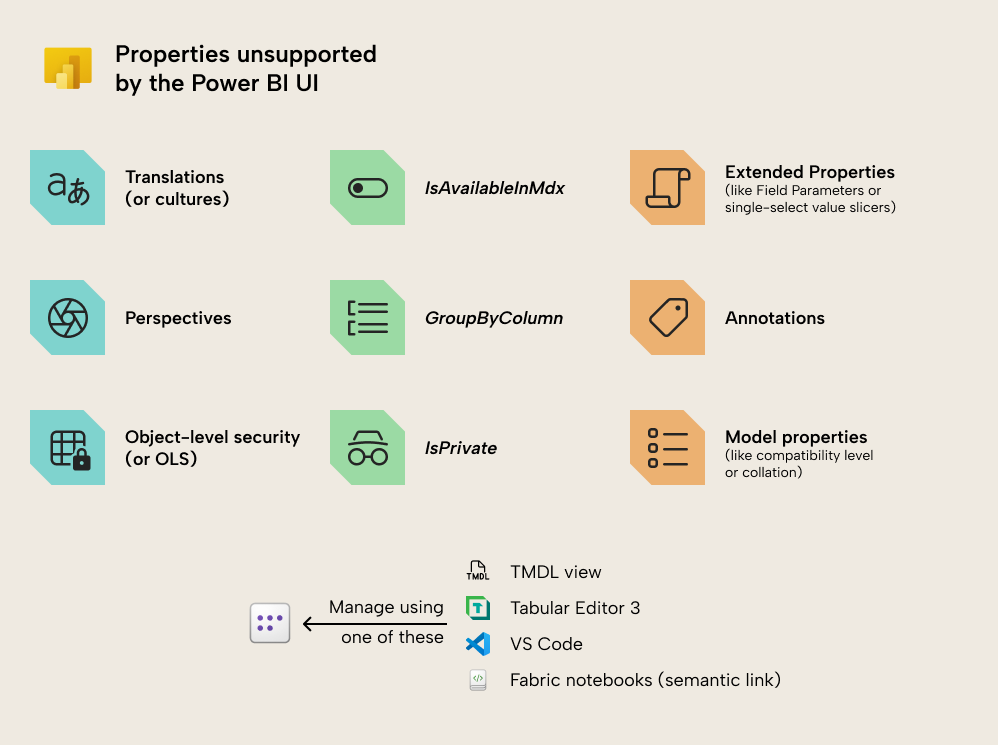
However, there are many features which as of April 2025 don’t have a user interface to view or manage them:
- Translations (or cultures). These are used to translate your model to other languages for end-users in their client tools like Power BI Desktop or Excel, based on their local settings.
- Perspectives. These are used to create “subsets” of your model to make it easier to use in certain experiences, like personalize visuals, composite models, and even thin reports.
- Object-level Security (or OLS; sometimes called “Column-Level Security”). This lets you restrict permissions to read certain columns; users will instead see errors if querying them.
- Properties like IsAvailableInMdx and SourceColumn (for columns), IsPrivate (for tables), and others. These properties have certain use-cases where you might change them in certain scenarios.
- Annotations or extended properties, which can be used to hold metadata relevant for client tools (like field parameters) or store information relevant for developers and technical teams (such as VertiPaq statistics, usage information, search tags, and more).
Until recently, the only way to use these features was to go through a complex process with first-party tools like SQL Server Management Studio (SSMS) or manually modify the model metadata in a text editor. That was incredibly inconvenient; so, most people used Tabular Editor 2 or 3. However, now, you can change these properties in local models by using the TMDL view in Power BI or in published models by using semantic link in notebooks.
Essentially, the TMDL view and semantic link provide a more convenient and accessible route for users to leverage these features by using first-party tools only. That is fantastic; thanks to the effort of key members of Microsoft and the Power BI community, the limitations and restrictions are lifted. This is particularly valuable for users who cannot use third-party tools due to restrictive policies in their organizations, or users who simply prefer to limit their work to fewer or first-party tools.
The purpose and main benefits of Tabular Editor are not to give users access to these features; this was simply a coincidence of providing full visibility on the Tabular Object Model (TOM), for the following reasons:
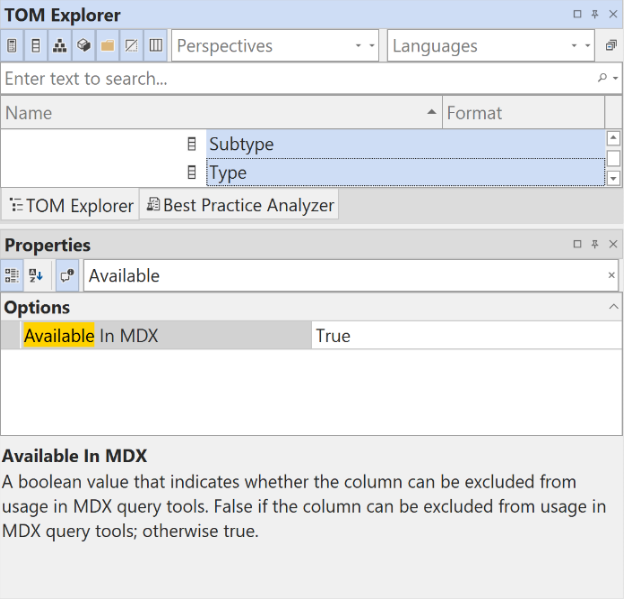
- The TOM Explorer and properties windows of Tabular Editor provide an easy way to browse your “data pane” while also seeing every property for whichever object you select and its current values. You can also adjust and move these windows wherever you want.
- Each property has a human-readable name, a simple description of what it does, and the expected values.
- You can change any property in bulk, either with the user interface by shift-selecting multiple objects or programmatically by using C# scripts (which also be context-sensitive to whatever you are selecting in the TOM explorer).
- Tabular Editor 3 has certain UI features designed to make some of these things easier, like a perspective and translation metadata management windows.
In the next article, we’ll explain how all of this helps you to be more productive. In short, these new tools and third-party tools like Tabular Editor both help you to scale your tasks both within a single model and across multiple models, in different ways. What’s important is that you know when to use what and approach your model with a “toolbox mentality” to leverage everything at your disposal.
For further reading
- TMDL scripts, notebooks, and Tabular Editor: tools that help you scale (Tabular Editor). The follow-up article in this series, comparing when to use the TMDL view, notebooks, C# scripts, and Tabular Editor for tasks within and across many models.
- Five ways that the TMDL view can help you be more productive in Power BI (Tabular Editor). A practical walkthrough of five concrete use-cases for the TMDL view, picking up where the ecosystem overview in this article leaves off.
- The TMDL view in Power BI Desktop (Microsoft Learn). Official documentation covering how to enable, navigate, and apply TMDL scripts directly in Power BI Desktop.
- Semantic link overview (Microsoft Learn). The official introduction to the Semantic Link library for Fabric notebooks, which this article identifies as a first-party route to modify published models.
In conclusion
TMDL scripts, notebooks, and the TMDL view all sit alongside Tabular Editor in the same toolbox, and they're a genuinely useful addition for Power BI developers. None of them replaces the others; what matters is knowing when to reach for each. In the next article, we put that toolbox to work and show how these tools help you scale your tasks within a single model and across many.
Connect TMDL, notebooks, and semantic modeling in Tabular Editor 3.
Give Tabular Editor a spin