Key takeaways
- Exporting a translation gives translators an empty shell: The
.jsonexport lists the whole object tree but leaves the new culture with no captions to edit, so a translator has nothing obvious to fill in. - A short C# script pre-fills every translatable object: Looping over the cultures and translatable objects, it copies each object's name, description, and display folder into the translation as a default.
- The result is a file a translator can actually use: After running the script and exporting it again, every
translatedCaption,translatedDisplayFolder, andtranslatedDescriptionis populated and ready to be edited.
This summary is produced by the author, and not by AI.
Exporting translations
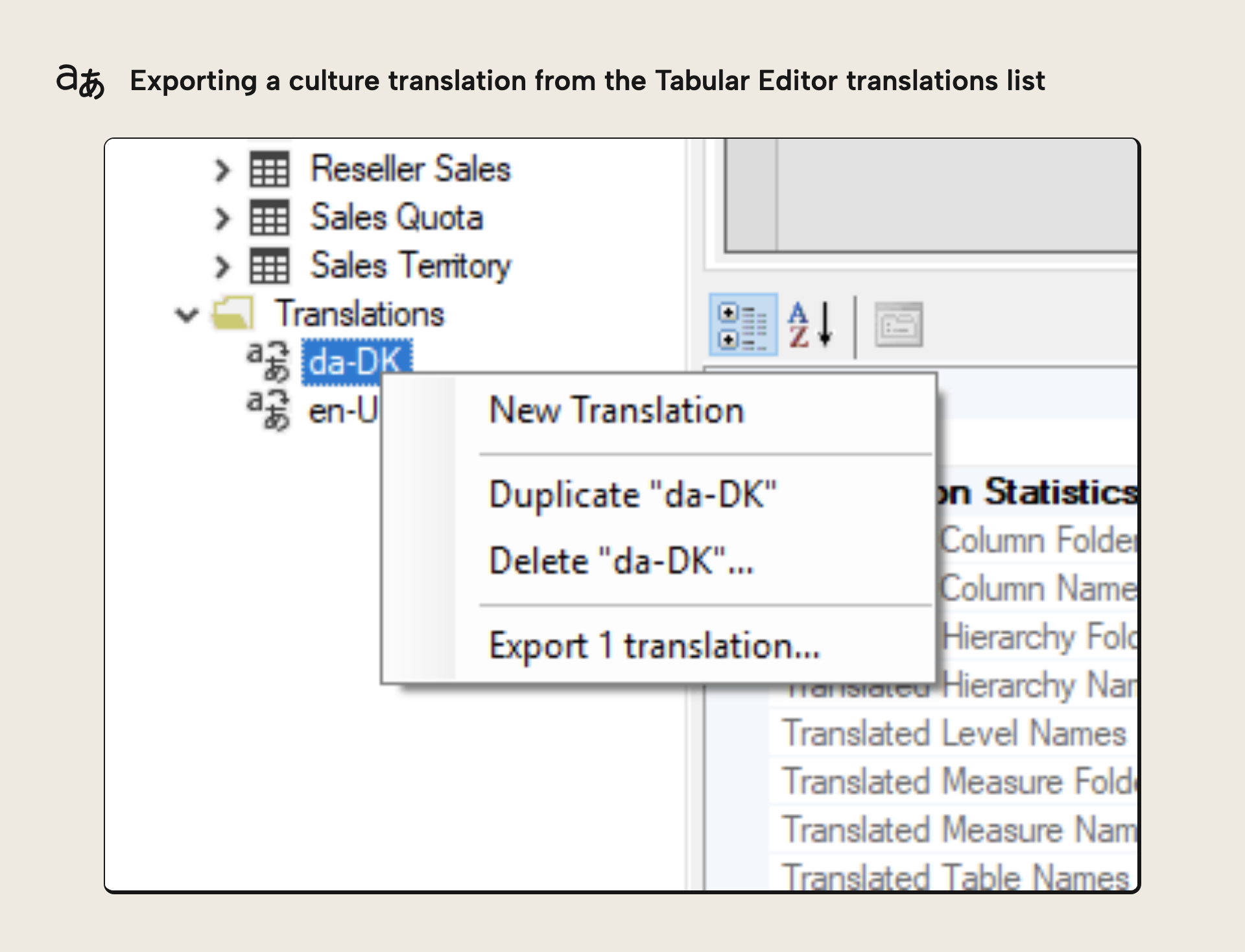
Tabular Editor lets you export translations into the same .json file format used by Visual Studio and SSAS Tabular Translator. This is useful if you want to delegate the task of translating your model to someone without access to your tabular model metadata. Let’s say you’ve added a new culture (called “translation” within Tabular Editor) to your model, and exported it to .json, without having translated anything yet within Tabular Editor:
The .json file will have the following structure:
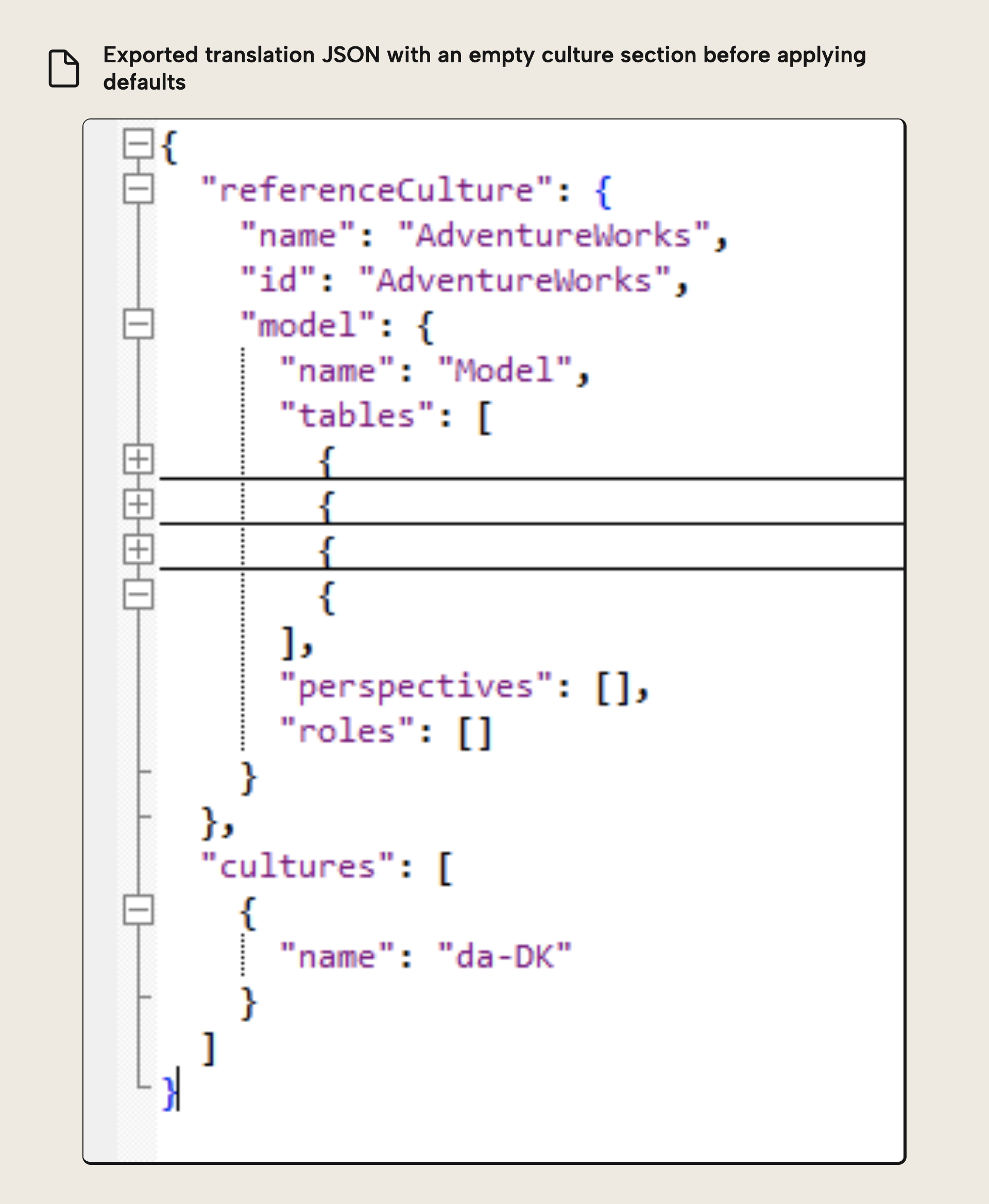
The first section (referenceCulture) specifies the physical names of all translatable objects within the tabular object model tree. The second section (cultures) holds a single object representing the translation that we exported through the UI. Unfortunately, as you can see on the screenshot above, this object doesn't hold anything other than the name of the culture (in this case, da-DK). The person who’s going to supply the translations will have a hard time figuring out what to do with this file, since there’s no obvious place to enter the translated names. They would have to know about the JSON schema of these translation files, and fill out everything accordingly – quite a daunting task.
To provide a file that is easier to work with, let’s use Tabular Editor’s Advanced Scripting functionality, to apply a default translation to all objects that are not yet translated. Simply execute the following script before exporting the translation:
// Loop through all cultures in the model:
foreach(var culture in Model.Cultures)
{
    // Loop through all objects in the model, that are translatable:
    foreach(var obj in Model.GetChildrenRecursive(true).OfType<ITranslatableObject>())
    {
        // Assign a default translation based on the object name, if a translation hasn't already been assigned:
        if(string.IsNullOrEmpty(obj.TranslatedNames[culture]))
            obj.TranslatedNames[culture] = obj.Name;

        // Assign a default description based on the object description, if a translation hasn't already been assigned:
        if(string.IsNullOrEmpty(obj.TranslatedDescriptions[culture]))
            obj.TranslatedDescriptions[culture] = ((IDescriptionObject)obj).Description;

        // If the object resides in a display folder, make sure we provide a default translation for the folder as well:
        if(obj is IFolderObject)
        {
            var fObj = obj as IFolderObject;
            if(string.IsNullOrEmpty(fObj.TranslatedDisplayFolders[culture]))
                fObj.TranslatedDisplayFolders[culture] = fObj.DisplayFolder;
        }
    }
}
By doing this, we’re using each object's physical name as its translated name, unless a translation was already present.
Now, when exporting the translation to a .json file again, it will look like this:
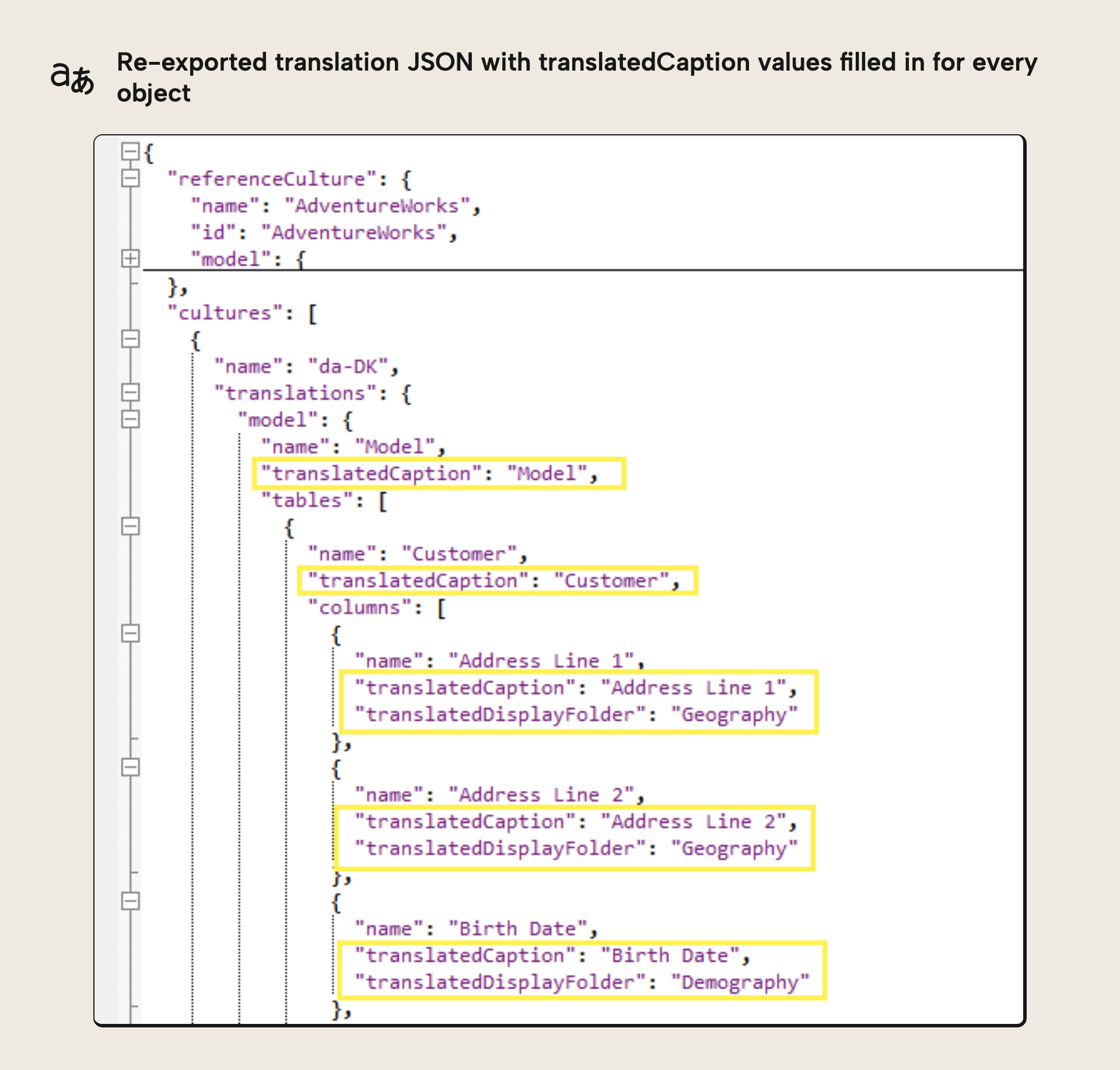
That’s much better! Instruct your translator to edit all the translatedCaption, translatedDisplayFolder, and translatedDescription values and hand the file back to you. That’s it!
For further reading
- Creating Multilingual Power BI Datasets (Tabular Editor). Covers the end-to-end workflow for building a multilingual model, of which seeding and editing translations is one part.
- Translate your measures using Tabular Editor and GPT3 (Tabular Editor). Covers a C# script that generates measure-name translations with an LLM, an alternative to translating them by hand.
- Translations in tabular models (Microsoft Learn). Microsoft's reference on how translation metadata and the translation file format work, which is what the script reads and writes.
In conclusion
Exporting translations straight out of Tabular Editor leaves your translator staring at a near-empty file, which isn’t much fun for anyone. With a few lines of Advanced Scripting, though, you can pre-fill every caption, description, and display folder with the object’s own name, so the file you hand over is something a person can actually work with. Run the script, export the translation, and all that’s left is for your translator to overwrite the defaults and send it back.
Manage model translations at scale with Tabular Editor.
Give Tabular Editor a spin