Key takeaways
- You can build a Direct Lake dataset from scratch in TE3: From version 3.11.0, you can create and edit Direct Lake models locally, keep them in source control, and deploy them to a Fabric workspace.
- Start by grabbing two connection strings: The Lakehouse SQL endpoint and the workspace XMLA endpoint, both from the Fabric portal.
- Import tables straight from the Lakehouse: Use the Import Table Wizard with "Fabric OneLake (DirectLake)", then save the dataset back to the service.
- Direct Lake shows its advantage quickly: Data loads into memory on demand with no refresh step, unlike an Import or DirectQuery dataset.
This summary is produced by the author, and not by AI.
Introduction
If you read our previous blog post about Fabric Direct Lake, you know that we promised to show you some examples of how Tabular Editor 3 can help you work with Direct Lake datasets. In this post, we will demonstrate how you can use Tabular Editor 3 to create a new Direct Lake dataset from scratch and configure it in a few simple steps.
Recapping Fabric Direct Lake
Direct Lake datasets are a special type of tabular datasets that are directly linked to the Fabric Lakehouse. This means that whenever the data in the Fabric Lakehouse changes, the Direct Lake dataset reflects those changes automatically, without any additional processing or refresh.
This means that the consumers of reports based on a Direct Lake dataset can see the latest data as soon as the Lakehouse changes. Thus, also eliminating the final step in a potential lengthy ETL process.
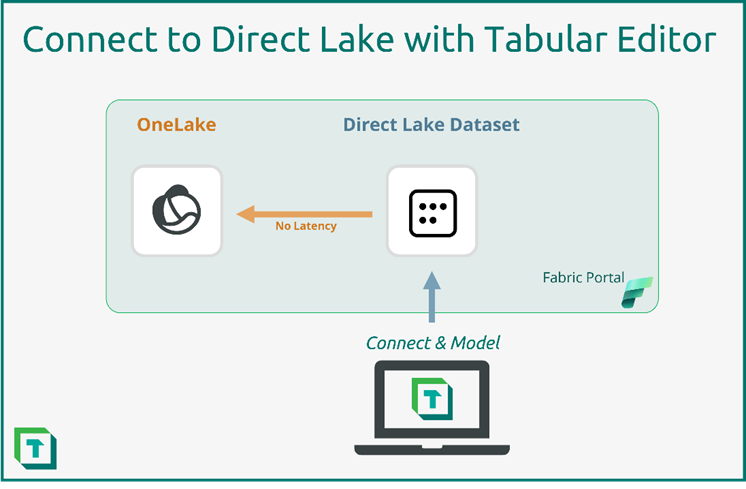
Step 3: Creating tables in the Direct Lake dataset.
An empty model is a fine thing and is pure potential, but it doesn't help business users much in gaining insights into the data. Naturally the next step is to create some tables so that we can start building out the data model.
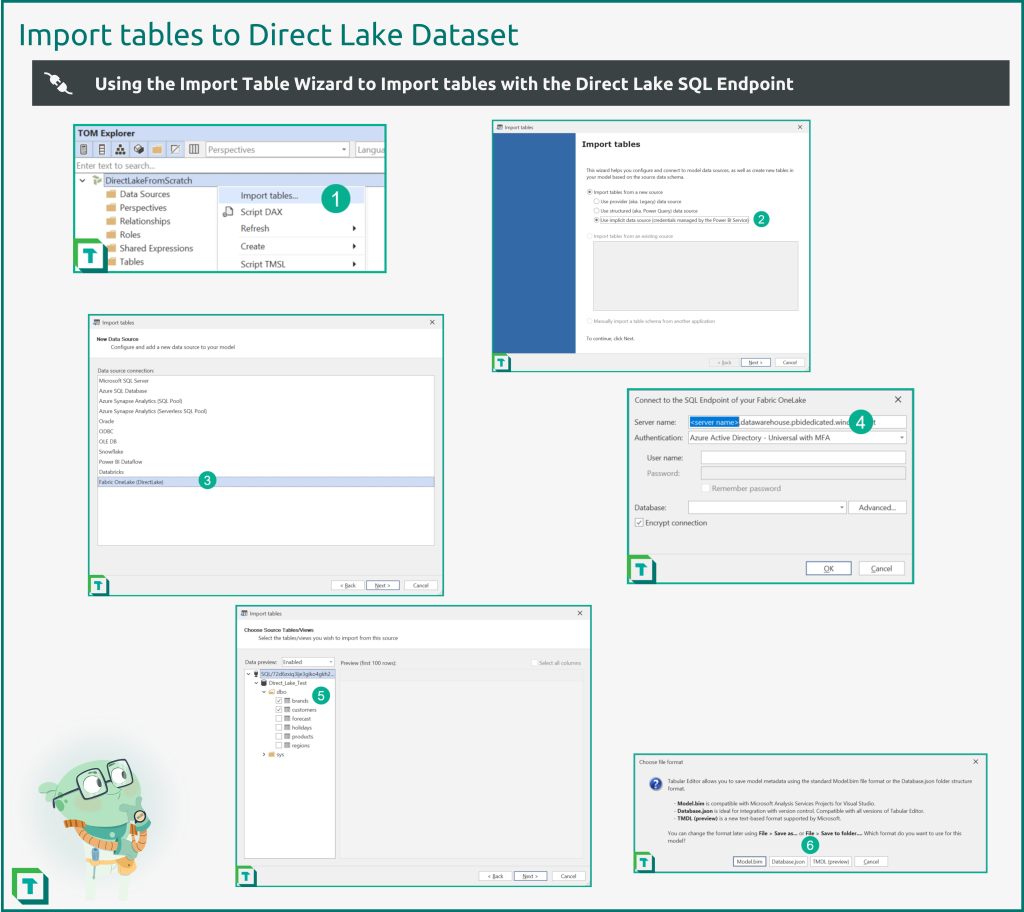
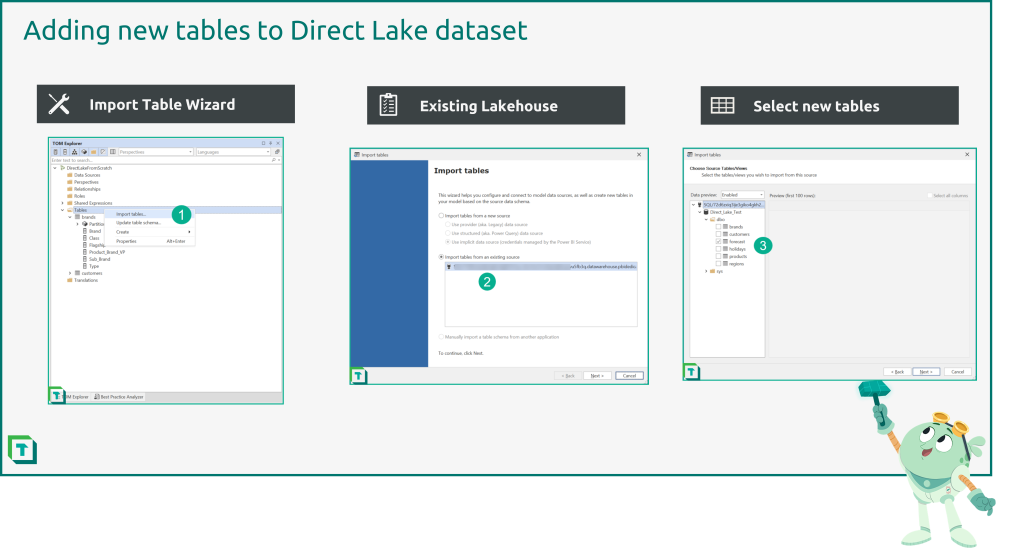
- Right click on the data model in the TOM Explorer and choose ‘Import tables…’ which will bring up the Import Table Wizard.
- Choose ‘Use implicit data source’ to set up a Power BI dataset.
- Choose ‘Fabric OneLake (DirectLake)’ as the new data source.
- Input the Lakehouse SQL Endpoint connection string into server name and authenticate.
- Select the tables to add to the dataset.
- Save the dataset to the Power BI service and a local folder in your format of choice.
Step 4: Inspect the data
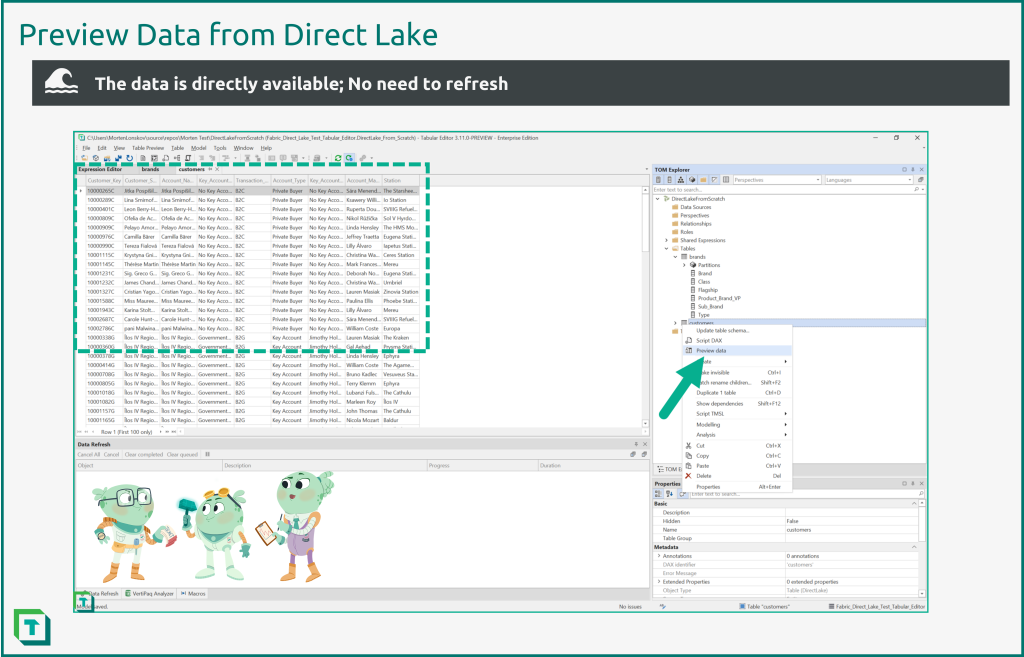
Assuming you set up the new dataset with a workspace database in Step 2 above, you can immediately test the Direct Lake connection by inspecting data in Tabular Editor 3. If not, you won't be able to inspect data at this stage, but will need to deploy the model to a Fabric workspace first.
When inspecting data, keep in mind the only thing we did so far, was importing a few tables and saving the dataset back to the Fabric workspace. No refresh has been run to import the data into the dataset, as would be required by a regular Import dataset. Also, as can be seen by collecting VertiPaq Analyzer statistics, data is actually loaded into memory as required, unlike a DirectQuery dataset, where data remains in the source.
Step 5: Adding tables with Tabular Editor
The process for adding more tables to a Direct Lake dataset is straightforward as the Import Table Wizard connects to the existing Lakehouse data source and all there is left is to select the desired tables.
Similarly, when a table changes schema in the Lakehouse, you can use Tabular Editor’s “Update table schema” feature as usual.
For further reading
- Direct Lake Datasets: How to use them with Tabular Editor (Tabular Editor). Part 1: what Direct Lake is and how TE connects to it, before you build your own.
- What's new with Direct Lake in August 2025 (Tabular Editor). How much Direct Lake has changed since this tutorial, two years on.
- Direct Lake overview (Microsoft Learn). Microsoft's reference on Direct Lake: prerequisites, limits, and DirectQuery fallback.
In conclusion
This was just the first few steps in creating a Direct Lake dataset. The real fun of data modeling in Tabular Editor is still ahead; creating measures, organizing the dataset, creating calculation groups, applying best practices rules are all still ahead.
Bonus: Creating a Lakehouse Import or DirectQuery-mode dataset
It is also possible to use one of the regular Azure DB or Azure Synapse connectors to connect to the Lakehouse SQL Endpoint. It is just a SQL Endpoint and seems to work no different. This will allow for developers to still build import- or DirectQuery-mode datasets on a Fabric Lakehouse (and presumably Fabric Warehouse)
One reason to choose an import dataset over Direct Lake is to have all the functionality of an import dataset while still being connected to the Lakehouse stored in the Fabric portal. Features that are used by many dataset developers today such as calculate columns and tables, DateTime relationships, composite models etc.
However, there is currently no known migration path from an Import dataset to a Direct Lake dataset so the benefits of each should be considered carefully when deciding which to implement.
For DirectQuery-mode datasets, it seems that there are not a lot of advantages over Direct Lake mode, if we ignore the current limitations. In fact, Direct Lake mode datasets will automatically fallback to DirectQuery in some circumstances. Once the Direct Lake limitations are remedied (hopefully before Fabric goes GA), Direct Lake should be the preferred option over DirectQuery in all cases where the source data resides in a Fabric Lakehouse.
Create and configure Direct Lake semantic models with Tabular Editor 3.
Give Tabular Editor a spin