Key Takeaways
- Introducing a new cross-platform VS Code extension for semantic model editing: Tabular Editor Lite is a free VS Code extension for working with semantic models on Windows, macOS and Linux.
- A lightweight editor for simple development and collaborating with agents: The extension contains the basic features of Tabular Editor 2 and 3. It also has other features that help you work with third-party coding agents, like watch mode, edit history, comments, and context-awareness via the model-context protocol.
- An experiment from Tabular Editor Forge: This extension is the first released experiment from Tabular Editor Forge. These are small research projects we have conducted and tested internally and decided to release if it brings value to our community or customers.
This summary is produced by the author, and not by AI.
Tabular Editor as a VS Code extension
VS Code is a familiar place for many people working in Power BI. Whether you're writing code, working with agents, or just using it for source control management, VS Code has grown more common and popular over time. In running those workflows, we’ve found that we were missing Tabular Editor's capabilities, so earlier this year, we built an extension that brings some of them into VS Code: Tabular Editor Lite:
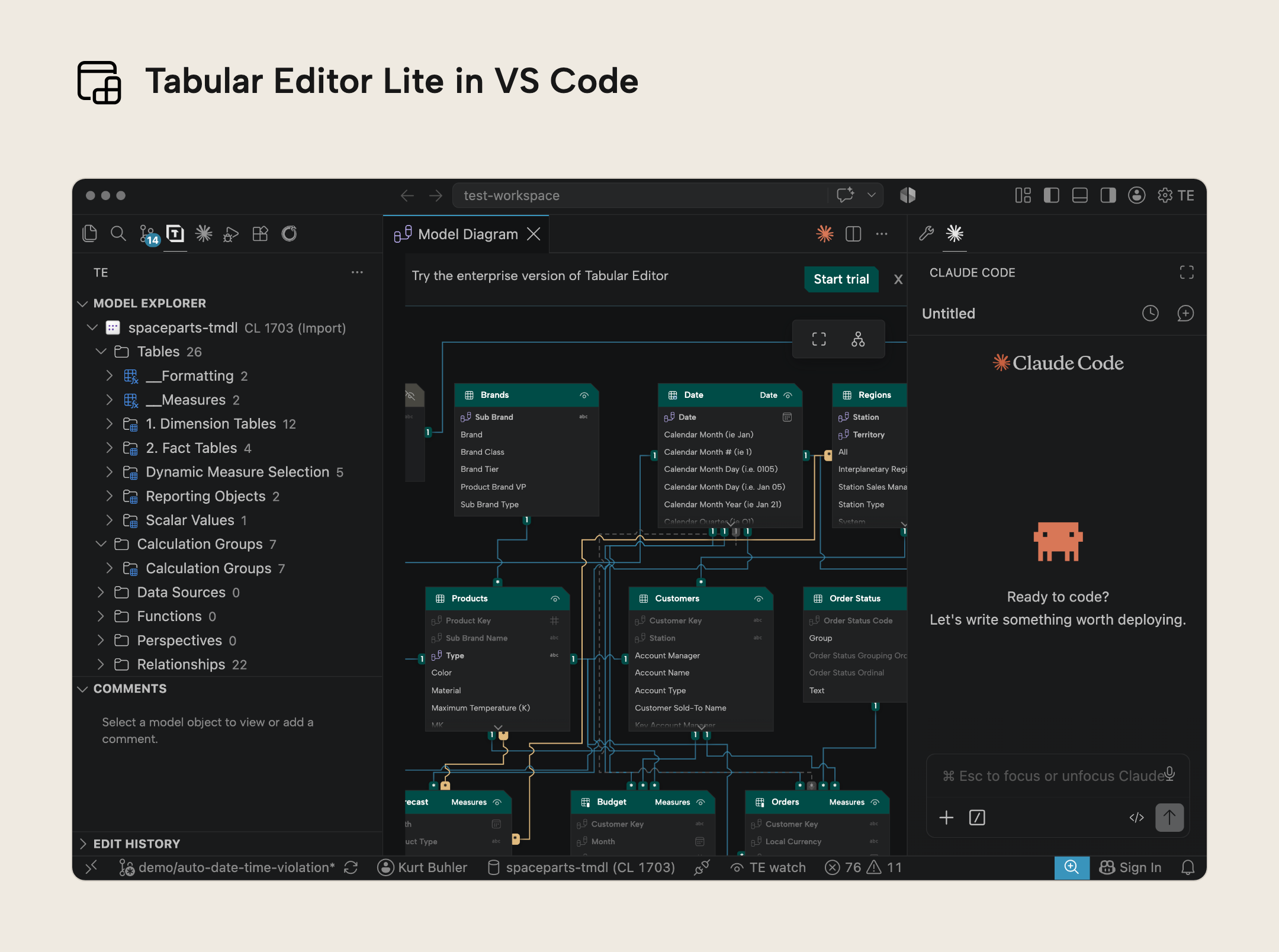
VS Code runs on all operating systems, and so does our extension. In addition to many of the features you already know from Tabular Editor 2 and 3, it includes many features that help you collaborate and work with agents.
Features of Tabular Editor Lite
Here’s a video that walks through the features of Tabular Editor Lite:
The features of Tabular Editor Lite
Tabular Editor Lite has many features that you’d expect from Tabular Editor in VS Code:
- A model explorer that lets you view, search, and manage everything in your model.
- A properties pane to view all properties – even those not available in Power BI Desktop.
- DAX and M editors that provide code assistance, formatting, and syntax highlighting.
- A best practice analyzer to let you automatically identify issues.
It also has some new extras:
- A revamped, modern user interface.
- A way to filter to changed objects and properties.
- A way to color tables for the UI.
There are also a few features that are specific to working with agents:
- An MCP server that lets the agent see what you’re doing in the UI.
- “Watch mode” that lets the UI update in real-time when you change the connected model (directly yourself, with an agent, etc.)
- The agent can also make changes to the in-memory model, so you can see and review those changes as if you made them, yourself before you write them to the metadata, Power BI Desktop, or Fabric.
- You can comment on model objects, which an agent can read (and even respond to).
- The agent can also organize the model diagram.
- An edit history tree exposes the chain of changes, which you would normally only navigate with undo / redo. This timeline lets you go through any past edits.
In this article, we go through some more details, introducing the extension and explain how you can get started using it. We'll continue improving it with your feedback; please let us know what you think.
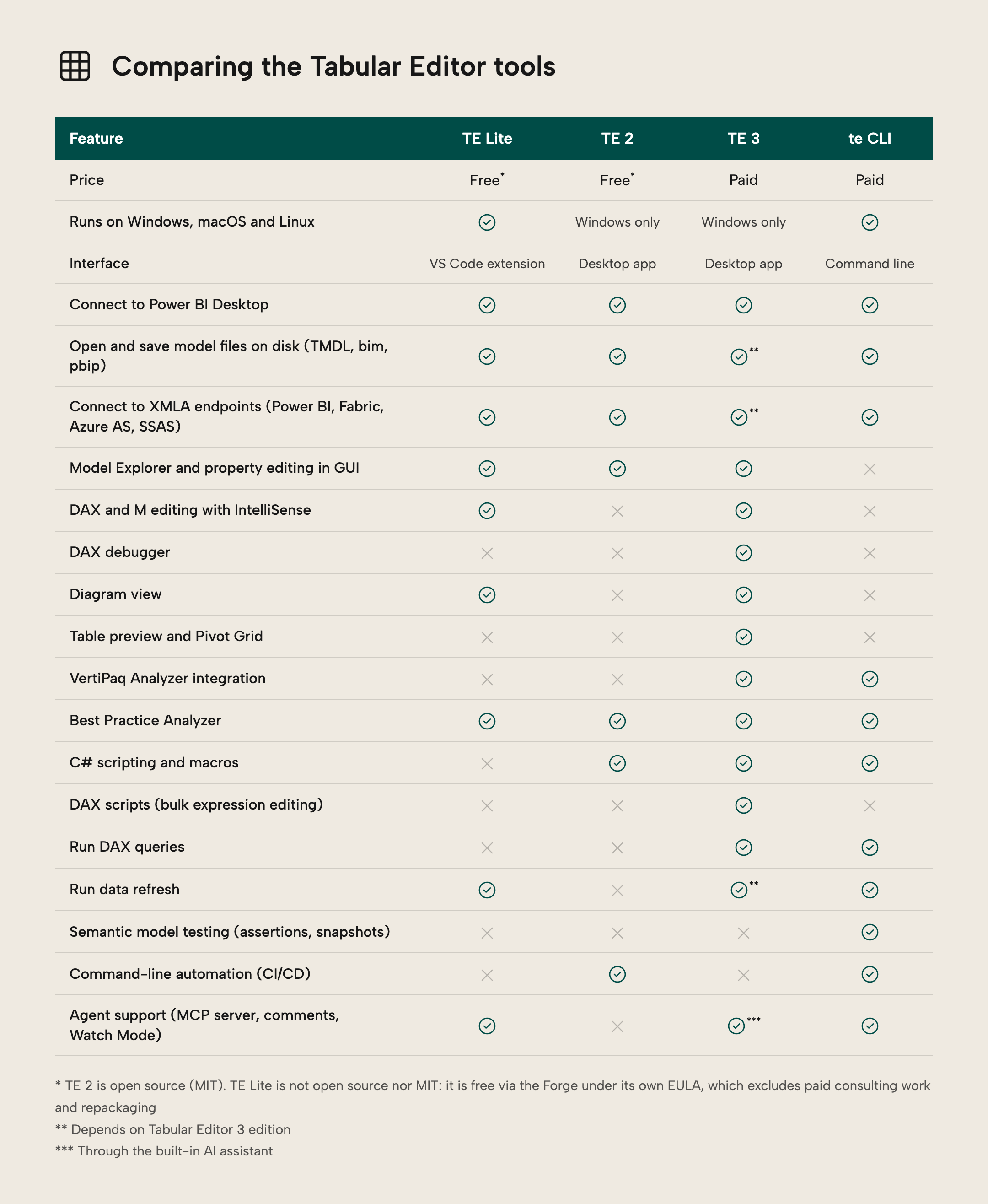
Here is how Tabular Editor Lite compares to the other Tabular Editor tools:
NOTE
We offer Tabular Editor Lite for free via our research arm, Tabular Editor Forge. Please see our End User License Agreement, and feel free to reach out to us if you have questions, comments, feedback, or requests.
The editor experience
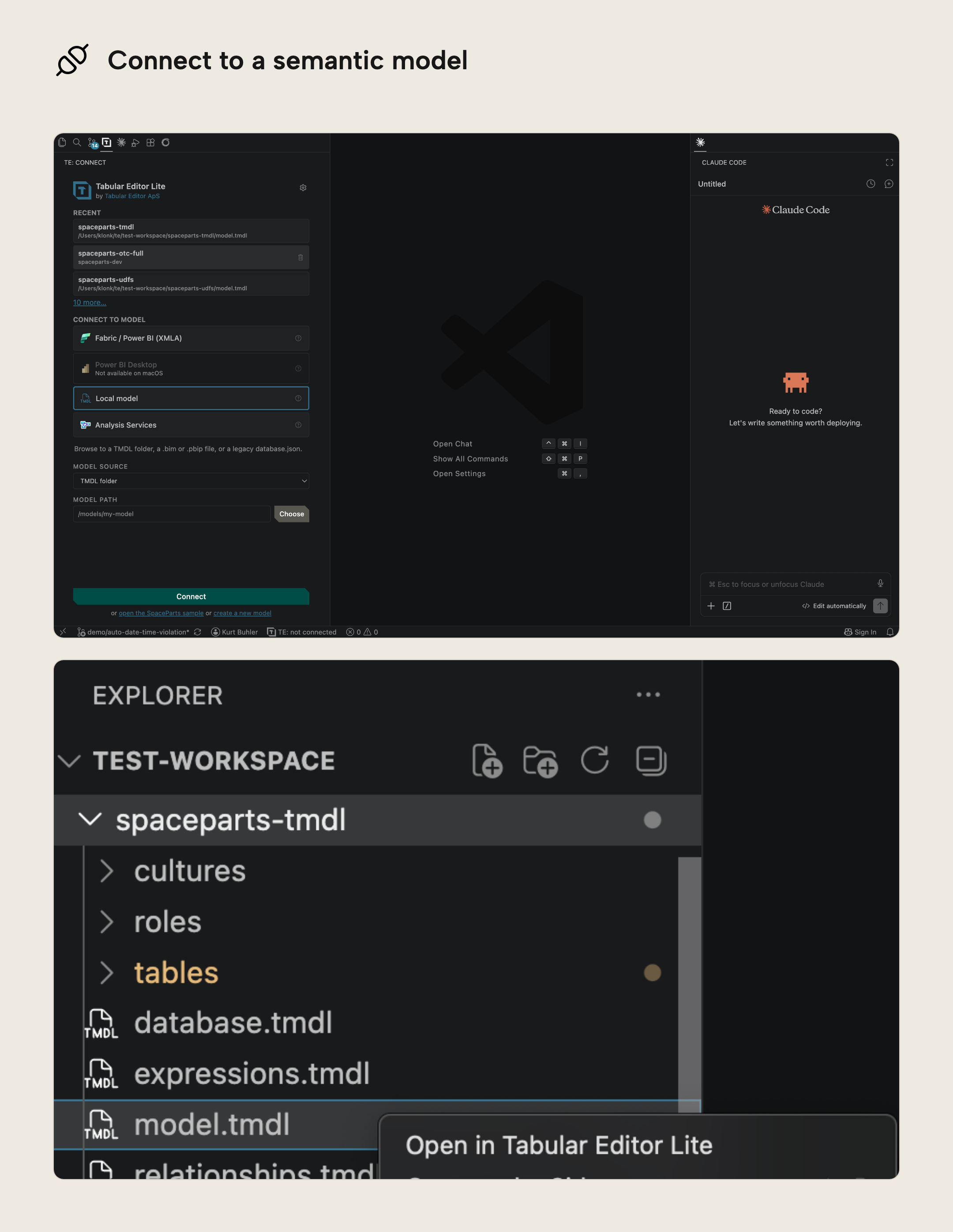
You can connect to your model wherever it lives: on disk (TMDL folder, model.bim or database.json or .pip project), live in Power BI Desktop (Windows only) or any XMLA endpoint (SSAS, Azure AS or Power BI / Fabric). Once connected, you'll see the familiar tree structure in the Model Explorer. Just like in Tabular Editor, you can select objects and the Properties Pane will show the detailed properties of those objects and let you edit them, multiple objects at a time.
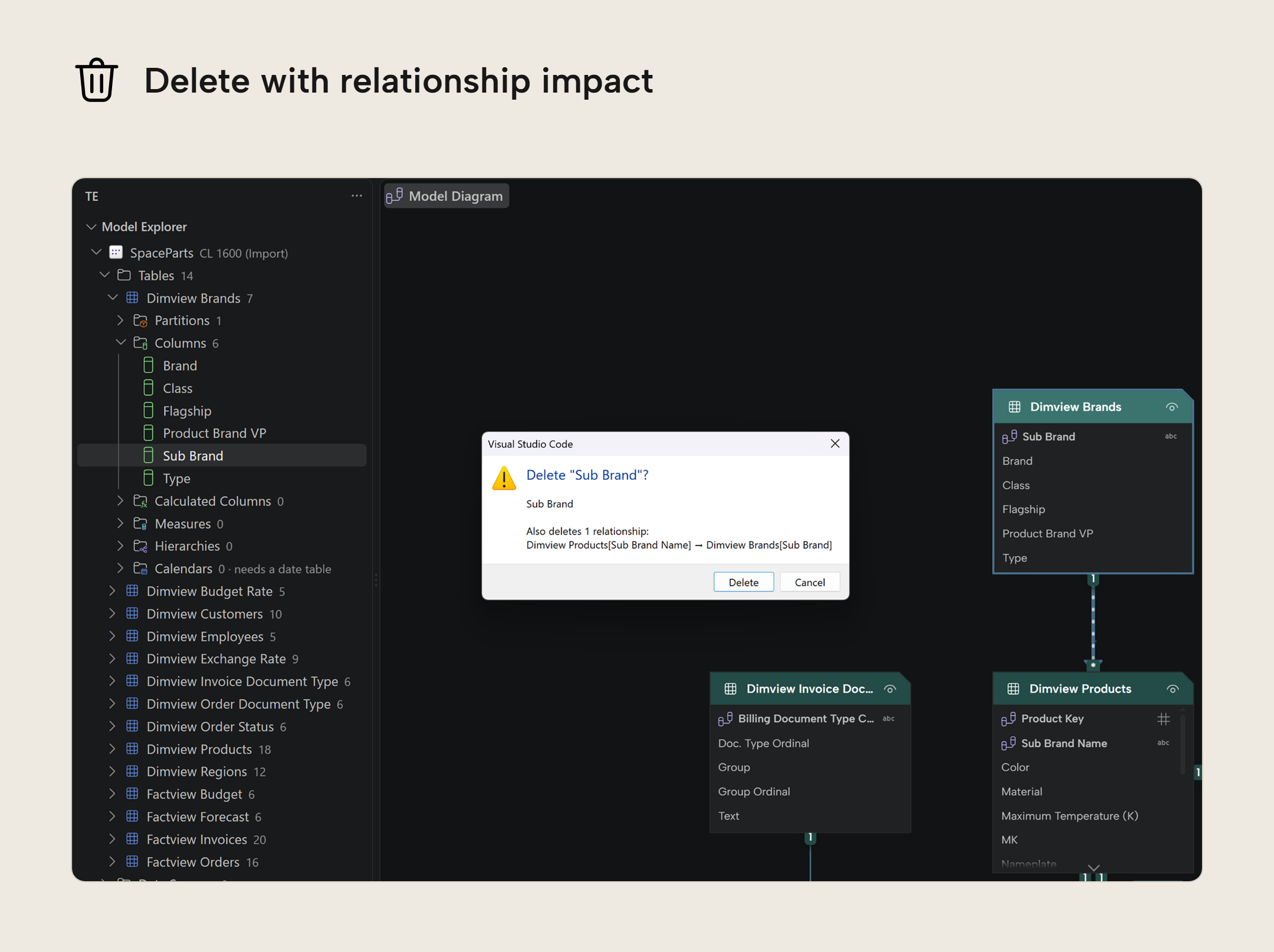
It's not just editing though; the full create-read-update-delete is supported by TE Lite. When you delete an object, a confirmation dialog first lists dependents that would be deleted along with it, like the relationships on a column you intend to delete. You can then confirm or back out. There is interoperability between TE2, TE3 and the extension; you can copy/cut/paste objects across their sessions.
Selecting an object that has an expression (a measure, calculated column, calculation item, M partition, etc.) opens that expression in a new tab; the same linked-editor behavior as in Tabular Editor. Coding support is there in the form of code assistance, code formatting, per-function links to documentation (dax.guide for DAX and PQM.guide for M). SQL and TMDL editors are also bundled in, where you can leverage the default features of VS Code or other supporting extensions:
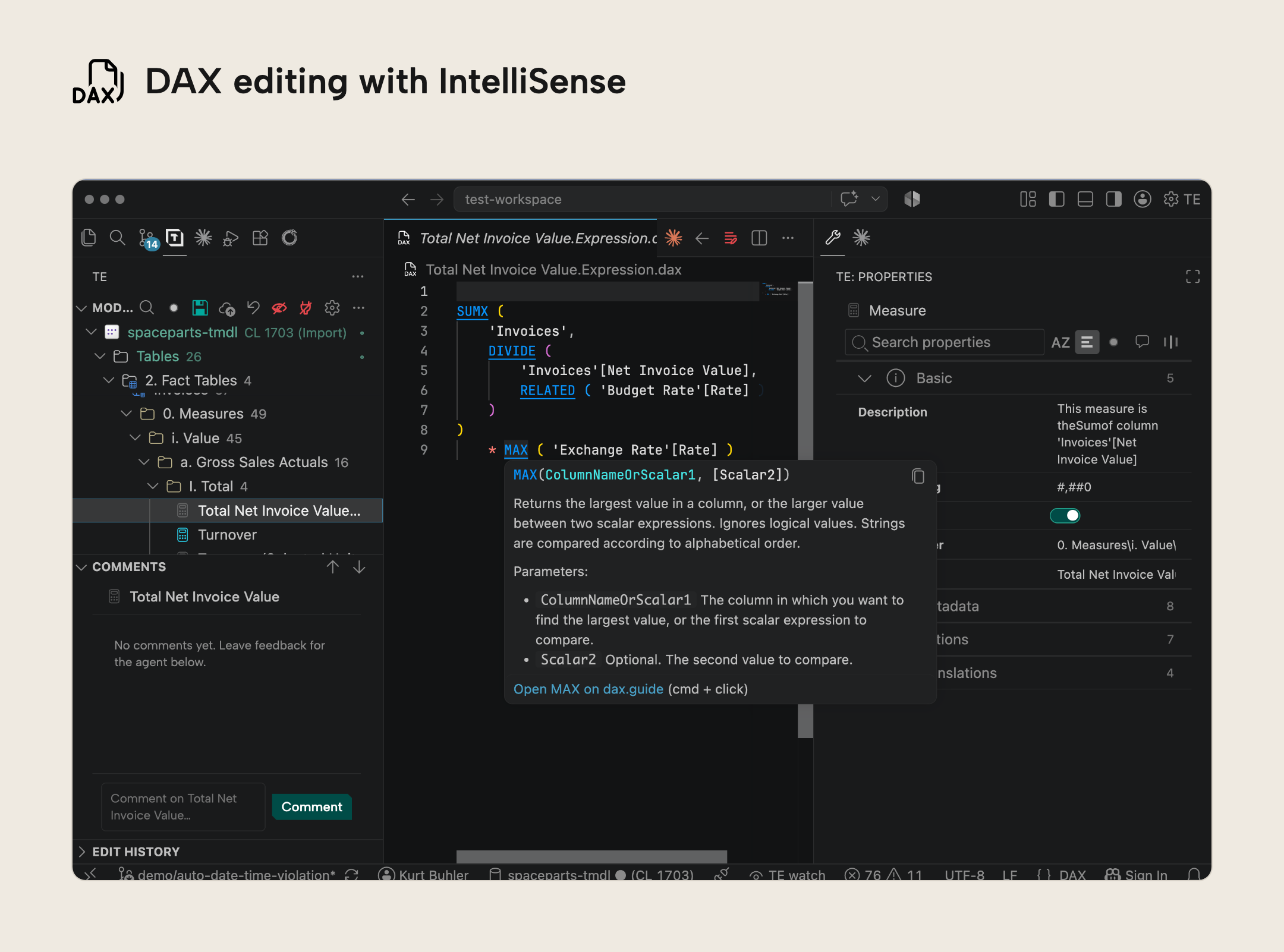
This is the core loop of model development, in a new graphical user interface, with search and per-object unsaved change markers so it's easier to keep track of what changed since the last save. You can filter the Model Explorer to only show changed objects, or objects that have a comment thread (more on comments below).
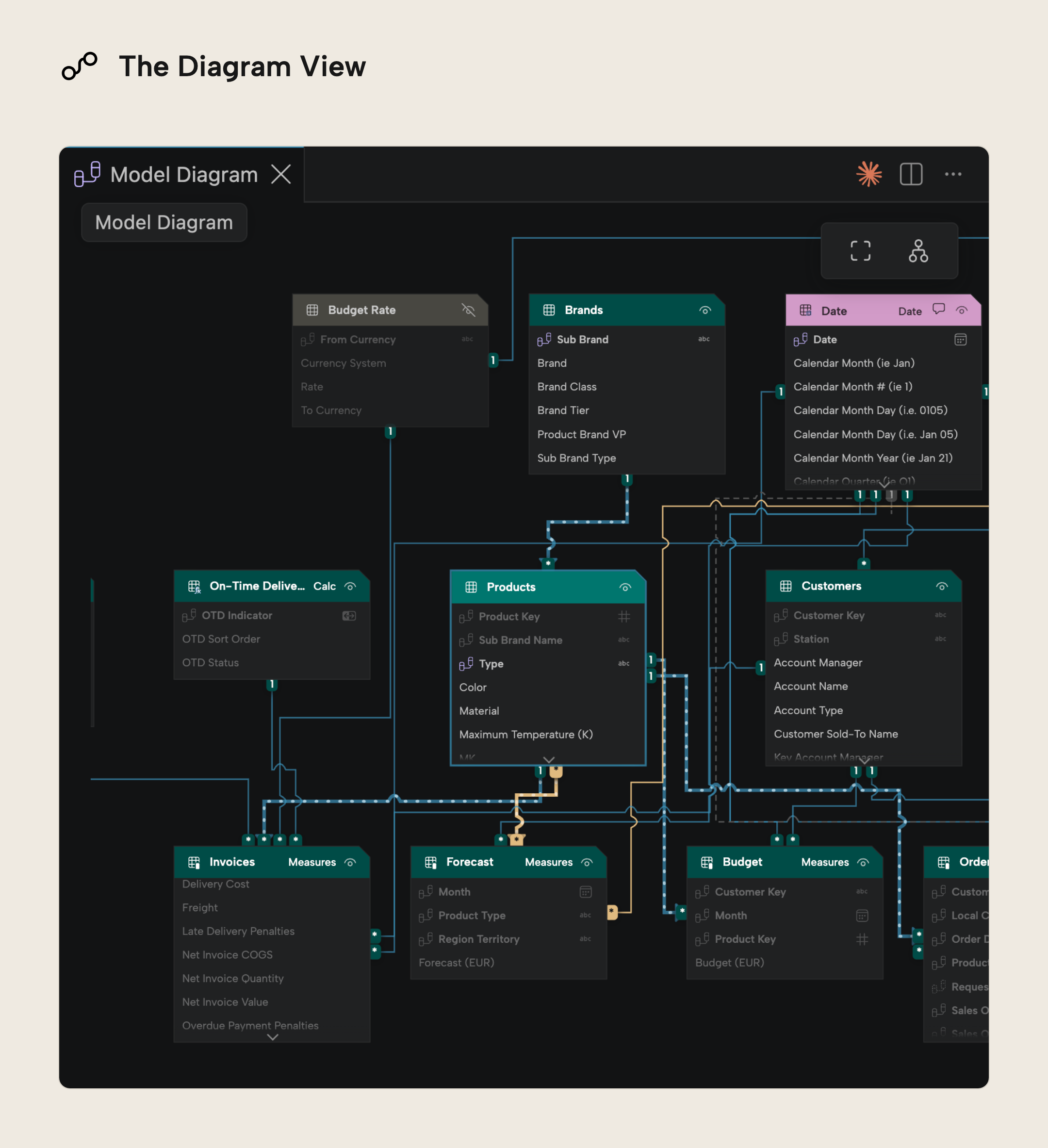
In the Diagram View, you can see and edit the relationships between the tables in your model, laid out on a canvas. The table positions can be re-arranged by dragging or auto-arranged with a button. Many-to-many relationships deserve your attention, so these are highlighted by default, and we also show the data types of related columns. You can color tables to mark them. The color is stored on the model itself and shows in the Model Explorer too. The diagram layout (the table positions) can be saved as .te3diag files, the same format TE3 uses. Note, however that TE3 doesn’t support the same interface or coloring of tables:
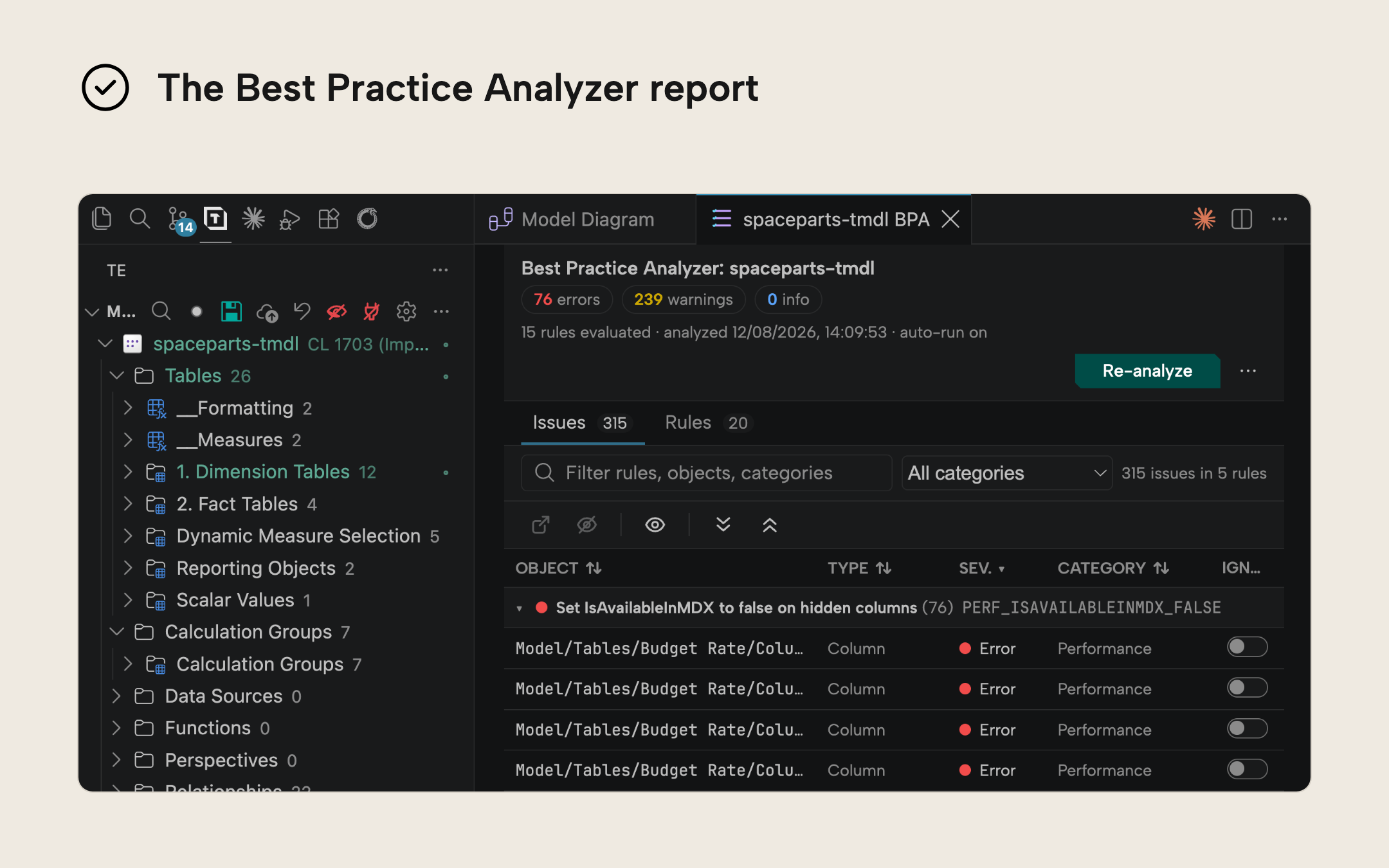
Best Practice Analyzer (BPA) is here too, running on demand or automatically as you edit. In the Model Explorer, objects with violations can be marked as such. The BPA report lists all violating objects by rule and lets you load rule sets from file or URL with the option to edit the JSON directly. Existing TE2 and TE3 rule collections work as-is and model-scoped rules are supported.
The BPA comes with a set of basic rules, but you can also add your own like you do in TE2 or TE3:
Agent sidekicks
Maybe you've been using AI coding agents such as Claude Code, Codex and GitHub Copilot. The speed with which they can move makes them hard to follow or understand, and that's exactly what you want to avoid when building semantic models; you need to understand the model's current state, its previous state, and desired future state. If you don't understand the model, you can't trust it, and neither can anyone consuming data from it.
Tabular Editor Lite gives you transparency in what is happening through different means:
- Watch Mode. External changes made to models show up without reconnecting or reloading, whether it’s a model on disk (watched directly) or a live connection (polled). If your changes would collide with those external changes, Watch Mode will warn and ask you how to handle the conflict. Alternatively, the agent can make these changes directly to the in-memory session in Tabular Editor Lite, so you can see and review the changes in the editor UI.
- Edit History. Every change is a record in the undo/redo history, shown as a timeline. You can roll back to any point, and forward again.
- Comments. You, your colleagues and the agent can leave comments anchored to model objects. These comments are stored as threads in annotations of the model, so they travel along with it. The agent treats your threads as instructions; it acts on them and answers on the thread when it's done. Only you can resolve or delete threads.
- Agent context awareness. If the
aiContextoption is enabled, an MCP server gives your agent context so it can see what you have selected, down to the highlighted part of a DAX or M expression, and reveal things for you. It can also reload the editor, save changes (connect, disconnect and save ask you first) and rearrange the diagram, and it sets itself up for the agents it detects in your workspace. An example use case could be to highlight the part of a DAX expression you don’t understand and ask your agent “what does this do?”. Or select a few tables and ask to “merge these and move their measures to the measures table”. The connected agent will have full context of what you’re looking at without you having to name or copy+paste anything.
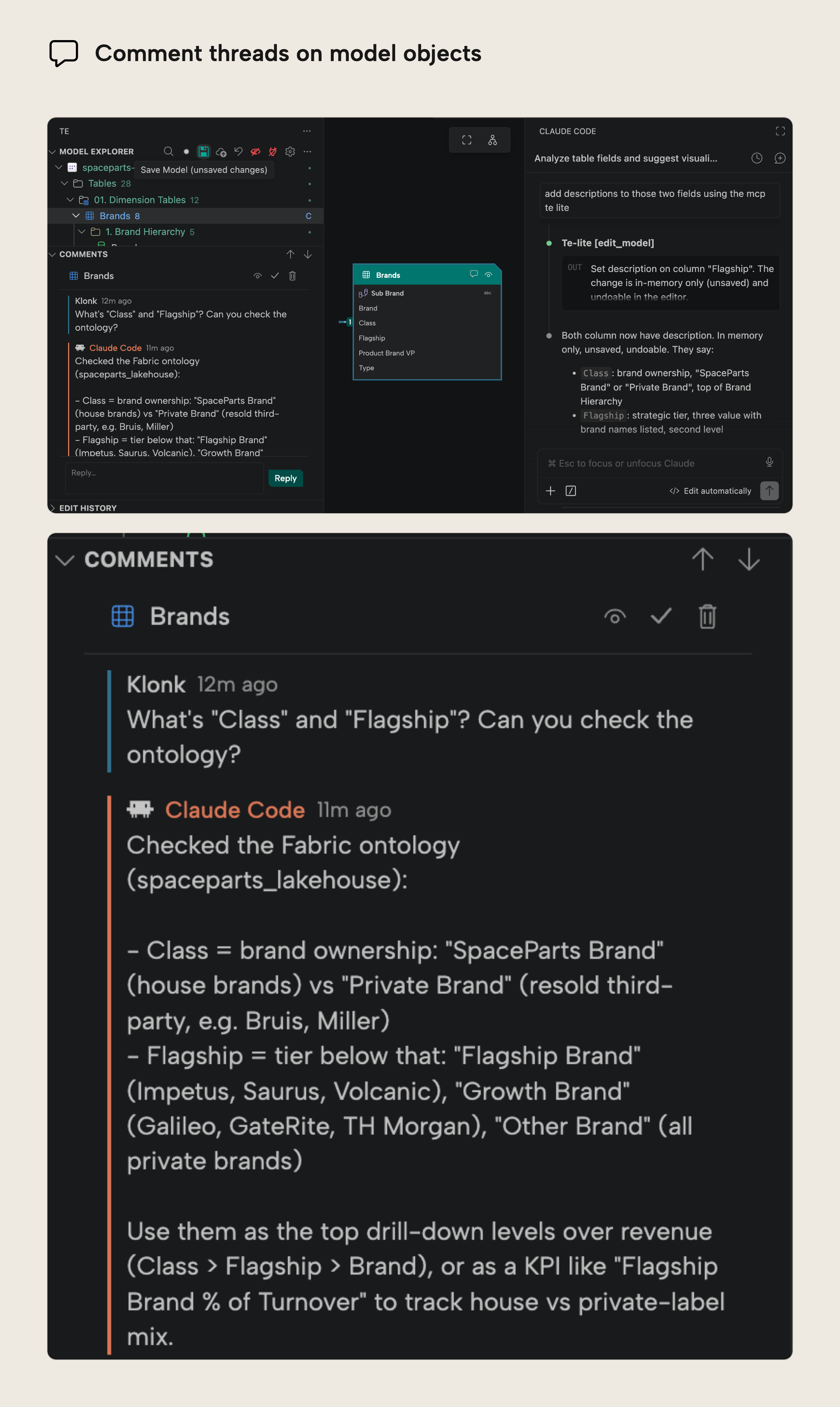
These features work together: you leave comments as prioritized instructions so the agent can edit through TE Lite or the TE CLI. If you edit the model externally, then watch mode auto-reloads the editor, and the agent answers back on the comment thread.
Further Reading
- How to get value from the TE CLI (Tabular Editor Blog). Our hands-on blog to understand the te-cli, which you can use for programmatic model changes, agentic development, or CI/CD.
- GitHub Discussion (GitHub). Let us know here if you have any issues, feedback, or requests.
- The Tabular Editor Forge (Tabular Editor). Our research arm, where we share experimental software like Tabular Editor Lite as free downloads.
Conclusion
Tabular Editor Lite brings the core semantic model development loop to VS Code, with native agent support, for free. You can try it out by installing it from the marketplace and connecting to a model (or just use the built-in sample model). This is the v1 release we'll continue to improve with your feedback.
Take your semantic models further with Tabular Editor.
Give Tabular Editor a spin