Key takeaways
- CI/CD is finally practical for Analysis Services Tabular models: The continuous-integration and delivery practices web developers adopted years ago now work for BI, if you invest a little time in learning the concepts.
- The toolchain is Azure DevOps, Git, and Tabular Editor: Azure DevOps hosts the pipelines and free Git repositories, and Tabular Editor makes a Tabular model source-controllable and deployable from the command line.
- Standard tooling makes parallel work painful: Visual Studio and SSDT store the model as one timestamped metadata file that causes merge conflicts and offers no command-line deployment, which is exactly what this series sets out to fix.
This summary is produced by the author, and not by AI.
Preface
This is part 1 of a blog series on Analysis Services DevOps using Tabular Editor.
Almost 10 years ago, now Microsoft Regional Director and MVP, Troy Hunt wrote a groundbreaking blog series titled “You’re deploying it wrong!”, that brought the concepts of continuous integration and continuous delivery to an audience of web application developers – most of whom had previously relied on spurious scripts and manual deployment processes, which often ended up with bad gut feelings and late working hours. In the blog series, Troy ultimately shows how to set up continuous integration and delivery (CI/CD) for an ASP.NET web application using MSDEPLOY and JetBrains TeamCity – a freemium CI/CD server.
In my experience, many Microsoft BI teams struggle with many of the same development and deployment headaches today, that web application developers used to face, before Troy Hunt: Conflicts when developing in parallel, manually executing database scripts, hotfixing the production cube when processing fails because of missing credentials, forgetting to remove a TOP 1000 row limit clause from a partition query, etc. Well, the tooling has improved a lot since then, and if you’re willing to invest some time in learning the necessary concepts, nothing prevents your team from also achieving the holy grail of continuous integration and delivery of your BI solutions.
In this series, we’re going to explore how we can achieve this specifically for Analysis Services Tabular models, but many of the principles shown here, can be extended to other areas of your BI stack as well: ETL, DWH, Power BI reports, etc.
CI/CD with Azure DevOps, Git, and Tabular Editor
The term “DevOps” is an umbrella term that covers many disciplines: Source control, backlog/project management, CI/CD, documentation, etc. Since Analysis Services is a Microsoft technology, it is natural that we focus on Azure DevOps (formerly known as Visual Studio Team Services or Visual Studio Online) as our CI/CD tool. Newer versions of TFS should support the same functionality that is shown in this blog. If you don’t already have an Azure DevOps (or TFS) account, hurry over to dev.azure.com and create an account now. It’s completely free for teams of up to 5 developers! You may not want to use all the functionality of Azure DevOps, but that is also completely fine – for this blog series, we’re mainly going to focus on the “Pipelines” area, which is where most of the magic of CI/CD happens within Azure DevOps.
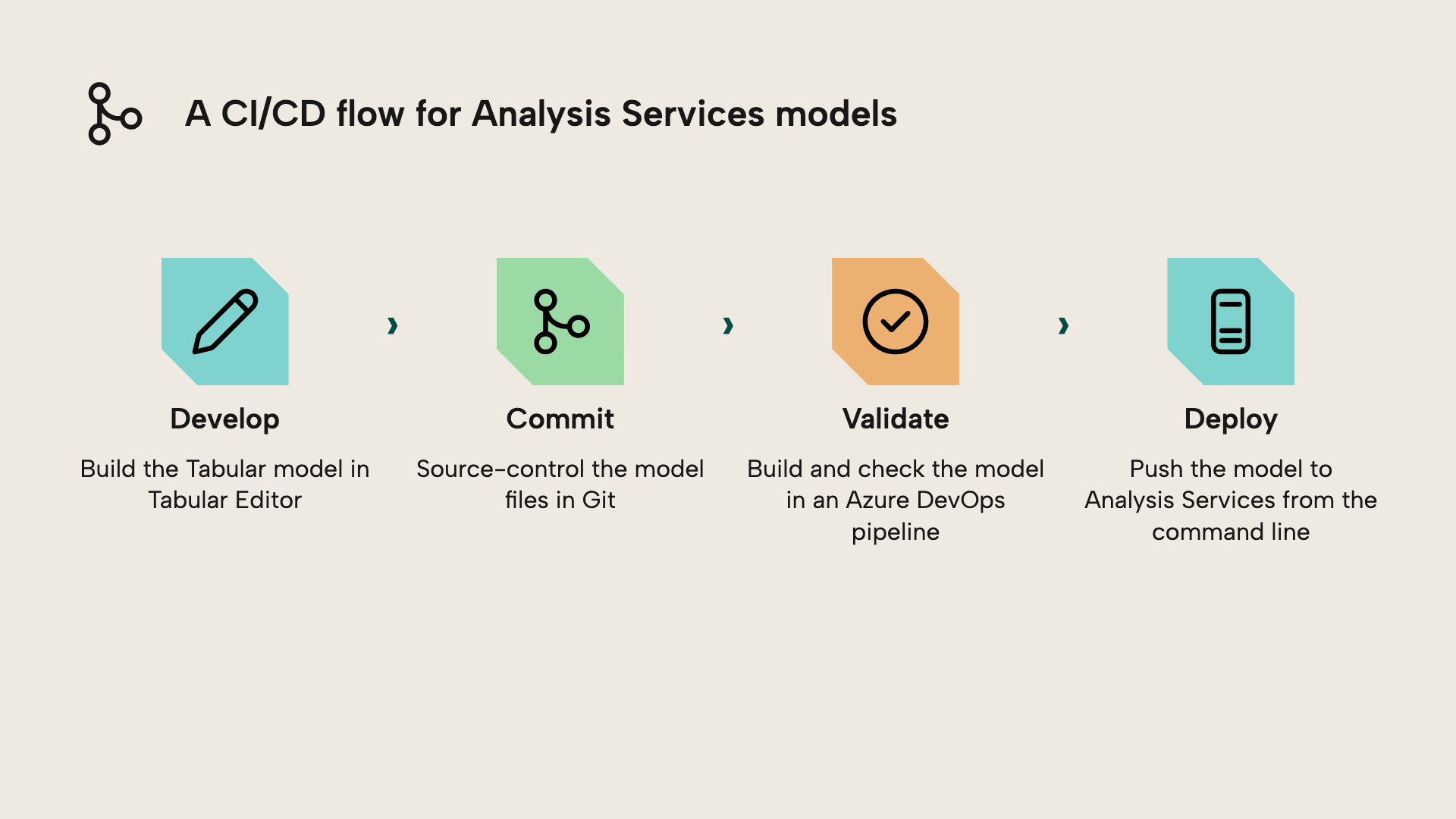
The next thing we need, is a source control environment for storing our BI solutions code. I recommend using Git, since this is the default option in Azure DevOps, and you can host as many free Git repositories as you need. Also, Git has certain advantages compared to Subversion and TFVC that we’ll touch upon later on, especially when considering Tabular Models. If you already have an existing Git, TFVC or Subversion repository, there are some options available to connect and use existing repositories within Azure DevOps.
For actually working with Git in your daily life, you’re going to need a local installation of Git. If you already have Visual Studio installed, a Git installation should already be present under
C:\Program Files (x86)\Microsoft Visual Studio\2017\Enterprise\Common7\IDE\CommonExtensions\Microsoft\TeamFoundation\Team Explorer\Git\mingw32\bin – you may want to add that to your PATH environment variable. If you’re a Git newcomer like me, Visual Studio actually has a very decent Git UI, that we’ll be using for most parts of this blog series, but nothing prevents you from using the Git command line, or other Git tools such as TortoiseGit. Moreover, now would be a good time to read up on some Git fundamentals, if you’re completely new to Git.
Finally, you’re going to need Tabular Editor 3, for a couple of reasons:
- The standard tooling (Visual Studio/SSDT), stores all the Tabular model metadata within a single file which has been “enriched” with various timestamps that are updated whenever changes are made, meaning merge conflicts are inevitable, when work is done in parallel.
- Applying minor model changes through a command line requires intricate knowledge of the Tabular Object Model AMO library, which needs to be invoked through PowerShell or a custom C# library. There are no command line options available using only the standard tooling.
- You may want to check the DWH schema against the tables imported in the Tabular Model for consistency before deployment, just like you may also want to validate that your model doesn't contain any errors or violate any Best Practices.
- You’ll need a way to easily deploy a model from the command line.
- You’ll want to develop Tabular models like a pro
For further reading
- You're Deploying it Wrong! - AS Edition (Part 2) (Tabular Editor). The next part, if you want to keep going after this one.
- Tabular Editor CLI documentation (Tabular Editor). The TE3 CLI docs, for the command that actually does the deploying.
- Service Principal access to dedicated capacity XMLA endpoint (Tabular Editor). How to set up unattended auth so a pipeline can deploy with nobody logged in.
- Tabular model solution deployment (Microsoft). Microsoft's rundown of the deployment options: TMSL, XMLA, TOM and the Deployment Utility.
In conclusion
The headaches that BI teams still face when deploying Analysis Services models are the same ones web developers solved years ago with continuous integration and delivery. The tooling to fix them now exists: Azure DevOps for pipelines and Git hosting, and Tabular Editor to make a model source-controllable and deployable from the command line. With the groundwork from this part in place, the rest of the series puts these pieces together into a working pipeline.
Put Analysis Services model changes under reviewable Tabular Editor 3 workflows.
Give Tabular Editor a spin