Key takeaways
- Validate relationships before you rely on them: Bad relationships cause RI violations, wrong query results, or slow queries, so check them before building measures and security on top.
- RI violations aren't always errors: A missing key on the "from" side can reflect a real business truth, like delivered-but-not-billed, so judge each one in context.
- You have several tools for it: Validate with Power BI Desktop visuals or DAX queries, with Tabular Editor's VertiPaq Analyzer, BPA, and C# scripts, or with Semantic Link in Fabric notebooks.
- Re-validate as the model grows: Relationships need rechecking once you add DAX measures and RLS/OLS, and it's worth doing as part of automated testing.
This summary is produced by the author, and not by AI.
Introduction
Test that your relationships are set up and work as you expect in your semantic model.
In this series, we provide tips for how to effectively build a semantic model. In the previous article, we described how you create relationships in semantic model. Relationships are one of the most important parts of a semantic model, as they’re the foundation of your business logic.
In this article, we describe how you can validate the relationships in your semantic model to ensure that they’re set up correctly. Validating your relationships helps ensure that you don’t have unexpected results or performance issues in your reports.
NOTE
There are many equally valid ways to build a semantic model that fits your data needs. This series presents one approach, sharing tips and good practices from our experience.
- Semantic models in simple terms: what is a semantic model?
- Gather requirements for a semantic model.
- Prepare your data for a semantic model.
- Connect to and transform data for a semantic model.
- Create semantic model relationships.
- Validate semantic model relationships (this article).
How to validate relationships
Once you create a relationship, you should test that it works as you expect. This is particularly important when you use atypical properties in the relationship or if you are using the relationship in uncommon scenarios. An example of an uncommon scenario might be inactive relationships with a role-playing dimension, or relationships with a many-to-many cardinality. Once you create your relationships and process your model, you’re ready to validate these new relationships.
NOTE
If you’re developing your semantic model in Tabular Editor by using workspace mode, you need to perform a calculate refresh of your model to process the relationship before it can be validated and used. That’s because the relationship is an in-memory object that takes up space in your model, and is calculated at process time. Tabular Editor will warn you if you have any objects that require calculation in your model.
The following diagram depicts examples of issues you encounter with relationships.
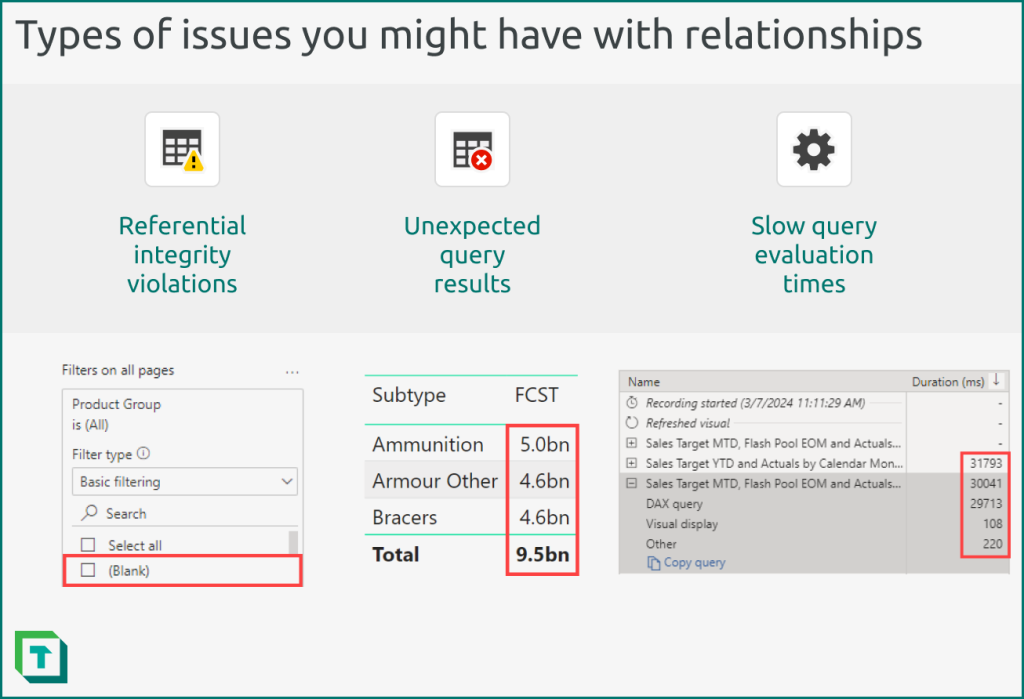
When you validate a relationship, you should look for the following:\
- Referential integrity (RI) violations: Missing values on the “from” side (typically the dimension table) which are present on the “to” side (typically the fact table). The most common issue caused by RI violations in a semantic model is that (Blank) values will appear in Power BI reports, which confuse users and reflect poor data quality. RI violations are also commonly thought to cause performance issues in a semantic model, although there’s no concrete, consistent evidence of this; it depends upon your data and your semantic model.
- Unexpected query results: Relationships that aren’t properly configured might produce results that differ from your expected baselines. This is more likely when you use atypical properties for your relationships. Testing these atypical relationships is particularly important so that you’re sure that these specific relationships don’t negatively impact the perceived quality of your models. To identify these issues, you typically use report visuals or DAX queries.
- Slow query evaluation times: High cardinality relationships can sometimes result in performance issues. You may need to validate these relationships to see if you need to reshape your data or change your model design. To identify these issues, you can use the performance analyser in Power BI Desktop or DAX Studio.
NOTE
You’ll need to validate relationships again once you create DAX measures and row-level security (RLS) or object-level security (OLS) for your model, since both of these objects often rely upon relationships to function properly. You can also validate relationships as part of regular, automated testing to check the quality of your model and data.
You can validate relationships by using Power BI Desktop, Tabular Editor, or Microsoft Fabric (Semantic Link in Notebooks).
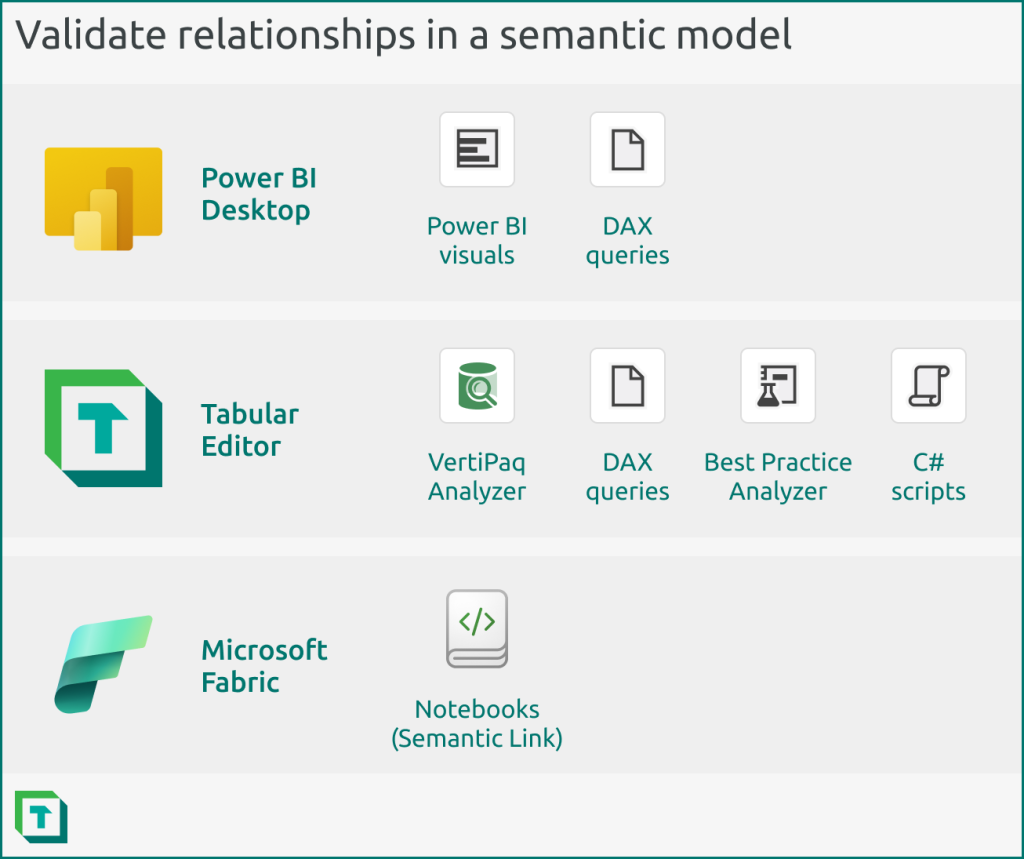
Generally, your choice of tool depends upon your preferred workflow and needs.
- Power BI Desktop: You can validate your relationship by using the visual canvas or DAX queries in Power BI Desktop. You should use Power BI Desktop to validate your relationships if it’s the main tool that you use to build your semantic model.
- Tabular Editor: You can validate your relationship by using the VertiPaq Analyzer or DAX queries in Tabular Editor. You can automate this validation by using certain Best Practice Analyzer rules and C# scripts. You should use Tabular Editor to validate relationships when you are using Tabular Editor as an external tool for Power BI Desktop, or if it’s the main tool you use to build your semantic model. You should also use Tabular Editor to validate your relationships when you need automation, or in more complex scenarios and models.
- Notebooks: You can validate your relationship by using various features of Semantic Link in notebooks in Microsoft Fabric. Semantic link is unique because it has several built-in functions to analyse and visualize relationships. You can also schedule this notebook validation. However, you can’t (currently) write back to your model, so this analysis is read-only and an extra step external to the model development, itself. It also only works if your model is published to a workspace in a Fabric capacity; you can’t analyse local models open in Power BI Desktop, or model metadata files that aren’t uploaded to a Fabric capacity. You should use notebooks to validate relationships when you are comfortable with working in Python and using notebooks, or you’ll be using your semantic model (and its data or logic) for downstream consumption/analysis in notebooks and ML models.
The following sections describe examples of how you can use each of these tools to validate relationships, with particular focus upon identifying and resolving RI violations.
How to identify relationship RI violations
RI violations are straightforward to objectively identify, while unexpected or slow queries require a baseline or context to test. That’s why in this article, we’ll focus on how you can identify RI violations by finding invalid rows and missing keys.
The following diagram depicts an example of RI violation in a one-to-many relationship between a customer dimension table and a sales fact table.
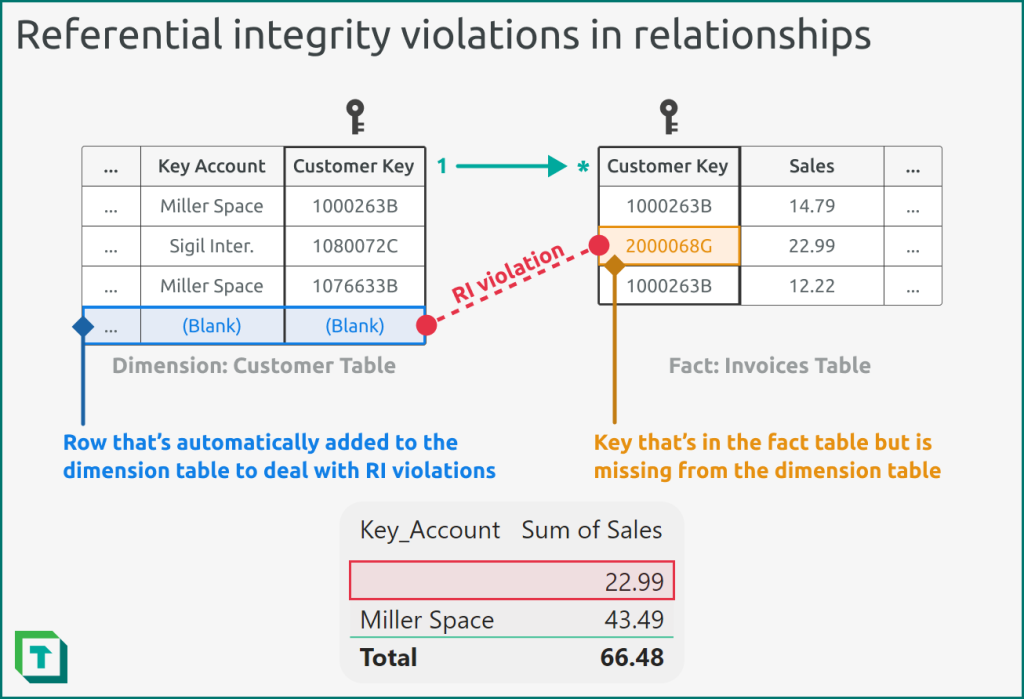
To identify these RI violations, you can take various approaches and use various tools. To reiterate, the choice of tool depends upon your preference and workflow. What’s most important is that you can identify and resolve the RI violations, where possible.
NOTE
If you set up a Power BI visual to count invalid rows of a relationship (or to list the invalid members), you can link these to a data alert in Power BI or a Reflex in Data Activator. This can automatically notify you when new issues arise during the lifecycle of your semantic model. If you want to visualize relationships in Power BI Desktop, just use the model view. Power BI Desktop automatically saves any new layouts you make.
Validate a relationship by using Tabular Editor
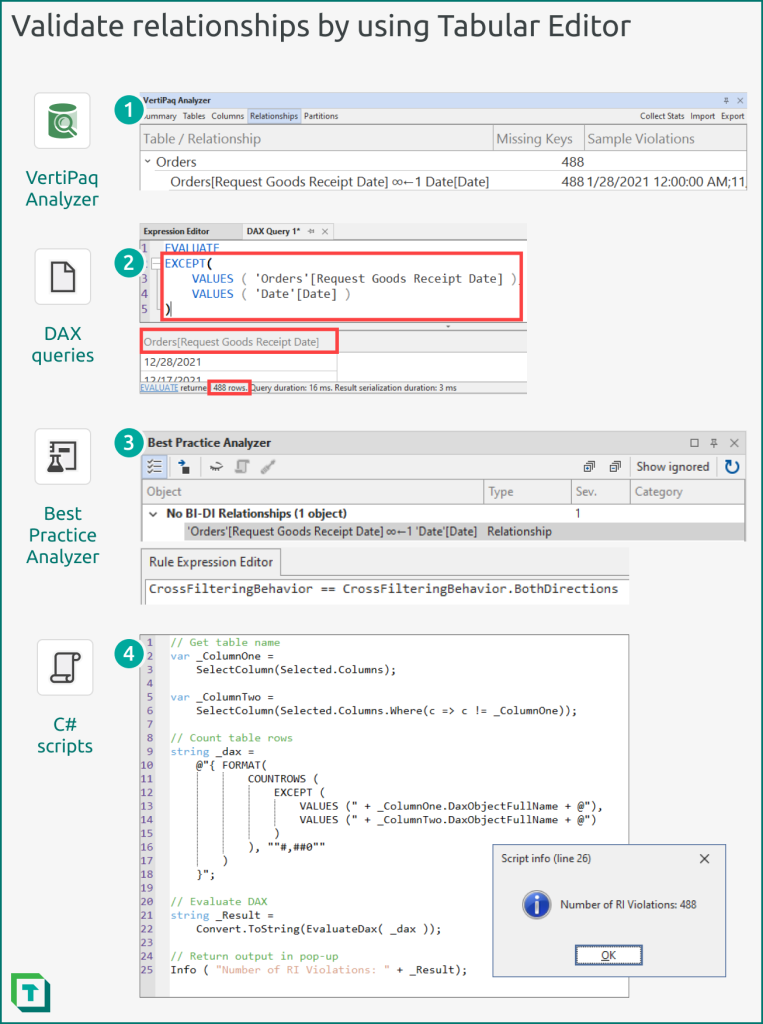
You can validate relationships by using Tabular Editor in four ways:
- VertiPaq Analyzer: The VertiPaq Analyzer is a helpful tool that will identify and raise any RI violations found in your model. It will provide supplemental information about the violating relationships, and also sample values of the keys that are missing. You can change how many samples are shown from the preferences menu of Tabular Editor. The .vpax results can also be saved as documentation, for later reference.
- DAX Queries: You can use DAX queries identically as you would in Power BI Desktop. In Tabular Editor, you can also save these DAX queries to re-use in other models or to automate in C# scripts.
- Best Practice Analyzer (BPA): You can define rules in the BPA which identify potential issues with relationships. Custom rules that you define with C# can perform more complicated steps, though the BPA can’t query the model to identify RI violations. Instead, you can use automated C# scripts to flag RI violations and save them as annotations in your relationships, which the BPA can flag as an issue.
- C# Scripts: C# Scripts can automate the detection of problematic relationships or RI violations. They can execute DAX queries, but also use functions that retrieve VertiPaq statistics or other metadata to inform downstream steps that can immediately correct these issues or flag the relationship for later investigation and validation (once the source data is corrected).
TIP
You can programmatically validate relationships (and other parts of your semantic model) for any of these methods by using the Tabular Editor CLI. Then, you can use this CLI in Azure Pipelines as part of your CI/CD process to automate testing of your semantic model during its lifecycle. If you want to visualize relationships in Tabular Editor, create a new model diagram, and add the tables with the relationships you want to see. You can save and re-use these diagrams in your documentation.
NOTE
You can also use DAX Studio to use the VertiPaq Analyzer and execute DAX Queries.
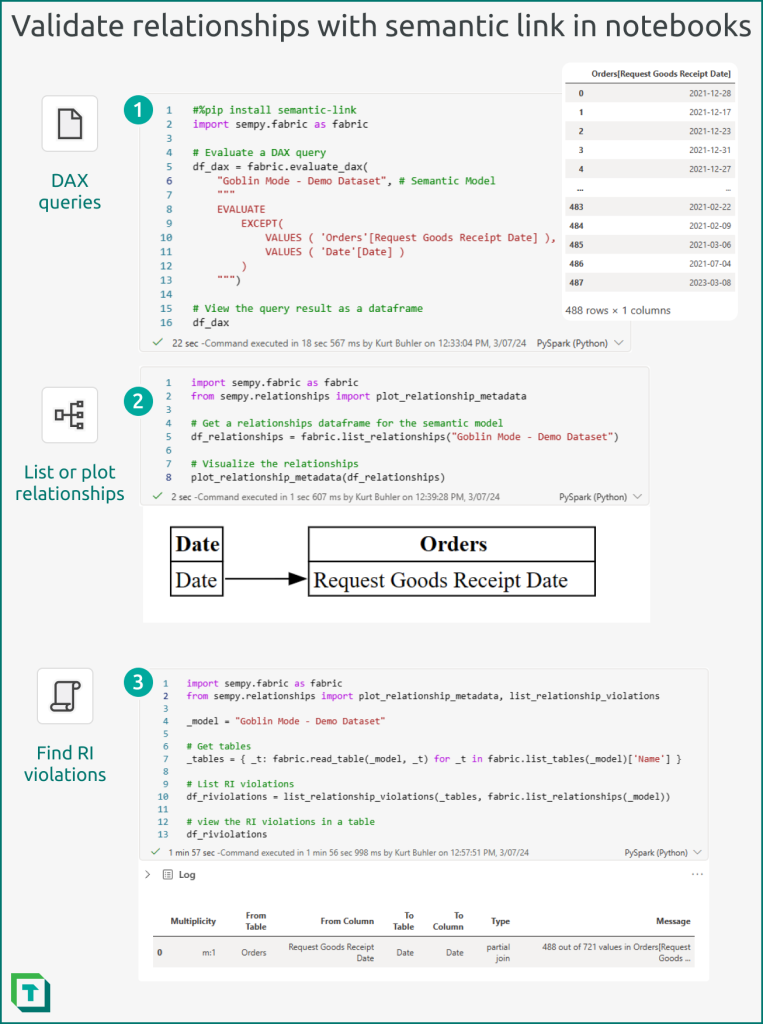
Validate a relationship by using Semantic Link in Fabric Notebooks
TIP
In notebooks, you can also use the fabric_cat_tools library from Michael Kovalsky, which allows you to programmatically analyze semantic models using both the VertiPaq Analyzer and BPA. See this example notebook from Microsoft for a demonstration of how to use Semantic Link to view and validate relationships in a notebook. In Fabric Notebooks, you can use Semantic Link to connect to a published semantic model and interact with it programmatically by using Python.
- DAX Queries: You can execute DAX Queries within notebooks, taking a similar approach as you would by using Power BI Desktop or Tabular Editor DAX queries.
- Visualize relationships: You can create a model-like view of specific relationships (from a relationships DataFrame obtained by list_relationships) by using the plot_relationship_metadata function.
- SemPy relationships: You can retrieve and validate relationships by using the SemPy library. There are different functions that you can use, depending upon your needs:
- list_relationships: Returns the existing relationships in a relationships DataFrame.
- find_relationships: Attempts to find potential relationships in a relationships DataFrame with better performance than the autodetection of Power BI Desktop. Note that you can’t yet write these discovered potential relationships back to the model from the notebook.
- list_relationship_violations: Returns a DataFrame with a summary of all the RI violations from a relationships DataFrame (either of physical relationships in the model found with list_relationships, or potential relationships discovered by find_relationships).
You can scale and schedule notebooks so that they run these validations and analyses over multiple semantic models. This can be helpful to automatically detect data quality issues in deployed models caused by issues with the underlying source data. Conditional logic in scheduled notebooks can also trigger downstream actions or updates in response to invalid relationships, such as modifying a table or triggering another tool to notify a data steward.
TIP
In notebooks, you can read data by using Spark in not just Python, but also SQL, R, and Scala.
WARNING
Using a notebook will consume Fabric capacity units (CUs). Ensure that you take the appropriate steps to optimize your notebook schedules and the duration of your compute sessions to avoid unnecessary cost.
For further reading
- Create semantic model relationships (Tabular Editor). The previous article, where you create the relationships you're validating here.
- The blank row in DAX (SQLBI). Why DAX adds a blank row for RI violations, and how that surprises you in reports.
- Semantic link overview (Microsoft Learn). The Semantic Link library behind the notebook validation approach.
In conclusion
It’s essential that you validate relationships both after you create and process them, as well as once you’ve finished developing your DAX and RLS/OLS. Typically, you want to identify common issues like RI violations (missing keys) or more subtle issues in performance or query results. You can test your relationships by using Power BI Desktop, Tabular Editor, and notebooks in Fabric. What’s most important is that you do these tests and ensure that your relationships behave as you expect before you introduce additional logic on top of them in your model.

Check relationship logic in Tabular Editor 3 before reports depend on it.
Give Tabular Editor a spin