Key Takeaways
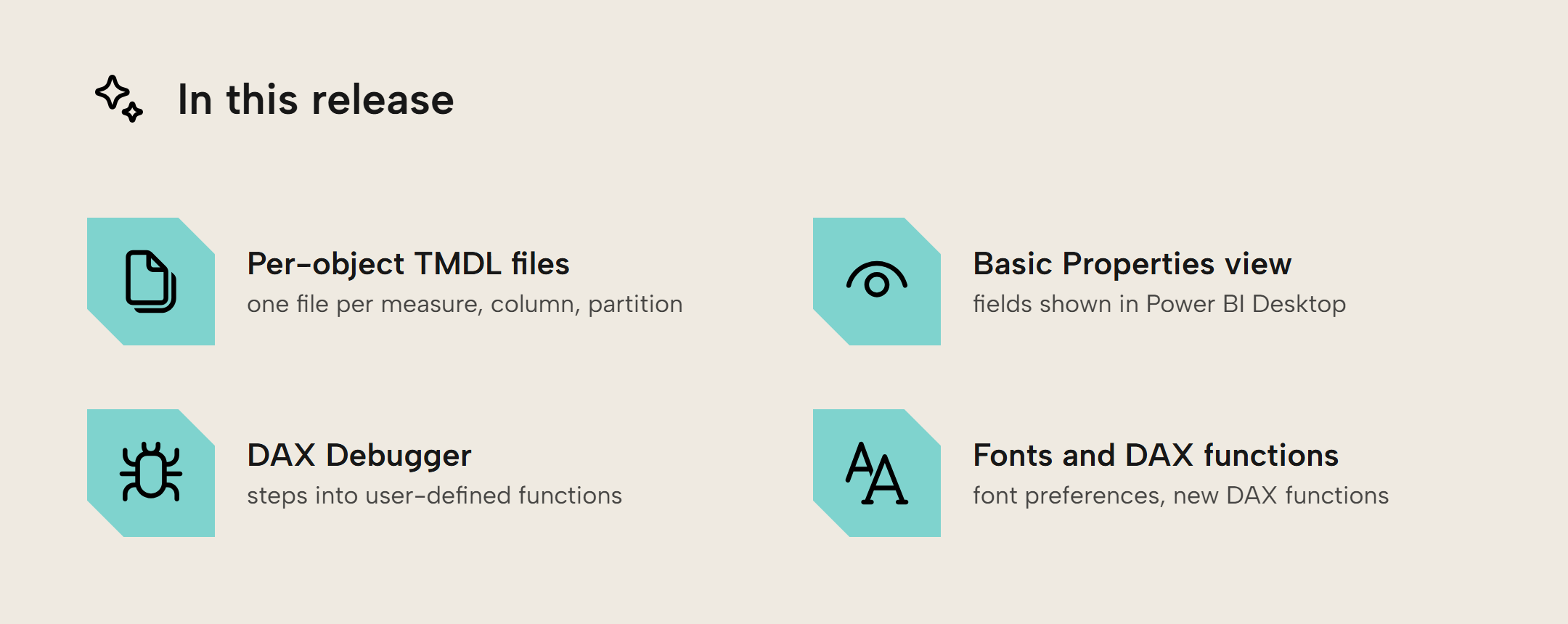
- Per-object files in TMDL folders: Save each measure, column and partition as its own file, so people who change the same table get cleaner Git diffs and fewer merge conflicts. Everyone on your team should adopt this release simultaneously, because saving from other tools such as Power BI Desktop overwrites the folder back to one file per table.
- Basic Properties view: A new Basic tab in the Properties view shows the fields Power BI Desktop shows in its Model view, under the same names.
- DAX Debugger steps into functions: The DAX Debugger now steps into user-defined functions and debugs measures you define in-line in a query, so you can see what happens inside a function call, without adding debug measures to the model.
- Check your Save settings: If you used the default Database.json folder settings, File > Save to Folder now writes TMDL, and Model.bim saves leave out incremental refresh partitions. Check Tools > Preferences > File Formats after you upgrade.
This summary is produced by the author, and not by AI.
Intro
In this November 2026 release, we make collaborating on the same model smoother by supporting saving the model’s TMDL as more granular files, one per object. Git diffs and conflicts should be less messy. The Properties view gets a new (Public Preview) look, and DAX Debugger support is expanded to DAX UDFs and measures defined in-line in queries, among other changes. There were also two October releases, in case you missed them. Check out the changes to default save settings before your upgrade.
Per-object files in TMDL folders
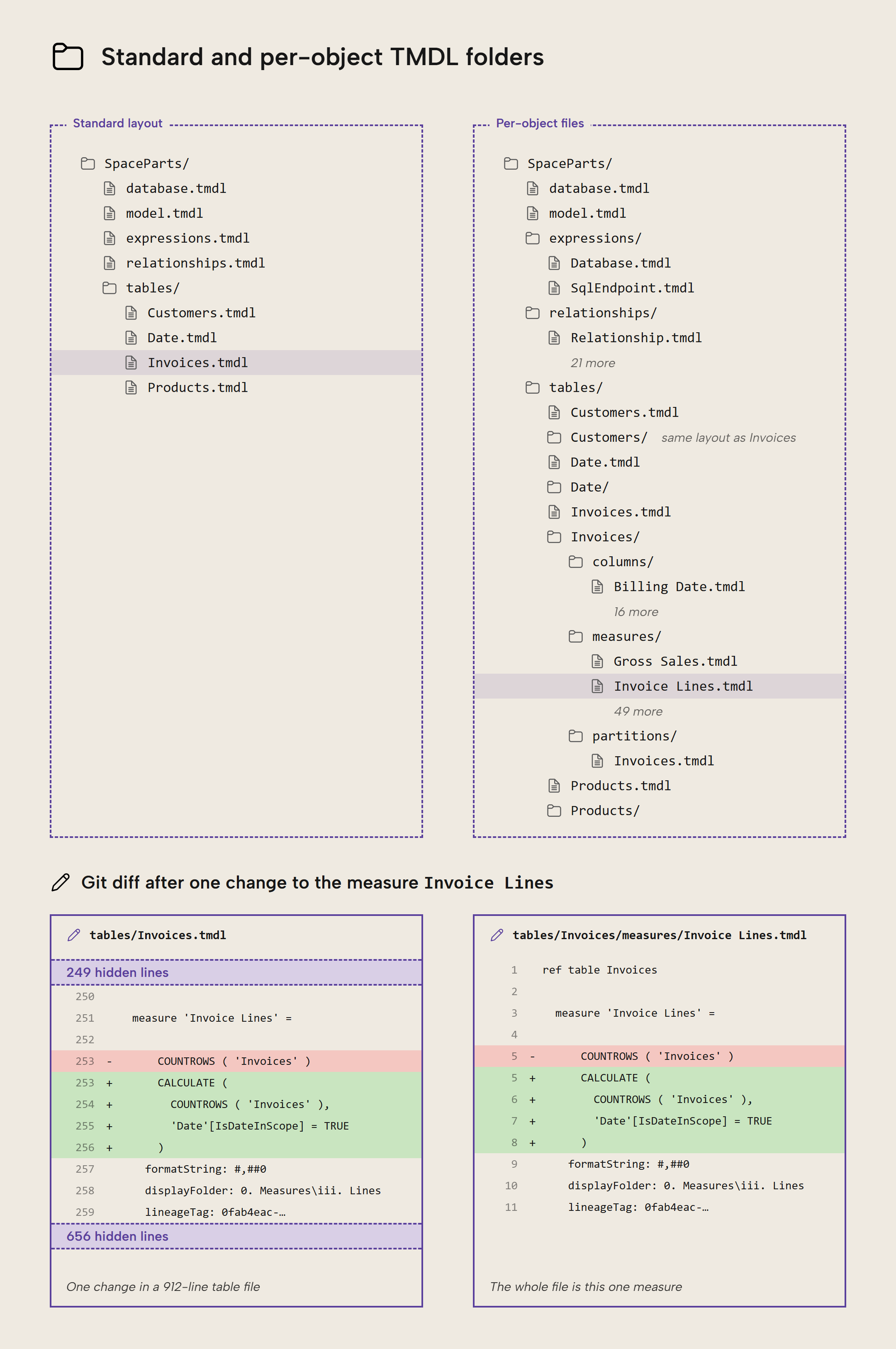
In Tabular Editor 3 Enterprise Edition and the TE CLI, you can now save each measure, column and partition as its own file, in a folder next to the table’s TMDL file. Previously, these were saved along with the table’s TMDL file. This meant that people adding measures to the same table could collide in messy Git diffs and conflicts. Now every object has its own file, pull requests get cleaner and Git history makes it easier to track changes to individual objects, rather than as part of the table’s TMDL file.
Relationships, shared expressions (AKA Power Query parameters and unloaded queries) and DAX UDFs also get their own folders, respectively relationships/, expressions/ and functions/. Calculation items stay in the TMDL file of their calculation group (= table).
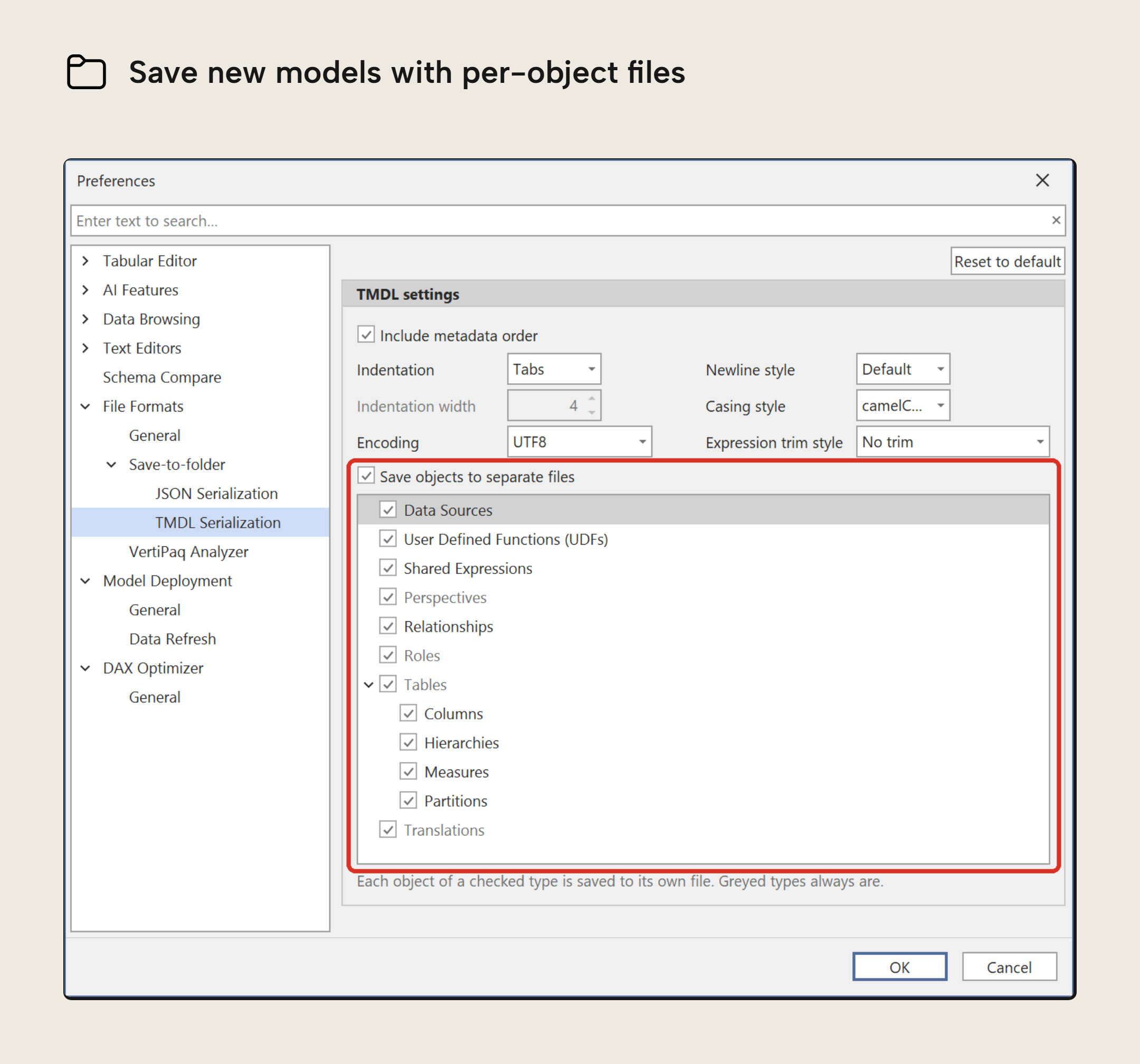
To save new models with per-object files, go to Tools > Preferences > File Formats > Save-to-folder > TMDL Serialization and tick Save objects to separate files.
NOTE
You can decide, for each object type, whether to save them as their own files or not. This could be useful if, for example, you know columns will rarely be added or removed from tables, or only change together when you update a table’s schema, so columns stay in their table’s file instead of each getting their own.
Existing models
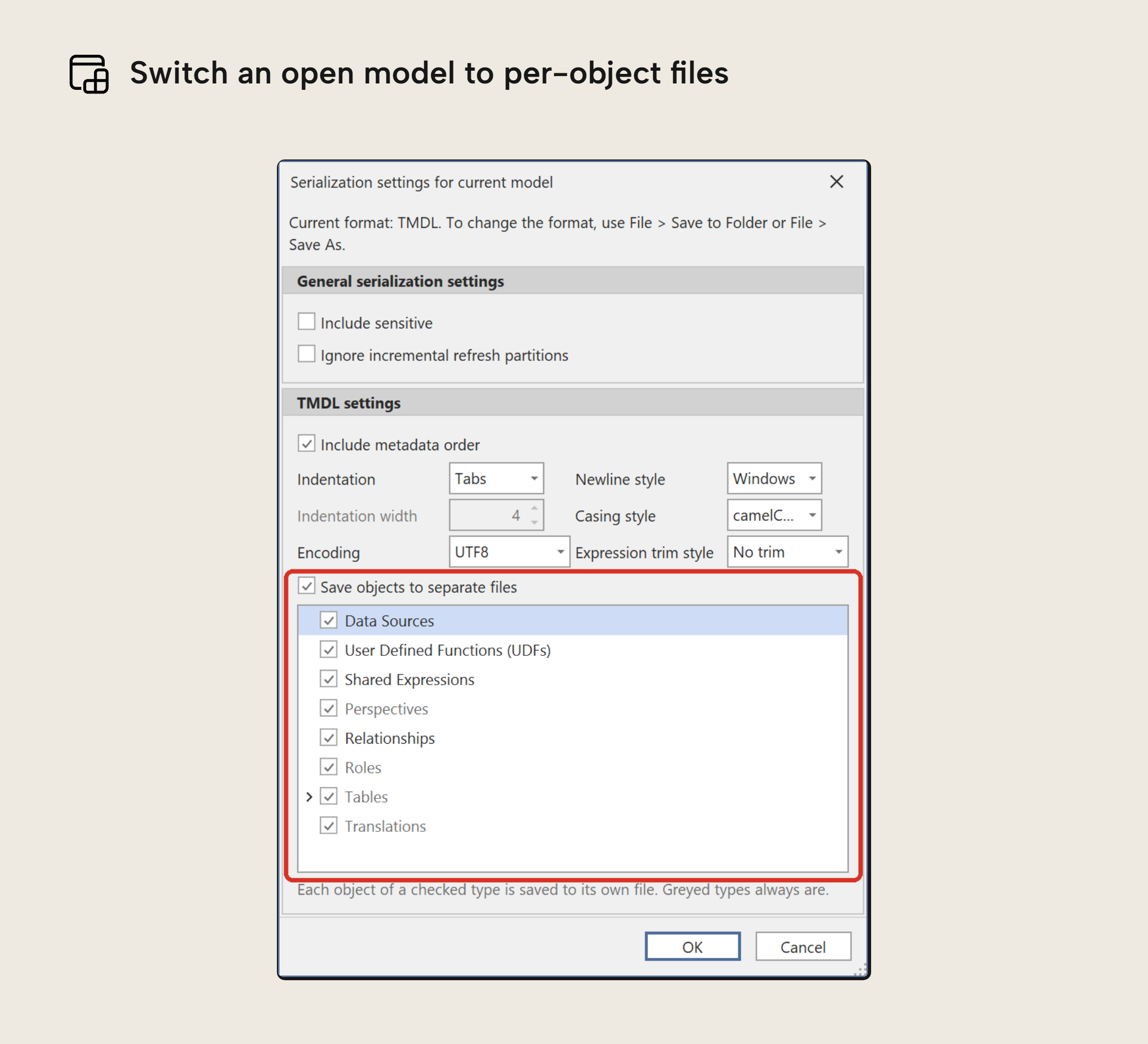
This setting doesn't change models you already saved to a folder: when you save those again, Tabular Editor keeps their current layout. To switch such a model to per-object files, open it from its TMDL folder, then go to Model > Serialization options…, then tick Save objects to separate files there, and save the model.
Power BI Desktop, Tabular Editor 2.26 and later, Tabular Editor 3.19 and later, and Tabular Editor 3 Business Edition can all open such per-object file folders, but they write the standard layout of one file per table back! This release of Tabular Editor 3 will ask you before saving and the TE CLI warns, but Power BI Desktop, Tabular Editor 2 and older versions of Tabular Editor 3 write without saying. Everyone on the team should use this release, or accept that a save from any other tool rewrites the folder back to the standard format.
WARNING
Don’t open a per-object folder in Tabular Editor 2 older than 2.26, or Tabular Editor 3 older than 3.19. These versions can lose the text of shared expressions.
Watch out for long paths
Since per-object files add a table folder, a type folder and the object’s own name to every path, the file paths get much longer. Windows only allows 259 visible characters (+1 invisible end character) for programs that don’t opt in to longer paths. Power BI Desktop, Git without core.longpaths and PowerShell 5.1 are notable examples of such programs, and they can’t open files with longer paths.
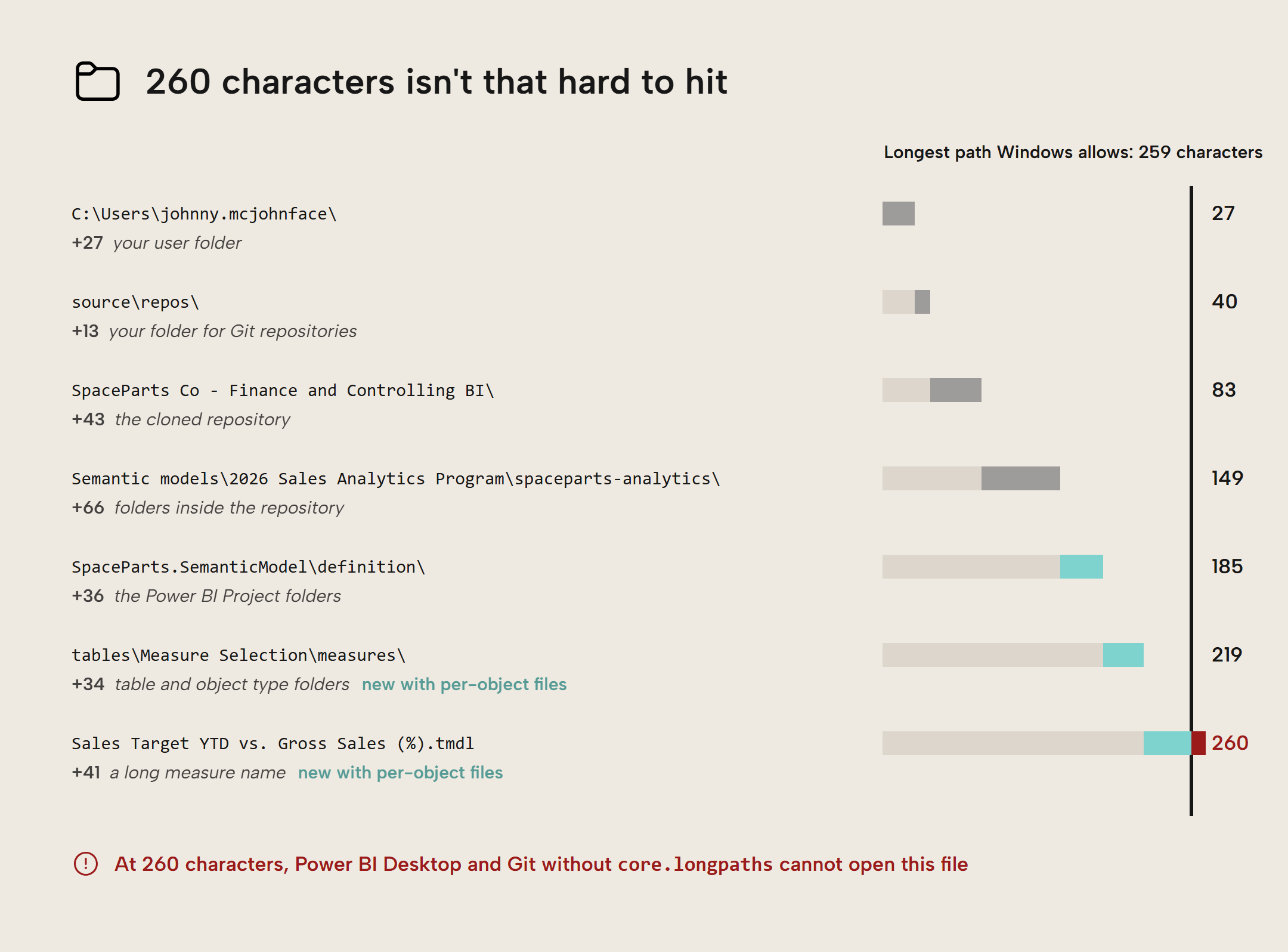
Tabular Editor 3 will show a warning after a save involving a file that exceeds this path length, and suggest a shorter folder. The TE CLI will print the same warning after every save. If you run into this problem often, consider cloning repositories to a short folder such as C:\git\ or similar.
Basic Properties view
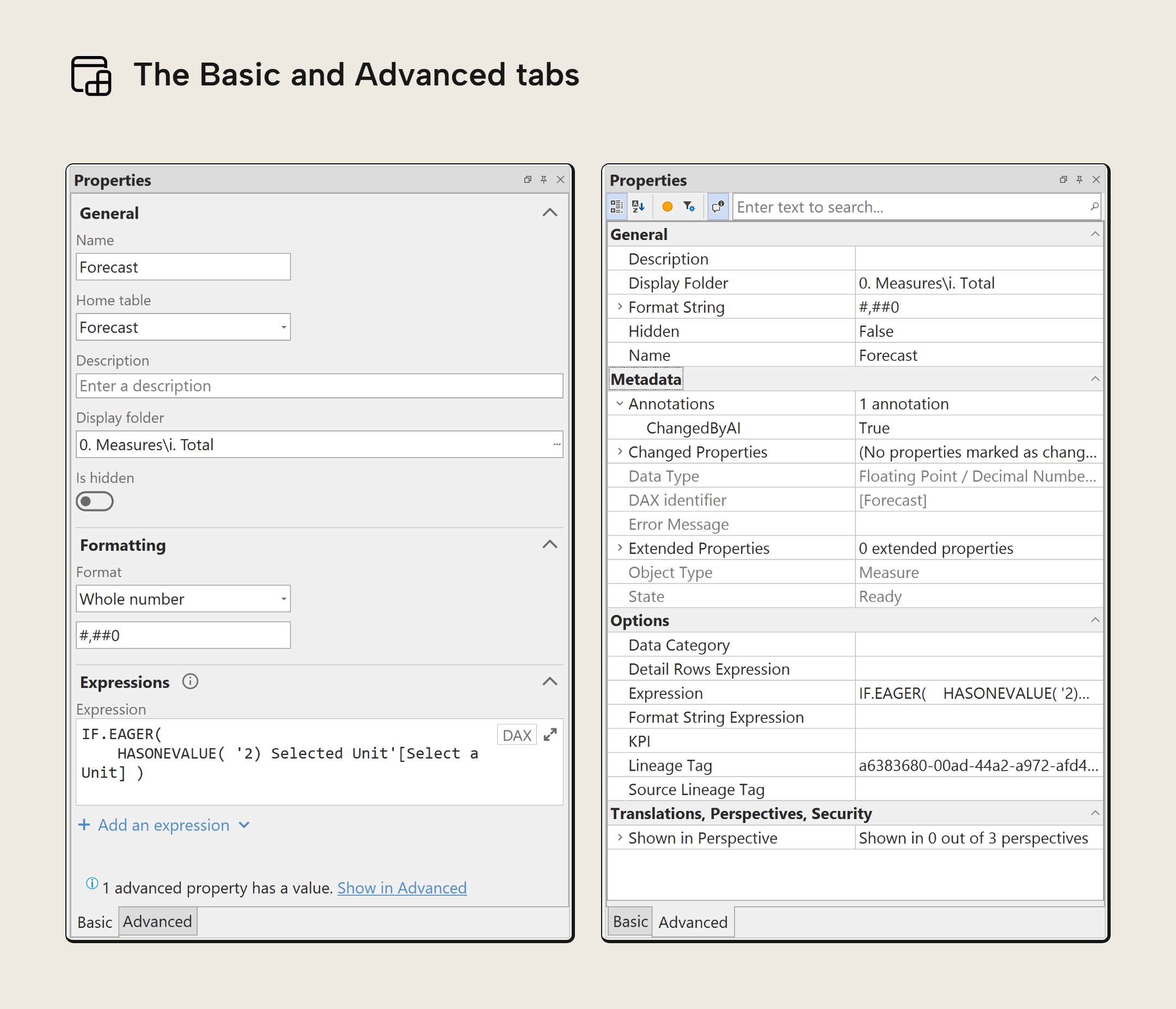
The Properties view can now show two tabs. The Basic tab bundles the properties that Power BI Desktop shows in its Model view, which are probably the ones you change most often, and the Advanced tab shows the full property grid. This is a Public Preview feature you turn on in Tools > Preferences > Tabular Editor > Public Previews, by ticking Basic Properties view.
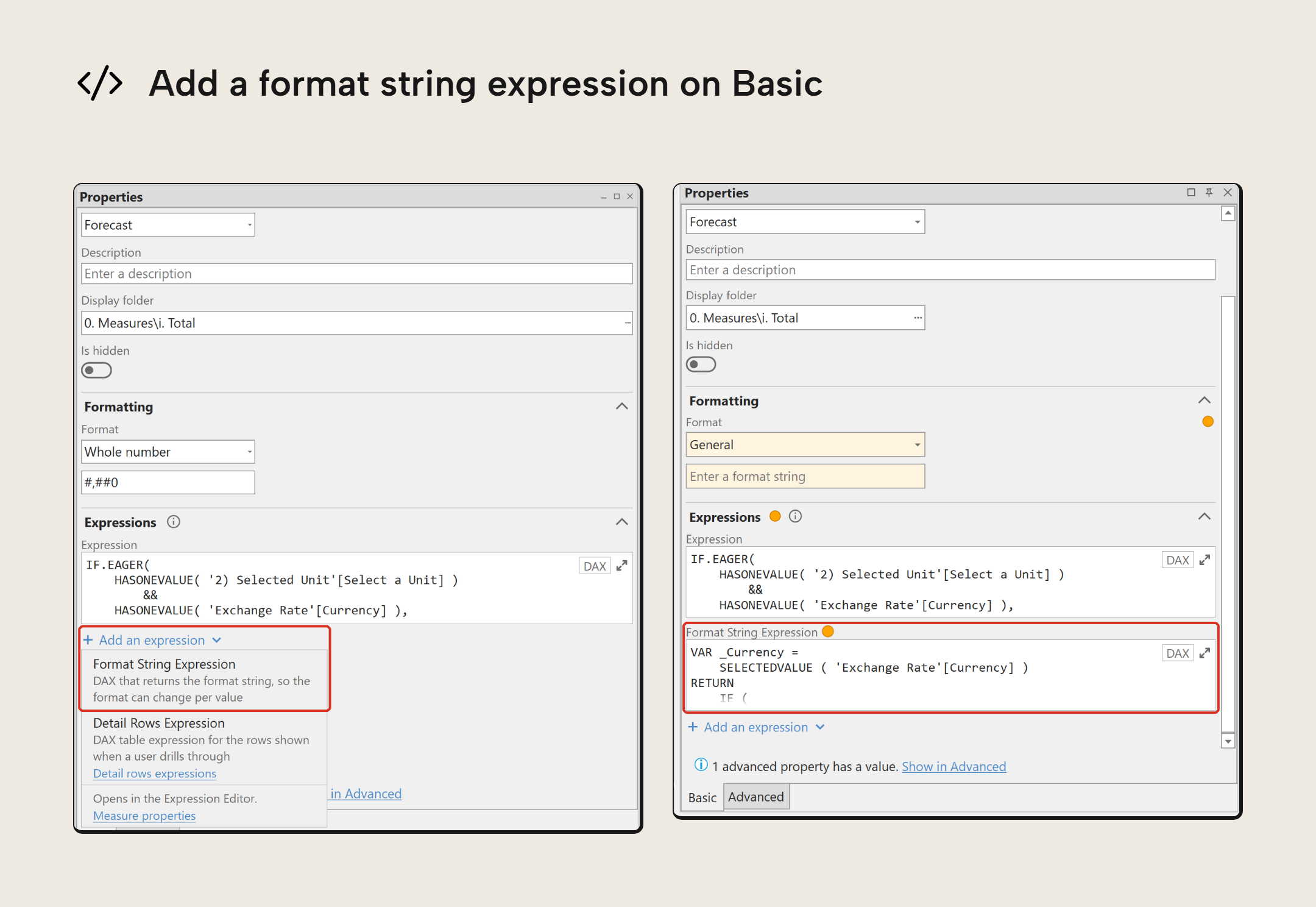
Clicking an expression box in the Basic tab will open that expression in the Expression Editor, and you can define the expression for a property that isn’t yet set by clicking the + Add an expression button, such as a Format String Expression.
Just like in the old Properties view, you can edit the properties of multiple selected objects at once, and undo that bulk edit with Ctrl+Z.
In the Basic tab, a Show in Advanced link appears if someone has set any of the object's other properties, such as an annotation, so you don't miss them. In the Advanced tab, the property category that used to be called Basic is now called General, so you don't confuse it with the Basic tab.
DAX Debugger steps into user-defined functions
The DAX Debugger can now step into DAX User-Defined Functions (UDFs). DAX UDFs let you package DAX expressions into re-usable functions, reducing logic duplication and thus the risk of semantic drift within your semantic models.
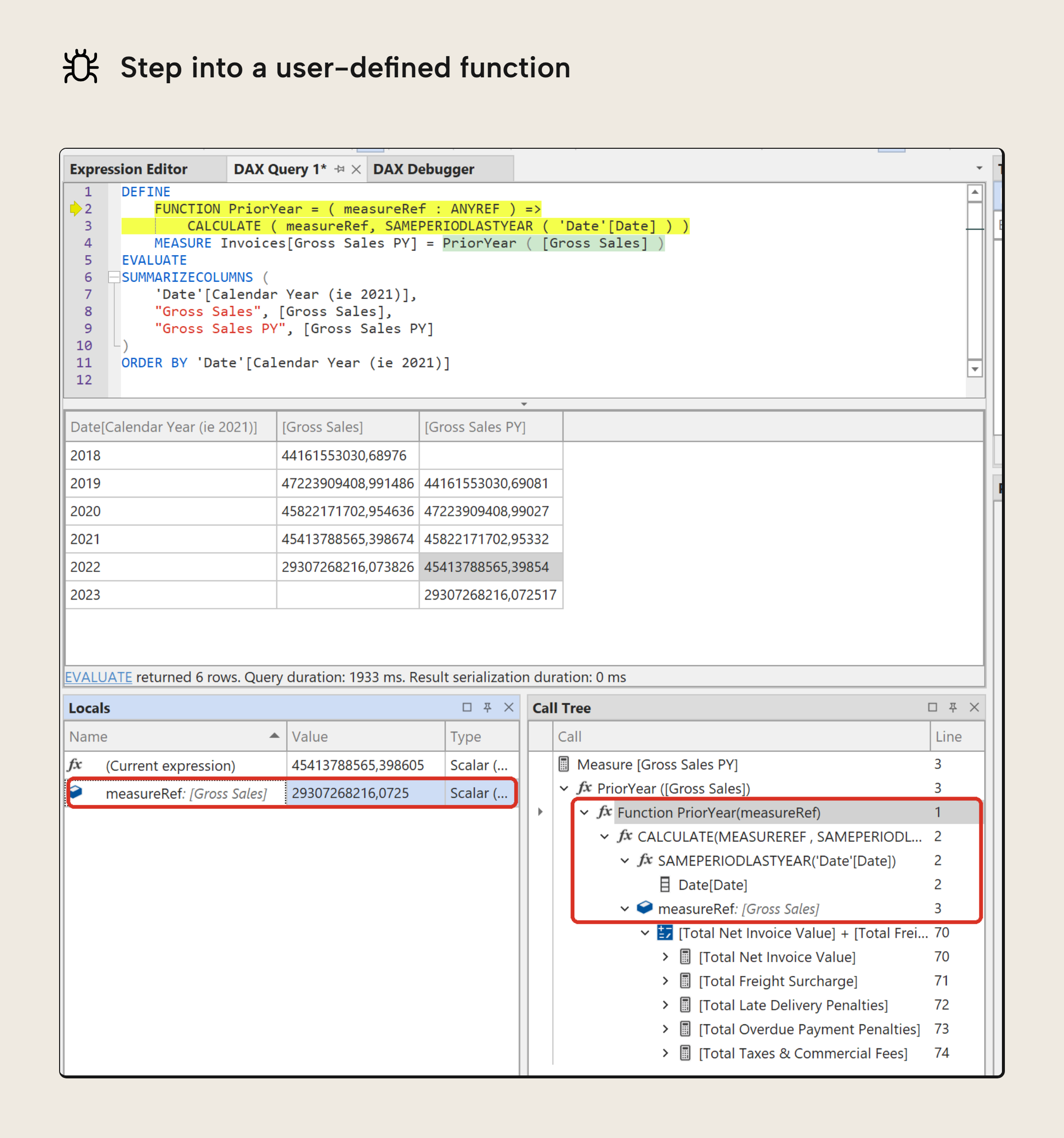
Until now, the DAX Debugger could not step into a function call: you saw only the result of the call, but not the steps inside the function. With this release, the debugger can step into your UDFs, both those saved in the semantic model, and those you define in a DAX query with DEFINE FUNCTION.
Take this example query that defines a PriorYear UDF in-line:
DEFINE
    FUNCTION PriorYear = (
            measureRef : ANYREF
        ) =>
        CALCULATE (
            measureRef,
            SAMEPERIODLASTYEAR ( 'Date'[Date] )
        )
    MEASURE 'Invoices'[Gross Sales PY] =
        PriorYear ( [Gross Sales] )

EVALUATE
SUMMARIZECOLUMNS (
    'Date'[Calendar Year (ie 2021)],
    "Gross Sales", [Gross Sales],
    "Gross Sales PY", [Gross Sales PY]
)
ORDER BY 'Date'[Calendar Year (ie 2021)]
You can debug a [Gross Sales PY] value and step into PriorYear.
- The Call Tree shows the call with its arguments and the body of the function.
- Locals shows the function’s parameters with the arguments passed in.
You can now also debug measures defined in-line in a query, without having to add them to your model.
Other improvements
The Tabular Editor 3 November release also ships these features:
- Change the font and font size of the interface, and the font size of the code editor, in Fonts under Tools > Preferences > Tabular Editor > User Interface (applies after a restart).
- Reset zooms in or out you made by Ctrl+Scrolling with Edit > Reset Zoom (Ctrl+0).
- The DAX editor recognizes new functions, including
GROUPCROSSAPPLY,FILTERCLUSTER,TEXTCONTAINSandTEXTSIMILARITY. - Four new built-in Best Practice Analyzer (BPA) rules for security roles.
- You can Duplicate a document from the tab’s right-click menu.
- Diagrams highlight the TOM Explorer selection in theme colours.
- Several bug fixes, including one where saving a model to a Database.json folder through a path with forward slashes, such as
C:/repo/model, deleted model files. See the release notes for the full list.
October release
In case you missed it, in October we also had Tabular Editor 3 releases. Some new features were then:
- DAX Query and Pivot Grid documents stay open when you open another model.
- The window title starts with the model's name.
- You can pin or remove individual servers in File > Open > Model from DB...
- The AI Assistant and MCP clients see the model's DAX errors and the errors in open documents.
- Model > Deploy... can keep the target's AI instructions, AI data schema and Q&A synonyms.
The full release notes:
Upgrading
Check how you save model files before upgrading to this version:
- If you save models to Database.json folders with the default settings, models you open from such a folder keep saving as Database.json. But File > Save to Folder now writes TMDL for new folders. To keep Database.json, set Save to Folder format to Folder (Database.json) under Tools > Preferences > File Formats > Save-to-folder.
- If you had Include sensitive turned on for Model.bim files, it now also applies to new folder saves, so check before you commit a folder with data source passwords to Git.
- If you save Model.bim files, Ignore incremental refresh partitions is now turned on by default, so those saves leave out the partitions an incremental refresh policy creates. If your deployment needs them in the file, turn it off under Tools > Preferences > File Formats > General.
- If your team shares a TMDL folder, update simultaneously: this release keeps the indentation and spaces in descriptions, but earlier versions of Tabular Editor remove them when they save the folder. Saving to a TMDL folder now also offers to reuse the serialization settings stored with the model.
- If you also have Tabular Editor 2 on the same computer, Tabular Editor 3 no longer takes over all its preferences on first start. Instead, it asks once whether to import your Tabular Editor 2 serialization settings and Best Practice Analyzer rules.
Further Reading
- Version 3.28.0 release notes (Tabular Editor Docs). Every change in this release, including the bug fixes this article leaves out.
- TMDL serialization (Tabular Editor Docs). How Tabular Editor 3 saves a model to a TMDL folder, including per-object files.
- Properties view (Tabular Editor Docs). The Properties view and its Basic and Advanced tabs.
Conclusion
Try per-object files on a copy of a model your team shares, and see how a change to one measure looks in a pull request. Let us know how it works for you through our community forum.
Take your semantic models further with Tabular Editor.
Give Tabular Editor a spin