Key takeaways
- Apply measures straight from a DAX query: Prototype a measure in a
DEFINEblock, then add or update it in the model withF7/F8, no copy-paste needed. - A new "What's New" window: Keeps you posted on releases, blogs, and community news right inside Tabular Editor.
- Unused DAX variables now get flagged: The top community-voted improvement; warnings show in the editor, the TOM Explorer, and the message view.
- Direct Lake gets more control: Frame individual tables and partitions, a new Direct Lake Behavior property for DirectQuery fallback, plus T-SQL stored-procedure schema support.
This summary is produced by the author, and not by AI.
Introduction
We are happy to announce that we have a new version of Tabular Editor 3 out. This month, we asked our community to help us vote for an improvement and we have duly delivered so that orphaned variables will now trigger a warning. This will help you keep your DAX nice and tidy. Additionally, in the DAX query window we have added the ability to directly save your measures back to the model. We also introduced a new window called “What’s New” where you can find an overview of new features, updates from the team, suggestions for Tabular Editor related blogs and other community news.
If you just can’t wait, do head on over to downloads to get the release.
IMPORTANT
Please be aware that we’re now using a new certificate to sign the binaries, in case your IT organization needs to explicitly approve 3rd party code certificates. The new certificate is issued by GlobalSign GCC and the certificate is issued directly to Tabular Editor ApS.
New features
This release brings a handful of new features, leading with saving measures straight from DAX queries.
Save measures in DAX queries
The DAX query window has a new feature where a defined measure can be added/updated directly from within the DAX query itself!
A common pattern when prototyping new measures is to specify the measure in a DEFINE block inside a DAX query and then test the measure against dimensional data, changing the measure as needed. This release of Tabular Editor now makes it possible to adopt that measure directly into your model – and the same goes for existing measures that can be updated.
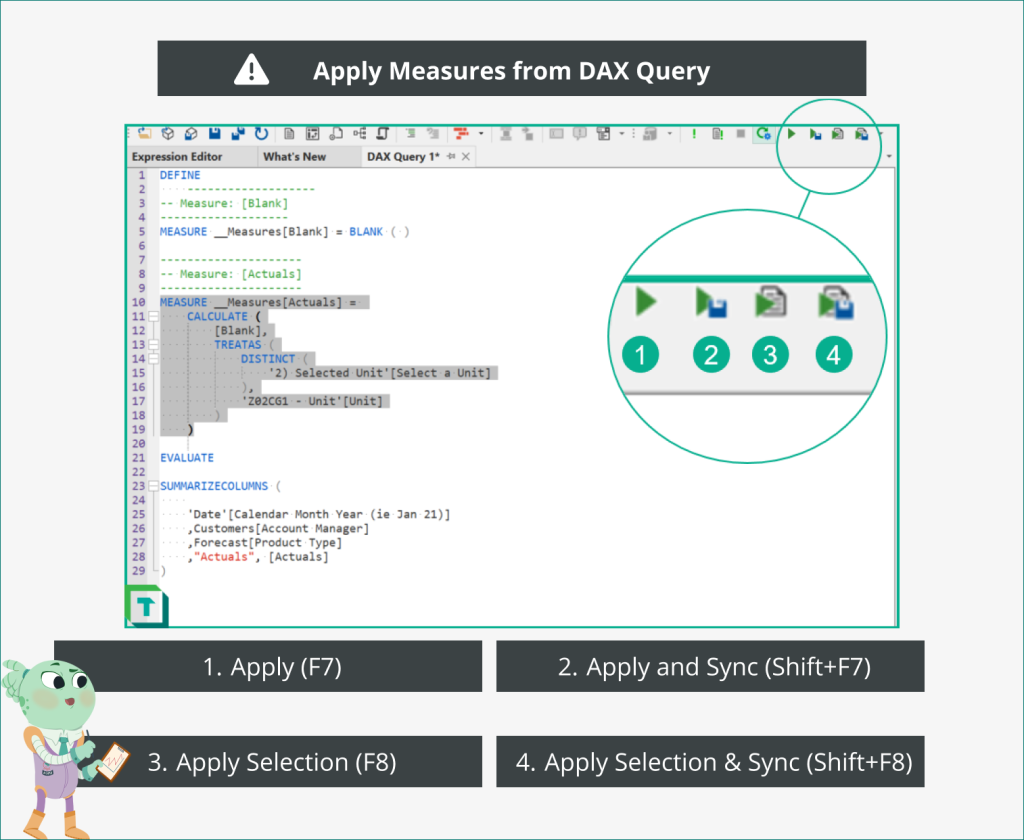
The DAX Query toolbar has four new buttons and shortcuts that activates the creation or update of the defined measures.
You can either (1) apply all (shortcut: F7) meaning that all measures defined in the query will be updated or (3) you can select one or more measures to apply (shortcut: F8). In both cases this will update the DAX expression of the measures within the model, but not sync or save the model’s changes to server and/or file system. Any measures not present in the model will be created. By using the shortcut with Shift or pressing the other toolbar buttons (2 & 4) the changes will be applied and the model will be saved in one go.
These actions are very similar to the corresponding actions within DAX Scripts, with the notable difference that the default keyboard shortcuts for (1) and (2) are F7 / Shift+F7 instead of F5 / Shift+F5. This is because the latter is already used by the DAX Query view to execute the query.
“What’s New” window
This month’s release also adds a new window to the Tabular Editor interface. The What’s New window will keep you informed about what has been released, suggest interesting blogs or posts surrounding the Tabular Editor space, as well as other community news and updates, including conferences and events that we are sponsoring.
Improvements
We’ve made several improvements in the November release as well. Below is an overview of the most salient. Check out the release notes for the full list of improvements.
Unused DAX variables
The community poll on GitHub decided that the highest rated improvement for November was to show warning labels for unused DAX variables. That is now here! And you get them everywhere! The warning will show up in the expression editor along your DAX, on the measures in the TOM Explorer and in the message view! There should now be no reason to leave those variables hanging, so go ahead and clean up that DAX in your otherwise BPA optimized model!
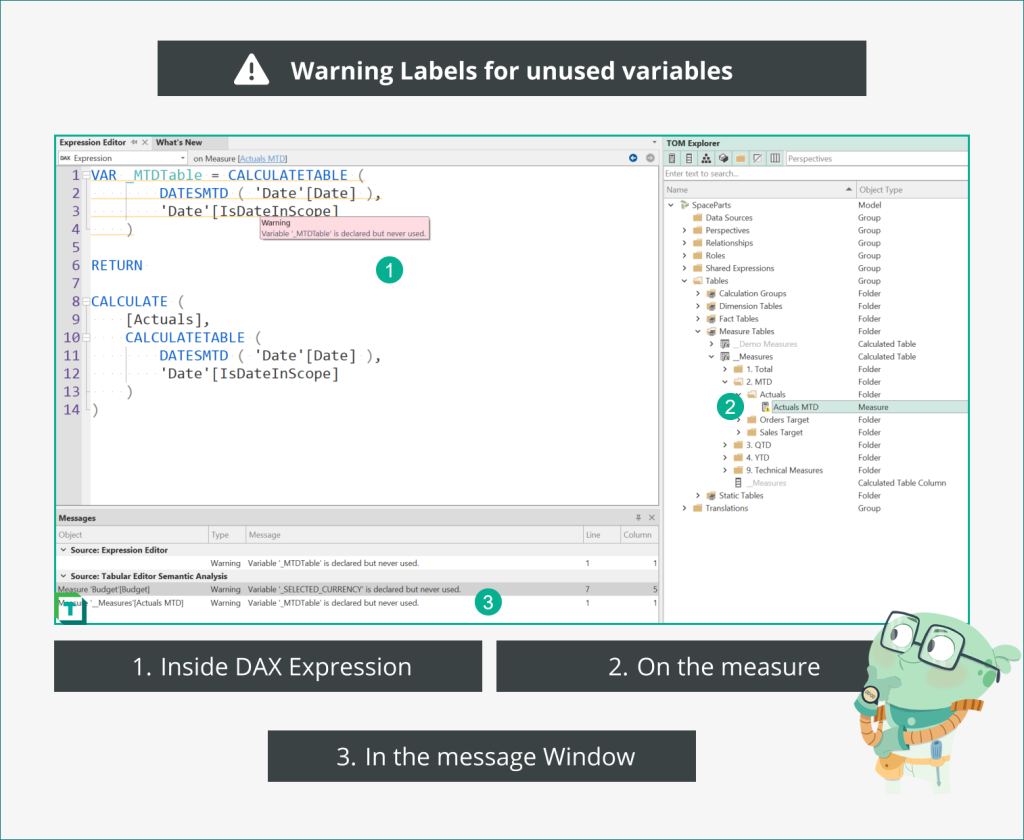
Thank you to all who voted and if your feature didn’t get it this time, we promise that we will get to them in time.
Direct Lake improvements
Direct Lake also saw targeted work, starting with control over how tables and partitions are framed.
Framing of tables and partitions
Tabular Editor now enables you to frame (refresh) the individual tables and partitions of your Direct Lake model. Just right-click on e.g. a table and choose ‘Refresh’ -> ‘Full Refresh’ to ensure the table has the latest data.
Default partition type
When working on a Direct Lake mode and you create a new table Tabular Editor 3 will default the partition to a Direct Lake partition type. As this is the only type allowed in a Direct Lake model there is no need to ask for which type of partition that should be created, saving you a confusing choice and click.
New behavior property
With the update to the latest TOM library a new Fabric-only property is available in model properties. Direct Lake Behavior allows control over whether the model should fallback to DirectQuery or not.
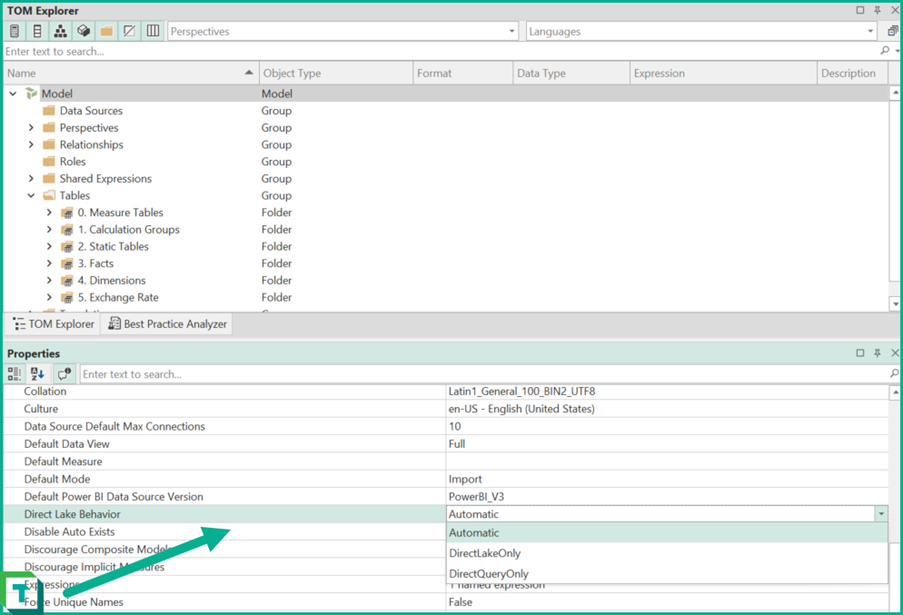
NOTE
Since Direct Lake is supported only on Power BI Premium P SKUs or Microsoft Fabric F SKUs, you will need a Tabular Editor 3 Enterprise Edition license to open/connect to Direct Lake models.
Stored procedure support for T-SQL
We have improved how stored procedures in T-SQL sources are handled. You can now choose to run the stored procedure which allows for retrieval of table schema even when they cannot be statically determined. One common issue that this solves is when the stored procedure contains temp tables as it isn't possible to know the schema that will be outputted without calling the stored procedure itself.
NOTE
The user is always prompted with an option to cancel the operation before the stored procedure is called. Stored procedures can in some cases take a long time to complete, so make sure you know the implications before running one through Tabular Editor 3.
Bug fixes
We have made multiple bug fixes in 3.12.0; please see our release notes for full details, but we do wish to highlight a few notable fixes.
Incremental refresh dummy partitions at deployment
For tables governed by Power BI incremental refresh Tabular Editor 3 now adds a dummy partition when deploying to the Power BI workspace in cases where no partitions have been defined by the user.
Snowflake fixes
We fixed two bugs regarding Snowflake sources by e.g. adding better support for importing tables using Native Query.
Power Query comment handling
Tabular Editor now correctly interprets Power Query (M) partitions with a comment on the last line.
If you have any feedback or experience any bugs, please reach out in our community forum. We look forward to hearing from you!
For further reading
- Direct Lake Datasets: How to use them with Tabular Editor (Tabular Editor). The Direct Lake partition type this release adds framing and default behaviour for.
- Best Practice Analyzer (BPA) rules for semantic models (Tabular Editor). A full rule set to keep DAX clean, which pairs well with the new unused-variable warnings.
- Direct Lake overview (Microsoft Learn). Microsoft's reference on Direct Lake, including the behaviour property this release exposes.
In conclusion
That's the November 2023 release: apply measures from DAX queries, a new What's New window, unused-variable warnings, and a batch of Direct Lake improvements, on top of the usual fixes. Grab 3.12.0, thanks to everyone who voted in the community poll, and let us know what you'd like next.
Use Tabular Editor 3 to inspect model quality and catch issues earlier in development.
Give Tabular Editor a spin