Key takeaways
- A WhatIf parameter is just a calculated table, column, and measure: Behind the Power BI UI it is a GENERATESERIES calculated table with a SELECTEDVALUE measure, all of which Tabular Editor can create directly.
- Tabular Editor can generate WhatIf parameters in bulk with a C# script: Instead of clicking through the same steps for every parameter, a short Advanced Scripting snippet builds them in a fraction of a second.
- You can drive parameter creation from a settings file: Point the script at a CSV of parameter definitions to create many WhatIf parameters in a single run.
- You can edit a Desktop model directly now: Since June 2025 you can change anything in an open Power BI Desktop model from an external tool like Tabular Editor, so the
.pbitworkaround below isn't needed.
This summary is produced by the author, and not by AI.
Introduction
Update May 29th 2019: It turns out that the technique outlined here can be used for SSAS or Azure Analysis Services Tabular models of Compatibility Level 1400+. In fact, just by adding the ParameterMetadata extended property (step 9 below) to any numeric column in your model, you can instruct Power BI to display a single-select slider as the default visual for the column.
I received a comment on my introductory webinar video, regarding whether Tabular Editor could be used to generate lots of WhatIf parameters quickly.
Well, behind the scenes, a WhatIf parameter is simply a Calculated Table with a single column, defined using the GENERATESERIES DAX function (to hold all the possible values of the parameter), along with a measure that uses the SELECTEDVALUE function to return the currently filtered value on the table (or a default value, if nothing or multiple values are filtered).
NOTE
Heads up: this one is from 2019 and a few things have moved on. Power BI Desktop picked up an External Tools ribbon back in 2020, and since June 2025 there is nothing external tools cannot change in the model. So you can skip the "Allow unsupported Power BI features" toggle and the .pbit round-trip below and just edit the open model from Tabular Editor. We covered where it stands now in Unrestricted editing of models in Power BI Desktop. The script below works just the same.
Preparations
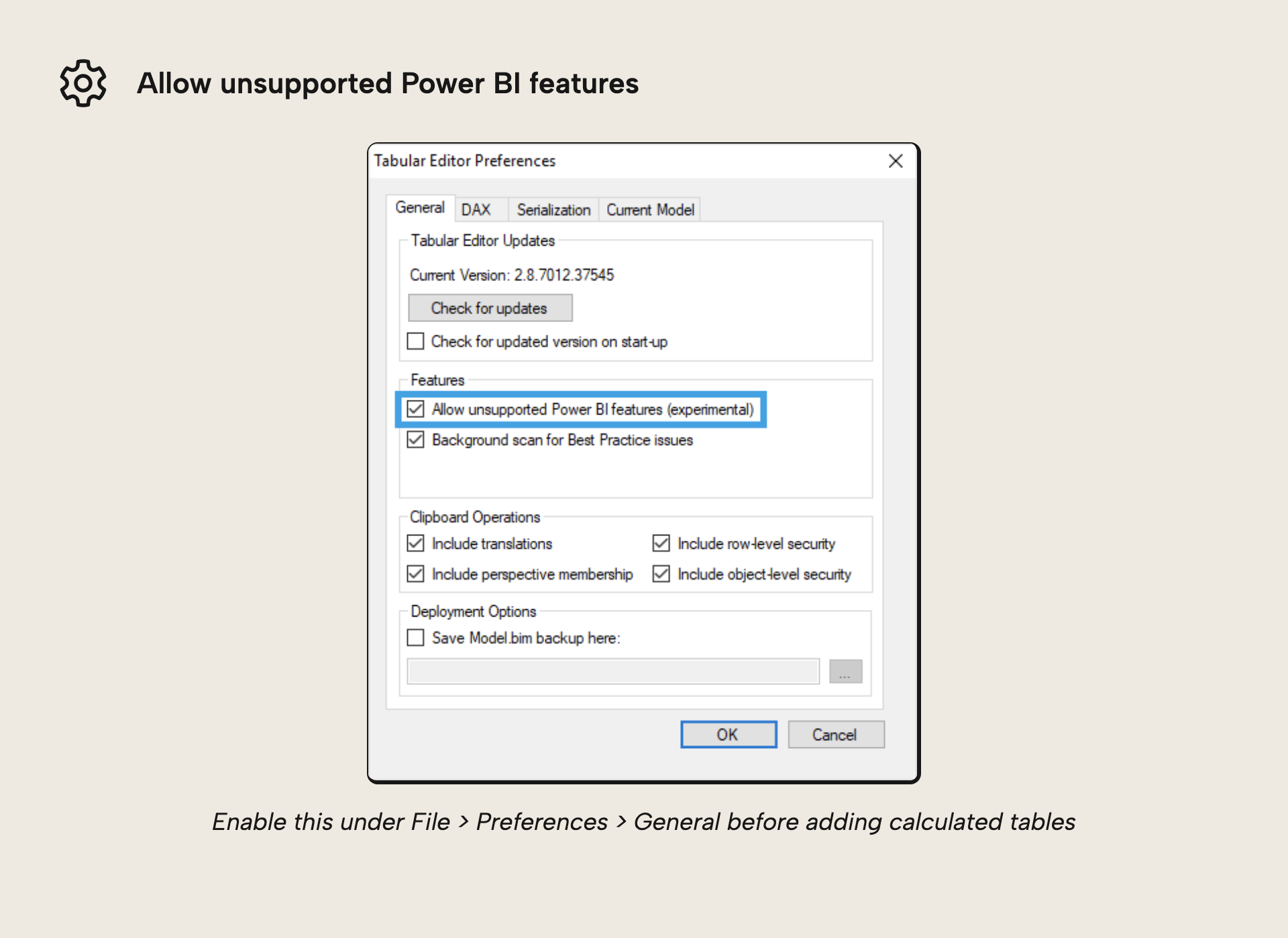
All of this can easily be added using Tabular Editor, although, at the time this article was written, doing it was not officially supported by Microsoft, so as usual, when modifying your Power BI models through Tabular Editor, make sure to save a backup of your .pbix or .pbit file. By default, Tabular Editor will restrict the kind of changes we can apply to a Power BI model, to prevent things from breaking. However, in order to create WhatIf parameters through Tabular Editor, we need to lift this restriction, as we need to add new Calculated Tables to the model. So make sure to check the “Allow unsupported Power BI features” checkbox under File > Preferences > General:
When this article was written (the March 2019 version of Power BI), connecting Tabular Editor directly to a Power BI model loaded within an instance of Power BI Desktop…
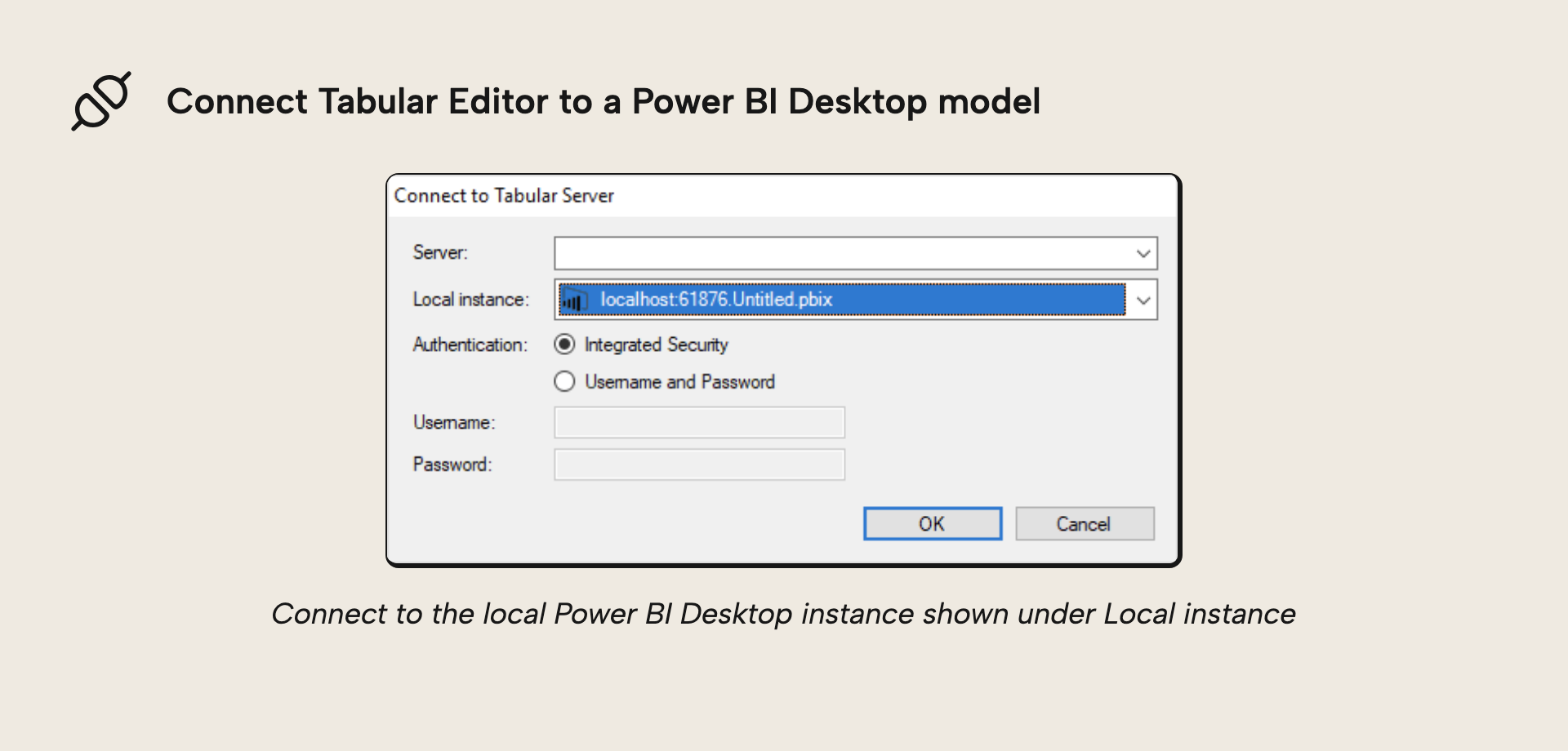
…did not let us add measures (and possibly other things). Saving the model changes produced an error message similar to the following (you can do this now, see the note above):
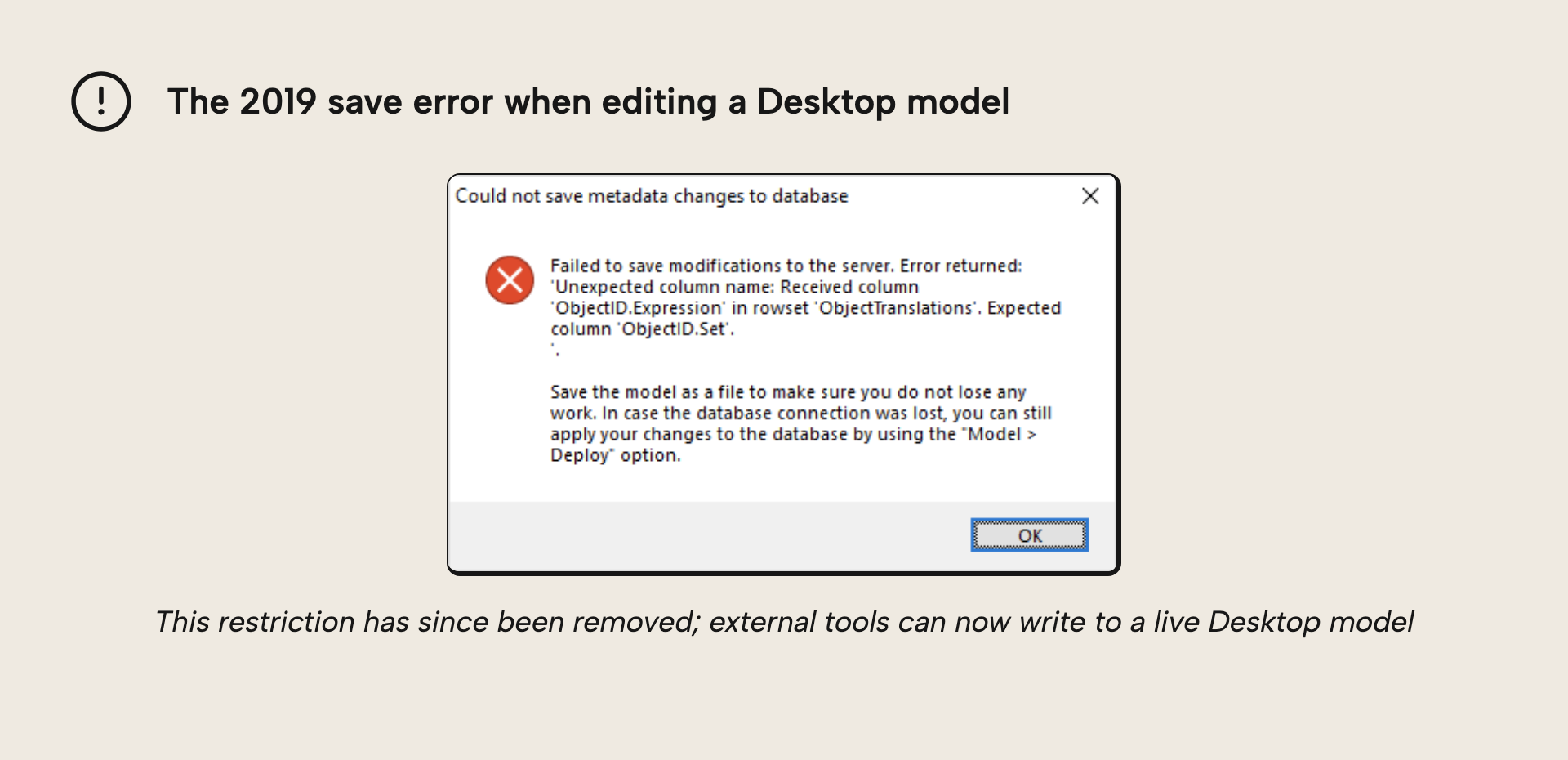
Failed to save modifications to the server. Error returned: 'Unexpected column name: Received column 'ObjectID.Expression' in rowset 'ObjectTranslations'. Expected column 'ObjectID.Set'.'.
In general when encountering this error, a possible workaround is to export the Power BI model as a template (.pbit file), open the .pbit file within Tabular Editor, reapply the changes and then save the file. When reopening the .pbit file in Power BI Desktop, you may encounter some issues depending on what was changed. In my experience, these can often be overcome by refreshing the data or by simply adding and removing a measure within Power BI Desktop. But not always – hence the unsupported warning.
However, for adding WhatIf parameters to a .pbit file with Tabular Editor, if you follow the steps below carefully, you should be good (at least with the March 2019 version of Power BI – who knows what happens in future versions. By the way, if you would like Microsoft to officially support making changes through tools such as Tabular Editor, make sure to give this idea a vote):
Let’s get to it
Export your Power BI model as a template (
.pbitfile) and close Power BI DesktopOpen the
.pbitfile in Tabular EditorIn the “Model” menu, choose “New Calculated Table”. Rename the newly added table to whatever you like.
Enter the following expression for the newly created Calculated Table:
GENERATESERIES(0, 100, 10). Of course, you can change the limits (0 – 100) and increment value (10) to whatever you like.With the Calculated Table still selected go to the “Table” menu and choose “Create New > Calculated Table Column”.
Rename the newly added calculated table column to whatever you like, but preferably give it the same name as the parent table. Set its Data Type property to “Integer”, “Floating Point” or “Currency”, depending on your needs.
Important Set the “Source Column” property of the calculated table column to
[Value]. This is needed in order to map the output of the calculated table expression into this column.Set the “Summarize By” property on the column to “None”, to make sure the values within the column are never aggregated.
Also important For Power BI to treat the newly added table as a WhatIf parameter, we must add an Extended Property to the calculated table column. Click on the ellipsis button on the “Extended Properties” property of the column, and add a new
JsonExtendedProperty. Set theNameof this property toParameterMetadataand theValueto{"version":0}: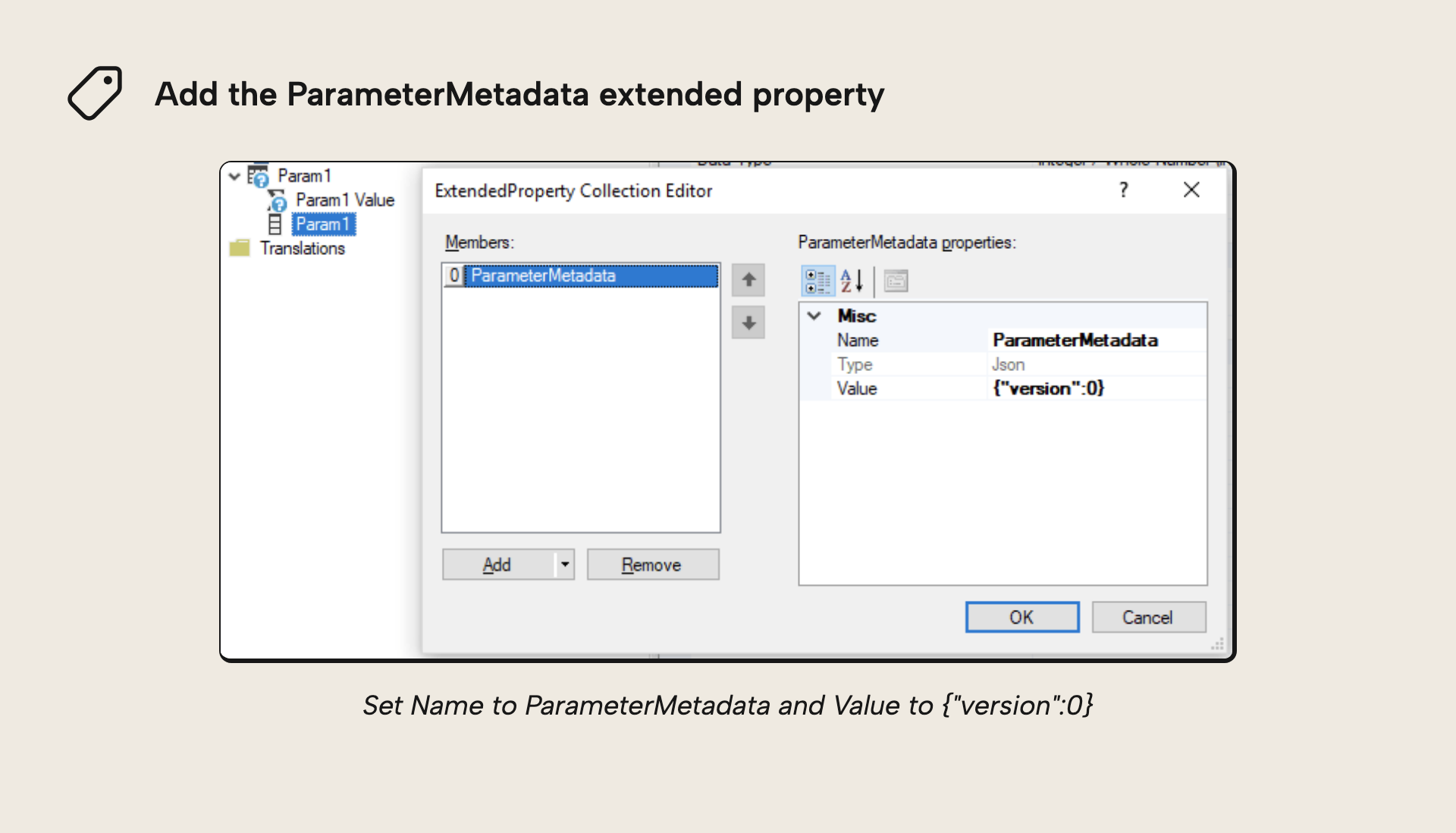
Finally, add a measure to the calculated table, to provide the currently selected WhatIf parameter value. This is the measure you’re going to use in Power BI, to pull the WhatIf parameter into your WhatIf scenarios. If you named both your calculated table and calculated table column “MyParam”, you should name this measure “MyParam Value” and use the expression:
SELECTEDVALUE('MyParam'[MyParam], 50)where 50 is the default value to use, in case multiple values/nothing is selected on the WhatIf slicer.Save the
.pbitfile and close Tabular Editor.Open Power BI Desktop.
Easy peasy, isn’t it? No? Well, luckily, there’s a much better way to perform the time-consuming steps 3-10.
Automation for the win!
Paste the following code into Tabular Editor's Advanced Scripting tab:
// Parameter settings:
var paramName = "MyParam";
var paramMin = 0;
var paramMax = 100;
var paramIncrement = 10;
var paramDefault = 50;
var paramDataType = DataType.Int64;

// Invariant Culture. When used in string.Format, we ensure that decimal numbers are formatted
// with a . (period) as decimal separator, which is the standard way Tabular Editor writes DAX:
var c = System.Globalization.CultureInfo.InvariantCulture;

// Add a new calculated table to the model:
var table = Model.AddCalculatedTable(paramName,
    string.Format(c, "GENERATESERIES({0},{1},{2})", paramMin, paramMax, paramIncrement));

// Add the Calculated Table column:
var column = table.AddCalculatedTableColumn(paramName, "[Value]", "", paramDataType);
column.SummarizeBy = AggregateFunction.None;

// Set Extended Property on the Calculated Table Column:
column.SetExtendedProperty("ParameterMetadata", "{\"version\":0}", ExtendedPropertyType.Json);

// Add the WhatIf parameter measure:
table.AddMeasure(paramName + " Value",
    string.Format(c, "SELECTEDVALUE({0}, {1})", column.DaxObjectFullName, paramDefault));
To use the script, modify the settings in the top section to suit your needs, and hit F5. That’s it. Steps 3-10 completed in a fraction of a second!
One step further
If you want to get really advanced, you can create a text file containing the settings of multiple WhatIf parameters:
MyParam1,0,100,10,50,Int64
MyParam2,100,200,10,150,Int64
MyParam3,-1,1,0.1,0,Double
Save this file somewhere on your machine, then modify the script to set the settings based on the contents of this file, and create all 3 parameters in one go:
// Modify below to point to the file that holds your WhatIf parameter settings:
var settings = System.IO.File.ReadLines(@"c:\WhatIf\WhatIfSettings.csv");
var c = System.Globalization.CultureInfo.InvariantCulture;

foreach(var setting in settings)
{
    var settingArray = setting.Split(',');

    // Parameter settings:
    var paramName = settingArray[0];
    var paramMin = decimal.Parse(settingArray[1],c);
    var paramMax = decimal.Parse(settingArray[2],c);
    var paramIncrement = decimal.Parse(settingArray[3],c);
    var paramDefault = decimal.Parse(settingArray[4],c);
    var paramDataType = (DataType)Enum.Parse(typeof(DataType), settingArray[5]);

    // Add a new calculated table to the model:
    var table = Model.AddCalculatedTable(paramName,
        string.Format(c, "GENERATESERIES({0},{1},{2})", paramMin, paramMax, paramIncrement));

    // Add the Calculated Table column and set SummarizeBy to None:
    var column = table.AddCalculatedTableColumn(paramName, "[Value]", "", paramDataType);
    column.SummarizeBy = AggregateFunction.None;

    // Set Extended Property on the Calculated Table Column:
    column.SetExtendedProperty("ParameterMetadata", "{\"version\":0}", ExtendedPropertyType.Json);

    // Add the WhatIf parameter measure:
    table.AddMeasure(paramName + " Value",
        string.Format(c, "SELECTEDVALUE({0}, {1})", column.DaxObjectFullName, paramDefault));
}
After executing the script, save the .pbit file and close Tabular Editor. Then open the file in Power BI Desktop and behold your brand new automatically generated WhatIf parameters!
Feel free to leave comments/feedback/questions below!
For further reading
- Generating a dynamic measure selector (Tabular Editor). Walks through a C# script that generates a disconnected table and a SWITCH measure for a dynamic measure selector, using the same scripting approach as this article.
- Using LLMs to create C# scripts for Tabular Editor (Tabular Editor). Explains how to have an LLM draft and refine C# scripts for Tabular Editor, so you can adapt scripts like this one without writing them by hand.
- Create and use parameters to visualize variables in Power BI Desktop (Microsoft). Microsoft's documentation for the built-in WhatIf parameter feature in Power BI Desktop, the manual equivalent of what this script automates.
In conclusion
WhatIf parameters are a handy way to add interactivity to a Power BI report, but creating them by hand is repetitive. Because a WhatIf parameter is really just a calculated table, column, and measure, Tabular Editor can build them directly, and a short C# script turns a ten-step process into a one-click action that scales to as many parameters as you need. Just keep a backup of your .pbix or .pbit file before you start. And as I mentioned up top, this kind of editing is fully supported now, so it is far less risky than it was back in 2019.
Create WhatIf parameters faster with C# scripting in Tabular Editor 3.
Give Tabular Editor a spin