
Key Takeaways
- Agents are central to the future of modelling: With the right tools and context, agents already help you build better semantic models faster, and Tabular Editor is introducing the AI Assistant, a semantic model CLI, and AI skills to enable this.
- The AI Assistant is an entry point: It's an integrated Tabular Editor feature for AI-assisted C# scripting, DAX queries, and Q&A, using the VertiPaq and Best Practice Analyzers; it's not an MCP server or coding agent.
- Bring your own model: The AI Assistant needs your own API key, so you choose the provider and model (including local or organizational LLMs), though API costs run higher than subsidized subscriptions.
- The Tabular Editor CLI is built for humans and agents: Coming in April, this command-line tool works on Mac and Windows and gives agents structured tools without flooding the context window.
This summary is produced by the author, and not by AI.
NOTE
This article references the Tabular Editor 2 CLI for background. The current command-line interface is the Tabular Editor 3 CLI, described below.
Semantic model development and AI agents
If you work with Power BI, Fabric, or Analysis Services, then you likely are aware of (or already use) AI with semantic models in some capacity. Be it helping you write DAX or M code, querying your model, or even end-to-end agentic and asynchronous development. If you want an introduction to agentic development with semantic models, you can read about it in our previous series.
Agentic development can save you time and help you produce better semantic models. Therefore, we anticipate that AI and agents will play a major role in semantic model development (as well as BI and data analytics as a whole). It’s clear that AI and agents will augment BI professionals and self-service users to build better models, visualizations, and end-to-end data solutions in a fraction of the time that it used to take. In our opinion, this value is demonstrated already for early adopters of other tools: the Fabric command-line interface (CLI), semantic model MCP servers released by Maxim Anatsko and Microsoft, or just AI skills that promote agentic development.
Our mission is to provide professionals the best tools available for building, optimizing, and managing semantic models. We will make sure that both you and the agents that you use and orchestrate can use these tools to get the best possible semantic models quickly and efficiently.
In this article, we share our view of tooling for agentic development of semantic models. We also announce the release of a built-in AI assistant integrated in the Tabular Editor 3 UI, and a new, enhanced Tabular Editor CLI for sophisticated end-to-end development.
NOTE
If you do not want to or can’t use AI and agents in your own development work, then that is fine. However, we would encourage you to remain open-minded and explore these new tools; we are already past the time of “slop and vibes”, provided that you invest in the right tools and context.
How we see tooling for agentic development of semantic models… and in general
For agents to perform well on any task, they need the right tools and context. This is also true with semantic models, where the agent needs ways to interact with a semantic model and good context about the relevant concepts, techniques, and workflows.
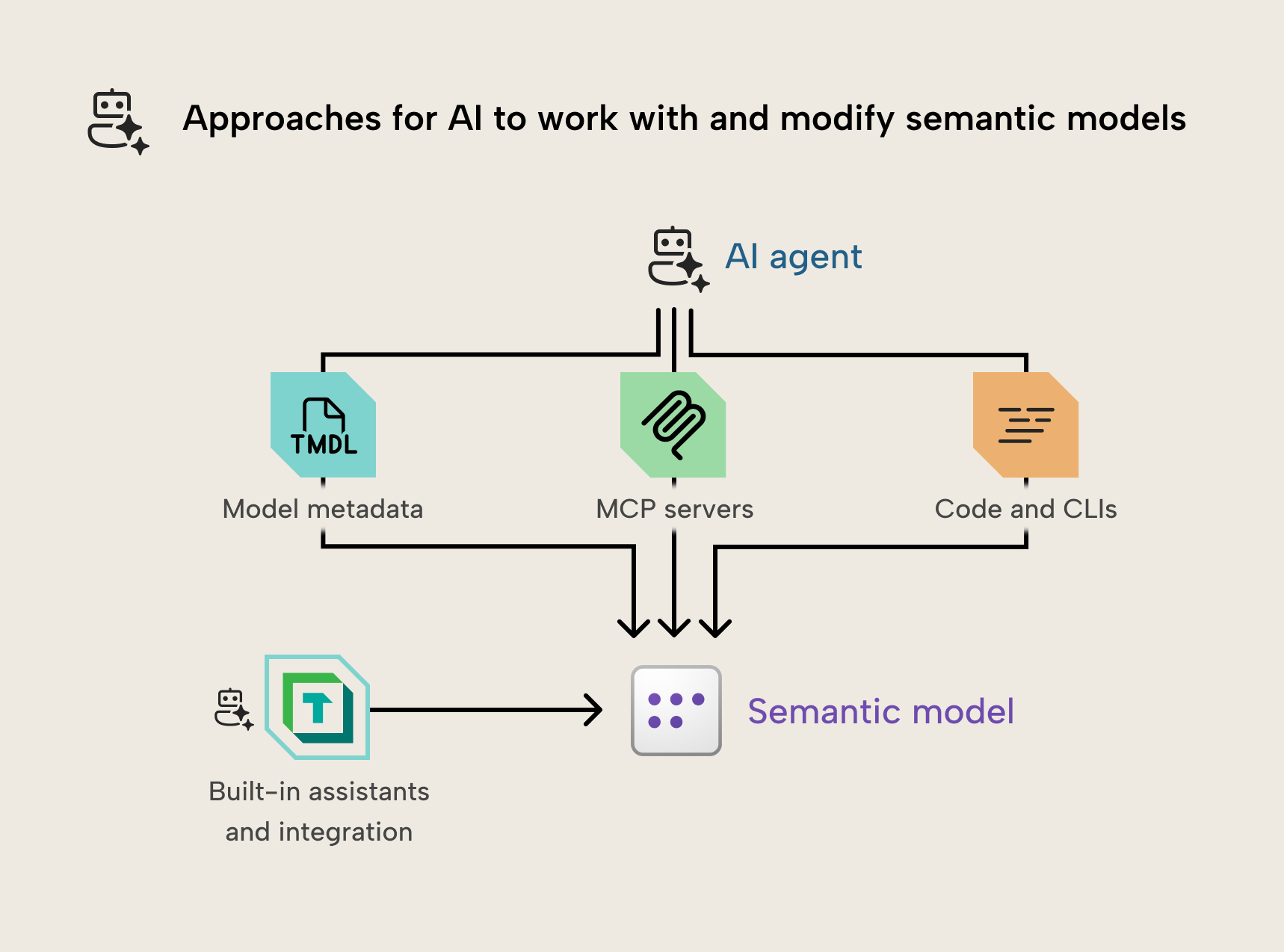
Like traditional semantic model development, there is no “best” tool; each tool is useful for different scenarios and addressing different problems. We see this as follows:
- Built-in assistants: Assistants like Copilot and the AI assistant in Tabular Editor provide an entry-level experience that is more accessible for non-technical users. They’re simpler than a coding agent and more limited in scope. Depending on the level of AI integration, the assistant can still accomplish many tasks (the assistant in Tabular Editor can make any change with C# scripts, for instance), however these are not coding agents nor MCP servers. They also have limited interaction with their external environment, such as using web search or interacting with local files and directories.
- MCP servers: The model context protocol (MCP) is new, and the spec is still evolving. Initially, MCP servers made a strong impression to extend agentic chatbot tools like Claude Desktop and GitHub Copilot in VS Code. This is especially true for tool discovery and transport. Recently, however, companies have demonstrated reluctance to develop and support MCP servers over traditional approaches with APIs and CLIs, or even custom agents. We still believe that MCP servers are a good choice when an agent can’t call commands or execute code, when a good CLI doesn't already exist, or when you just prefer to use an MCP server.
- CLIs: Command-line interfaces (CLIs) have predated agent use. They are simple and, unlike MCP servers, usable by both agents and humans. You can use a command-line tool manually or incorporate it in a CI/CD pipeline. This means that a CLI has some extra benefits out the gate:
- With a good CLI, you enable both an agent and human, at the same time.
- CLIs can also be more flexible since they don’t adhere to a specification. CLIs can also be more creative in their design and execution to solve novel problems.
- CLIs can also be broader in scope than MCP servers, since they don’t risk overflowing the context window like MCP server tool descriptions and resources do.
- Research has shown that agents are better at using code than calling tools. In our observations and testing, we’ve seen that agents perform best by using CLIs in combination with relevant context (such as memory and skills) and access to metadata files.
- Skills and other context: To perform well with any approach, agents require good context and instructions. The best approach for this now is agent skills, which are text files with references, scripts, and examples that agents can refer to or use. Good skills must be well-written by human experts and not generated by AI and iteratively refined over time. This is something already provided by Databricks with their AI dev kit, for instance.
- Other approaches: This area is evolving quickly, and there are more approaches than what we list here. For instance, we’ve observed Codex and Claude Code with the most recent models can connect to, query, and modify models open in Power BI Desktop without any special tools or engineering (no MCP server; no CLI). You can just tell Claude that you have a model open in Power BI Desktop and to go find and modify it… it will just do it. Agents can discover and connect to the local Analysis Services instance via ADOMD.NET, and query or modify it using DAX and TOM, directly; it works quite well, actually. What’s crazy is that you can even do this on a Mac, connecting to Power BI Desktop open on a VM. You can see an example of this, below, in an approach using this skill:
In the previous GIF, you can see Claude Code in the terminal, discovering, exploring, querying, and modifying a model open in Power BI Desktop without an MCP server or any other tools. It’s not a prescriptive workflow; Claude just figures it out.
This is an emerging area, so it’s unclear how this space will look in a few years… or even a few months. However, we want to ensure that any approaches we take to AI integration will benefit both human users and agents both equally and effectively.
AI assistant
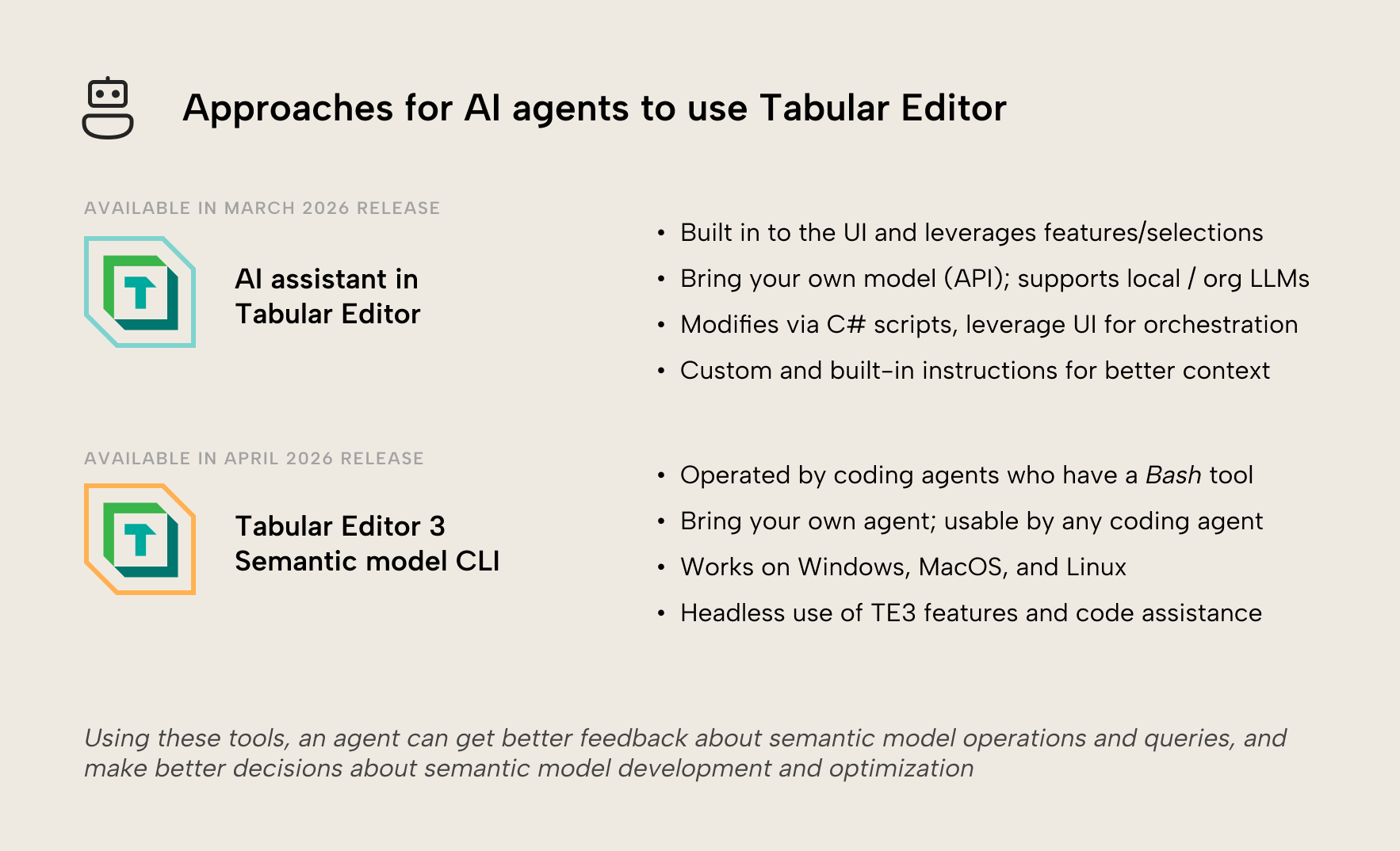
In the March release of Tabular Editor, we’re releasing the AI assistant. This is a new feature that lets you connect an LLM and let it perform certain tasks in Tabular Editor:
- Asking questions about Tabular Editor or semantic models.
- Writing and executing DAX to query your model.
- Analyzing or optimizing the model using TE features like VertiPaq Analyzer, BPA, etc.
- Modifying the model via C# scripts, which you can save and re-use as macros.
- Uses a bring-your-own-model approach; you must provide an API key, and can't use your coding agent subscriptions.
NOTE
Here’s an interactive walkthrough of the AI assistant, teaching you how to set up and use it.
The following is a brief demonstration:
The AI assistant is intended to be an entry-level helper for areas where we’ve seen people use AI with Tabular Editor. The purpose of the AI assistant is to make these more advanced or time-consuming tasks more convenient for those who choose to use AI. The assistant isn’t designed to be as broad as an MCP server or coding agent; rather, to make certain parts of the tool more accessible.
The most interesting application of the AI assistant is to help you write C# scripts. These scripts let the assistant make changes to the semantic model in Tabular Editor, which means that you can see the changes in real-time, and Tabular Editor validates them. You also can undo any changes with Ctrl+Z and review those changes in a new model “diff” view. The best part, however, is that working scripts can be generalized to re-use as saved scripts or macros without AI at all… so you can quite easily build up a library of re-usable macros without knowing or writing any C# code.
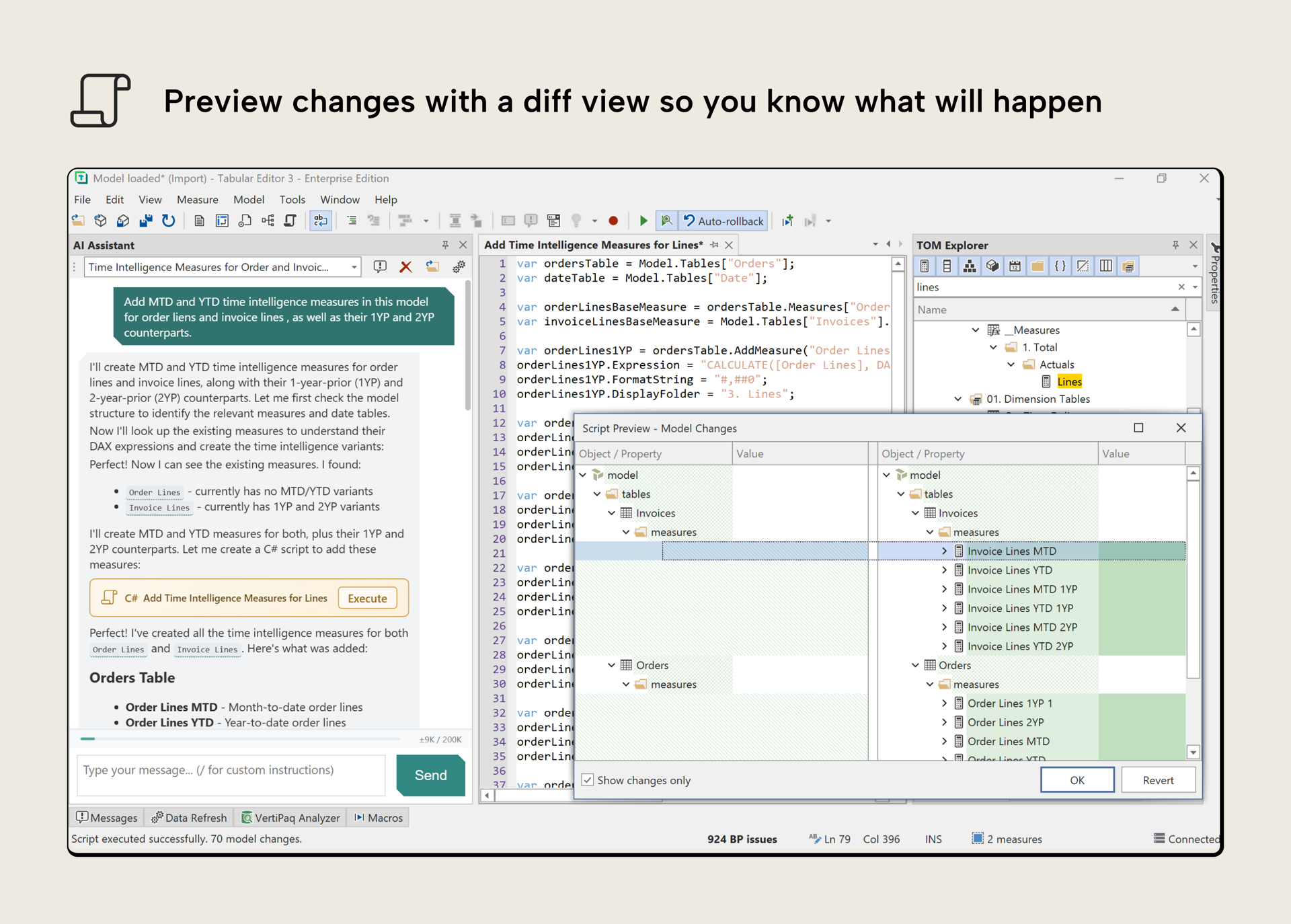
The diff view is particularly interesting, as it’s a new view in Tabular Editor that will eventually allow you to compare two semantic models. In the future, we intend this to work just like other popular diff tools, such as ALM toolkit. For the March release, however, the model diff view only works with C# scripts, irrespective of how you author them (i.e. with or without AI).
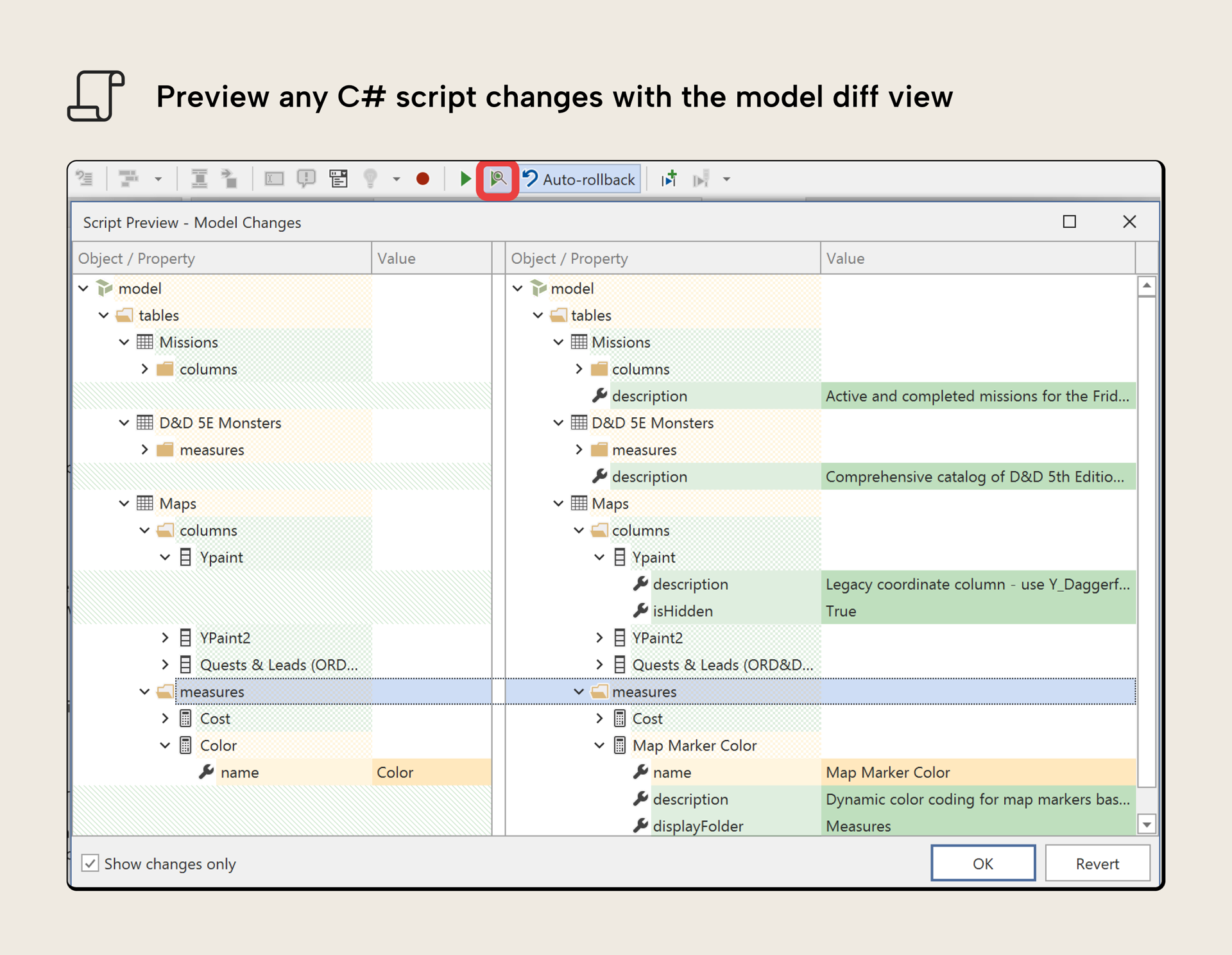
However, we also want to ensure that you can ignore the assistant altogether, if you choose to. You can choose to install the AI assistant or not when you update Tabular Editor. Furthermore, this feature will never bother or intrude on your work, and when you close it, it stays closed. You’re fully in control.
With the AI assistant, we’ve opted for a bring your own model approach. This means that you must supply connection information in the preferences, like an API key. This affords you the flexibility to choose providers, models, and even use local or organizational LLMs if available. This is particularly helpful to organizations that have stricter compliance or residency requirements.
NOTE
You cannot use your subscriptions for other coding agents and AI tools (like Claude, OpenAI, GitHub Copilot) with the AI assistant, as that’s against their terms of service.
These personal subscriptions are also cheaper than using the APIs, because they're subsidized. Therefore, using the same model in a coding agent with your subscription is cheaper than using it in the AI assistant via an API key. There are users who may prefer to use GitHub Copilot or Claude Code; for these users, we recommend you read about the Tabular Editor semantic model CLI in the next section, as this tool is specifically made to be the best possible semantic model tool for these agents.
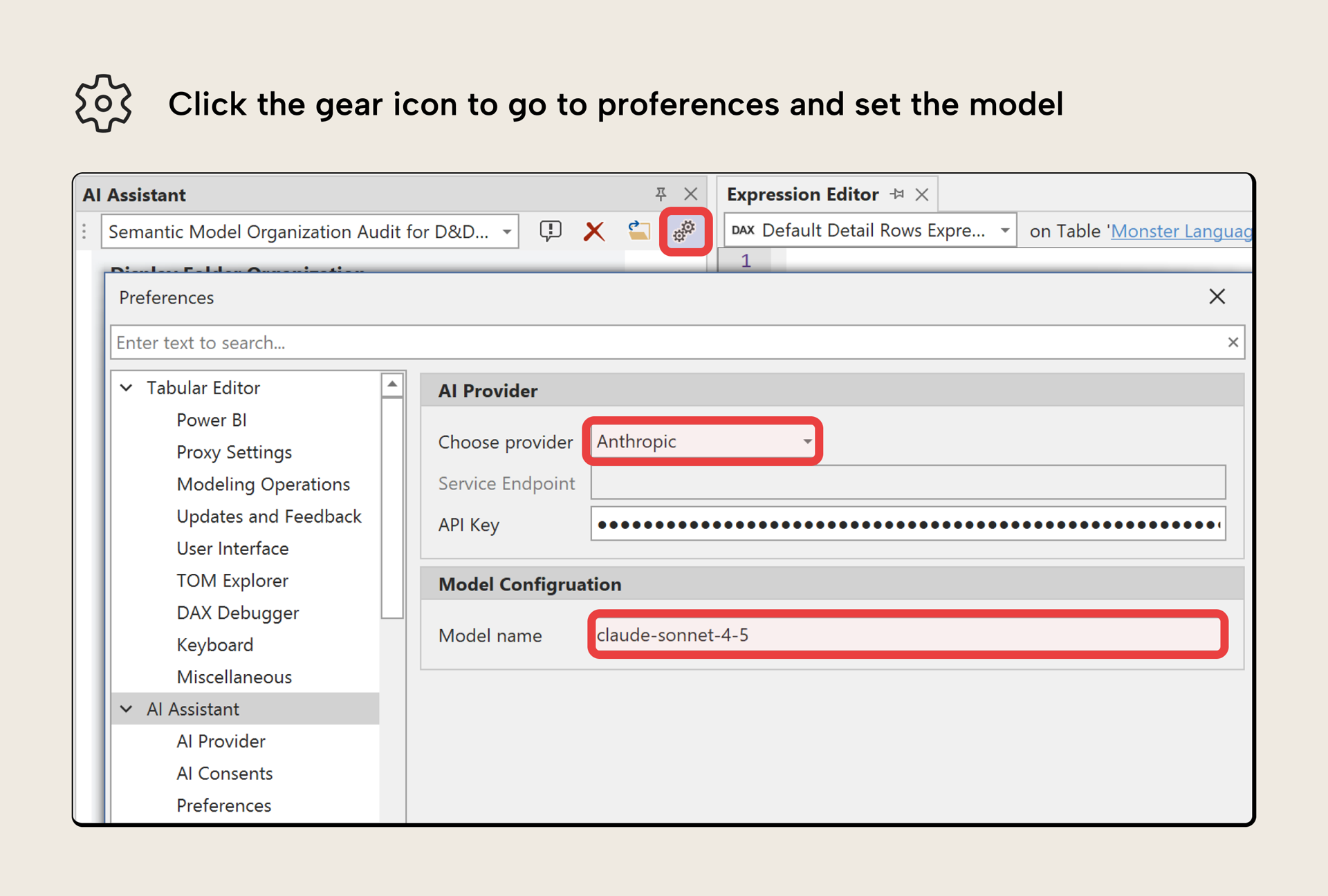
To change the provider or model, you just must click the “gear” icon. You can choose from multiple providers, including Anthropic, OpenAI, and OpenRouter. For local and organizational LLMs, see our documentation for a full walkthrough of how to set this up.
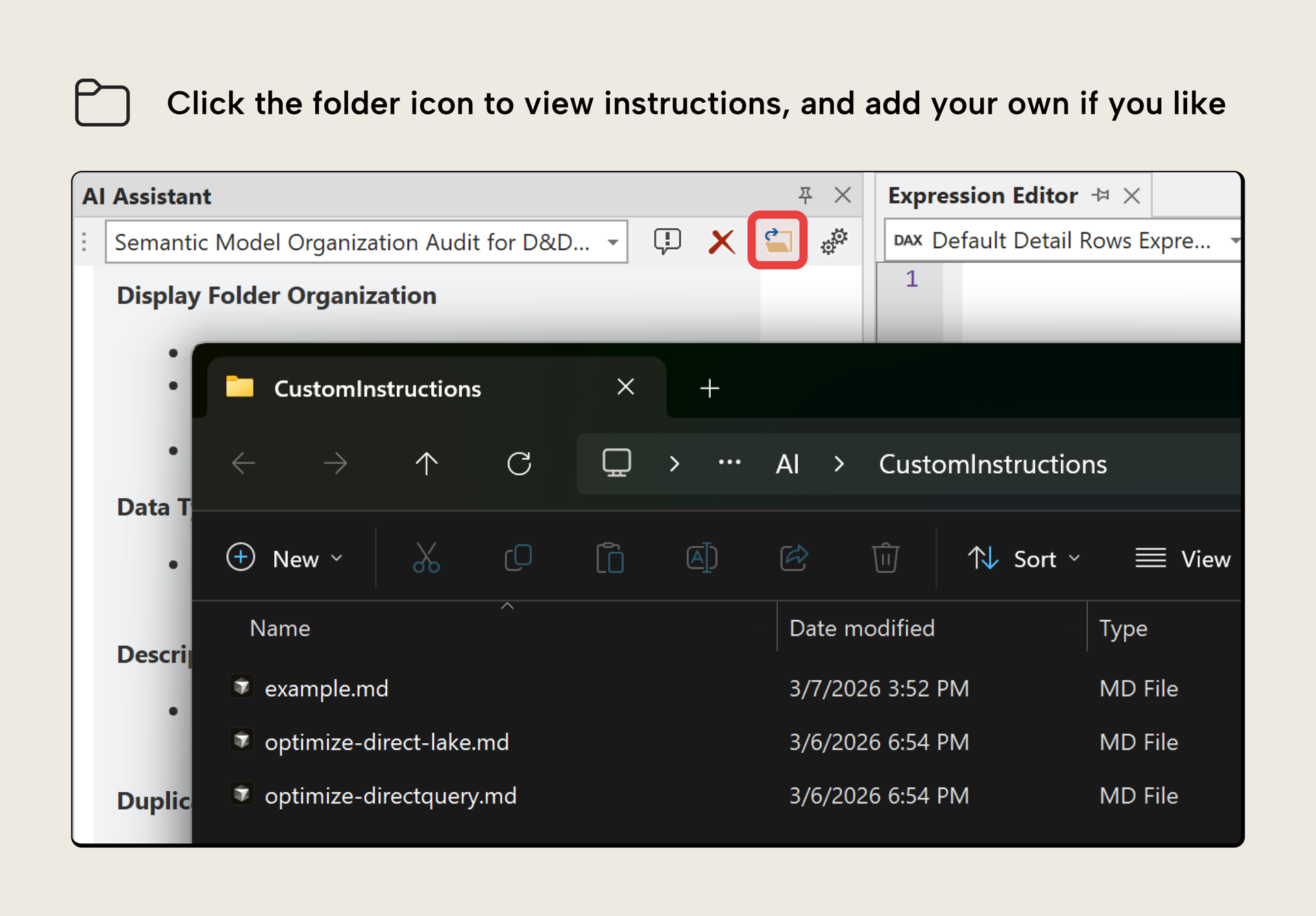
The AI assistant also supports custom instructions, which function like skills. These are simple markdown files which you can add to an AI folder:
These instructions are conditionally loaded to the assistant based on keywords that you configure, or you can invoke them like you would in other tools by pressing “/”. The AI assistant comes with several custom instructions preloaded. You can see some examples, below:
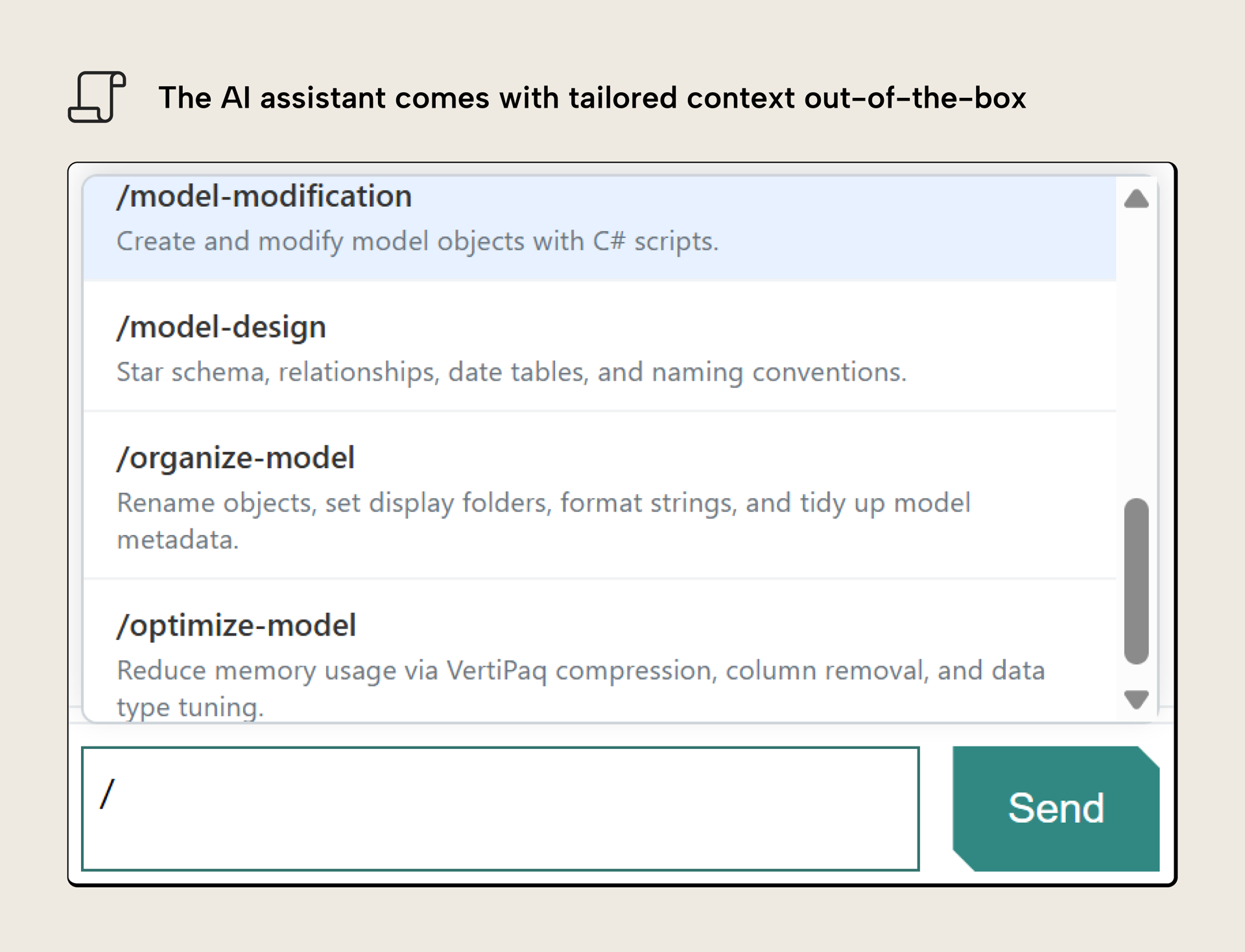
The purpose of these custom instructions is to provide good context to improve the outputs that you get from the AI assistant. Some of these instructions are workflows, like organize-model or optimize-model. Others are general information to teach the LLM about important concepts related to semantic models, like model-design.
Notably, the AI assistant isn’t designed to let you do everything in Tabular Editor. Here’s some examples of what you can’t do:
- Connect to external files or services or search the web.
- Add or use MCP servers or other tools.
- Connect to another model from an AI assistant (you do this in the user interface).
- Manage or change preferences for Tabular Editor or the AI assistant, itself.
To reiterate, the AI assistant is meant to be a helper with advanced tasks that we’ve observed cost users time or require specific skills, like writing DAX queries or C# scripts. The AI assistant isn’t designed or intended for more complex or end-to-end agentic development scenarios. For these scenarios, we’ll provide a new, improved semantic model command-line interface (CLI).
Semantic model CLI
In April, we’ll introduce a new semantic model command-line interface (CLI) that’s built for human developers but optimized for agents:
- Works on any operating system, including macOS and Linux, and with any coding agent, including GitHub Copilot and Claude Code.
- Commands that give you full control over a semantic model.
- Get headless use of the Tabular Editor 3 features you know like C# scripts, the VertiPaq Analyzer, the BPA, DAX code assistance and code actions, and more.
- Backward compatible with the Tabular Editor 2 CLI
- The CLI will be available to try for anyone with a Tabular Editor account. Later this year, it will be available only for specific Tabular Editor licenses. We will be fully transparent about this timeline and the details in our CLI, docs, communications, and website!
A CLI can be used by humans manually or headlessly in CI/CD pipelines. An example of this is the older Tabular Editor 2 CLI, which is used by many people to automate the development, testing, and deployment of semantic models. However, CLI tools can also be used by agents. We’ve written about several use-cases of this with the Fabric CLI, which is (in the author’s opinion!) the best Power BI or Fabric feature Microsoft released in 2025.
We’d like to announce a new semantic model CLI that has all the features that you expect and need to develop, manage, and optimize semantic models… and some extras. It’s been designed from the ground up to provide you everything that’s in Tabular Editor, and even new, more advanced features specifically designed for agentic development scenarios.
The biggest feature of this CLI is that it works on Windows, Mac, and Linux. This means that you can now develop, manage, and optimize your semantic models from any operating system:
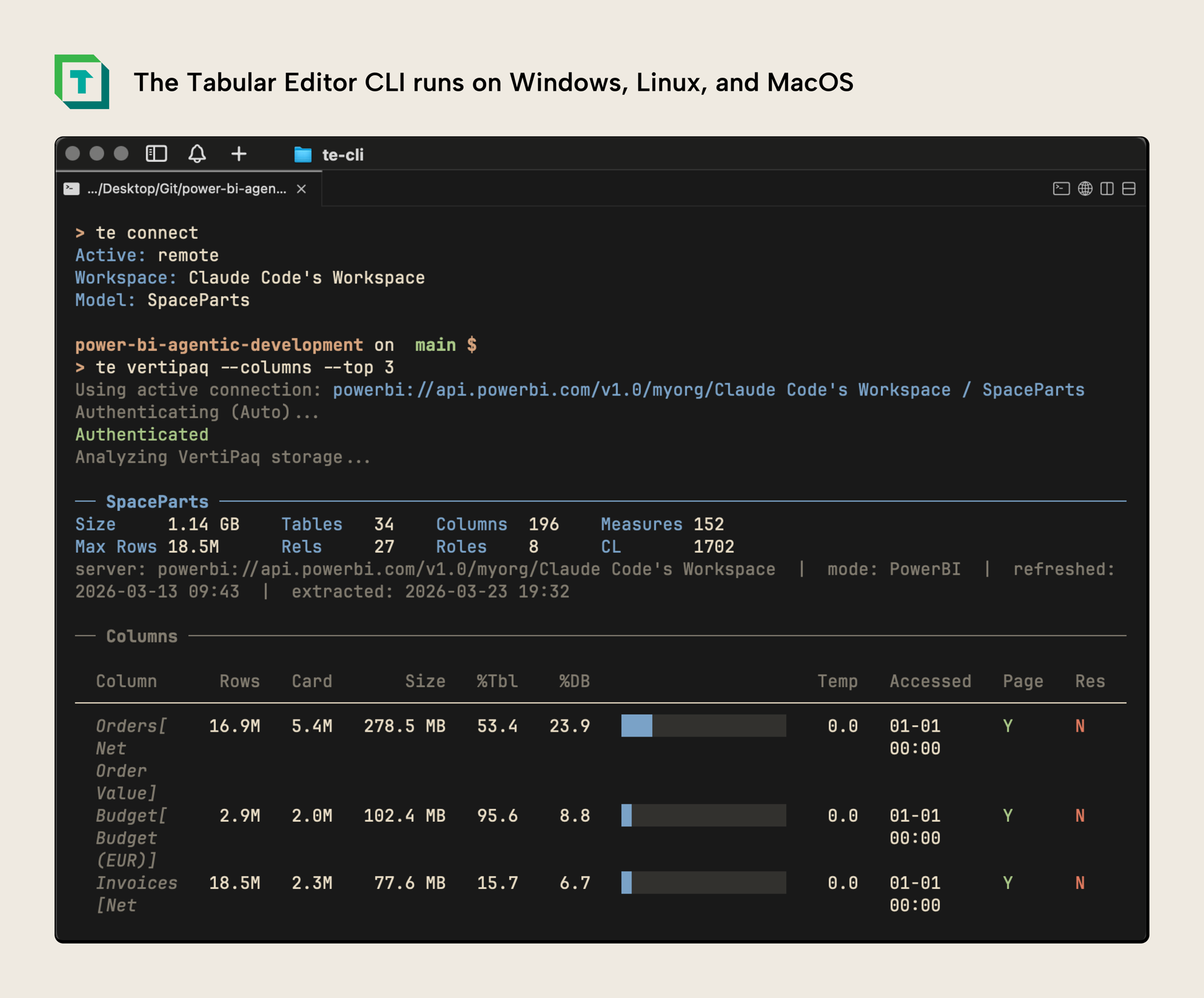
In the screenshot, you can see the te command line connecting to a semantic model, and then running the VertiPaq Analyzer to identify memory bottlenecks. The CLI is running on macOS in the cmux terminal, manually.
The CLI has full backward compatibility with the older Tabular Editor CLI. However, it’s also been enhanced with a variety of new commands and features.
WARNING
While the CLI is technically fully backward compatible, it’s using the enhanced scripting and BPA engine of Tabular Editor 3. Therefore, you will still want to test it rigorously before integrating it into your pipelines. Note that schema compare will not be available at the time of first release.
First, to introduce it, you can concisely browse and summarize a model:
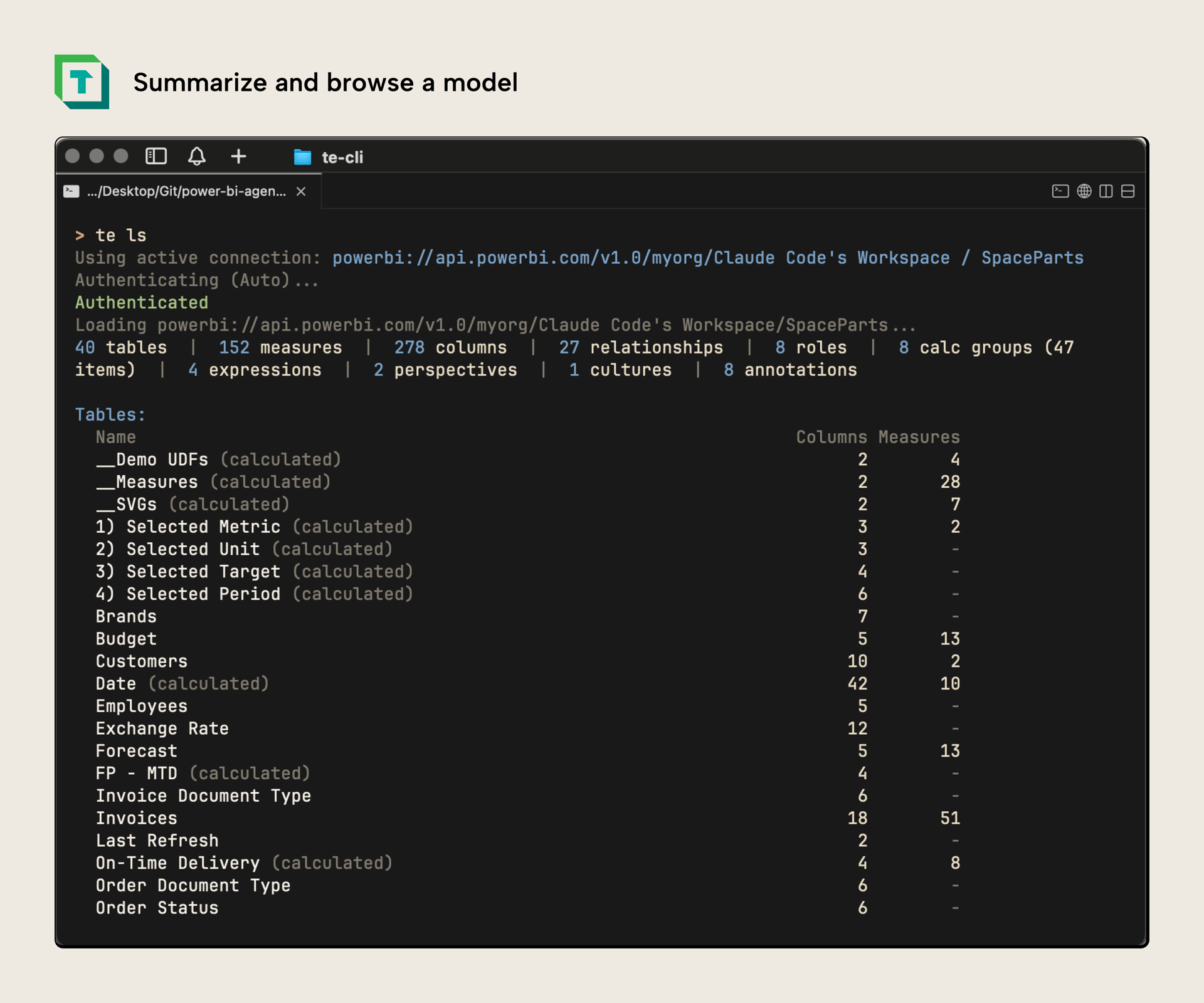
As well as query a model with DAX, and even get query traces or benchmarks like you would with DAX Studio:
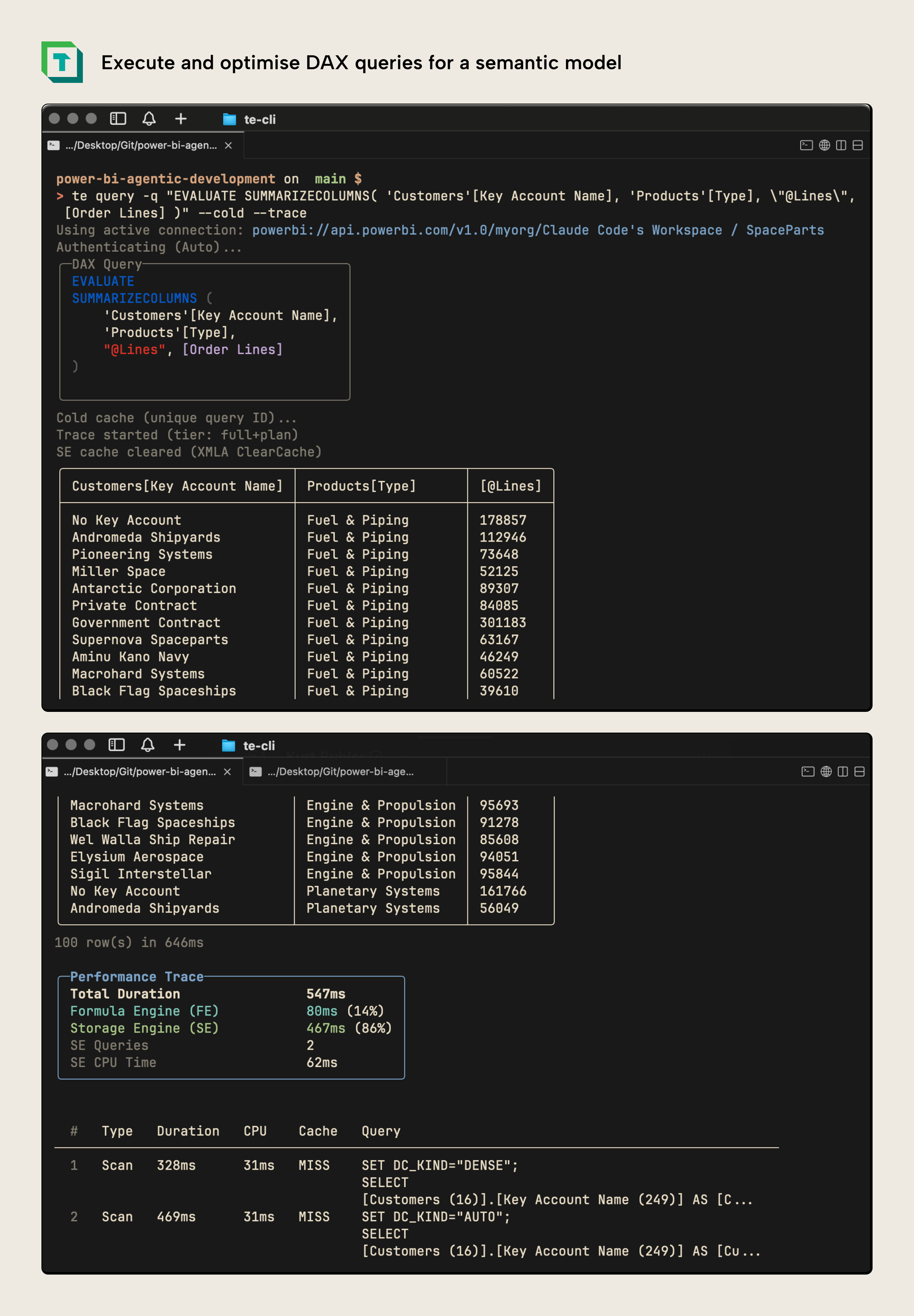
This means that the CLI can be a valuable tool not just for writing DAX but also optimizing it in the hands of both humans and agents. It provides a rich set of tools for exploring and querying your model in an elegant and effective way but also one that will still be token-lean and straightforward for AI coding agents, too.
Of course, you can also develop a semantic model with this CLI. Search, find, and modify any object or property, individually or in bulk. You also have all of the typical features of Tabular Editor, like formatting DAX and even Power Query:
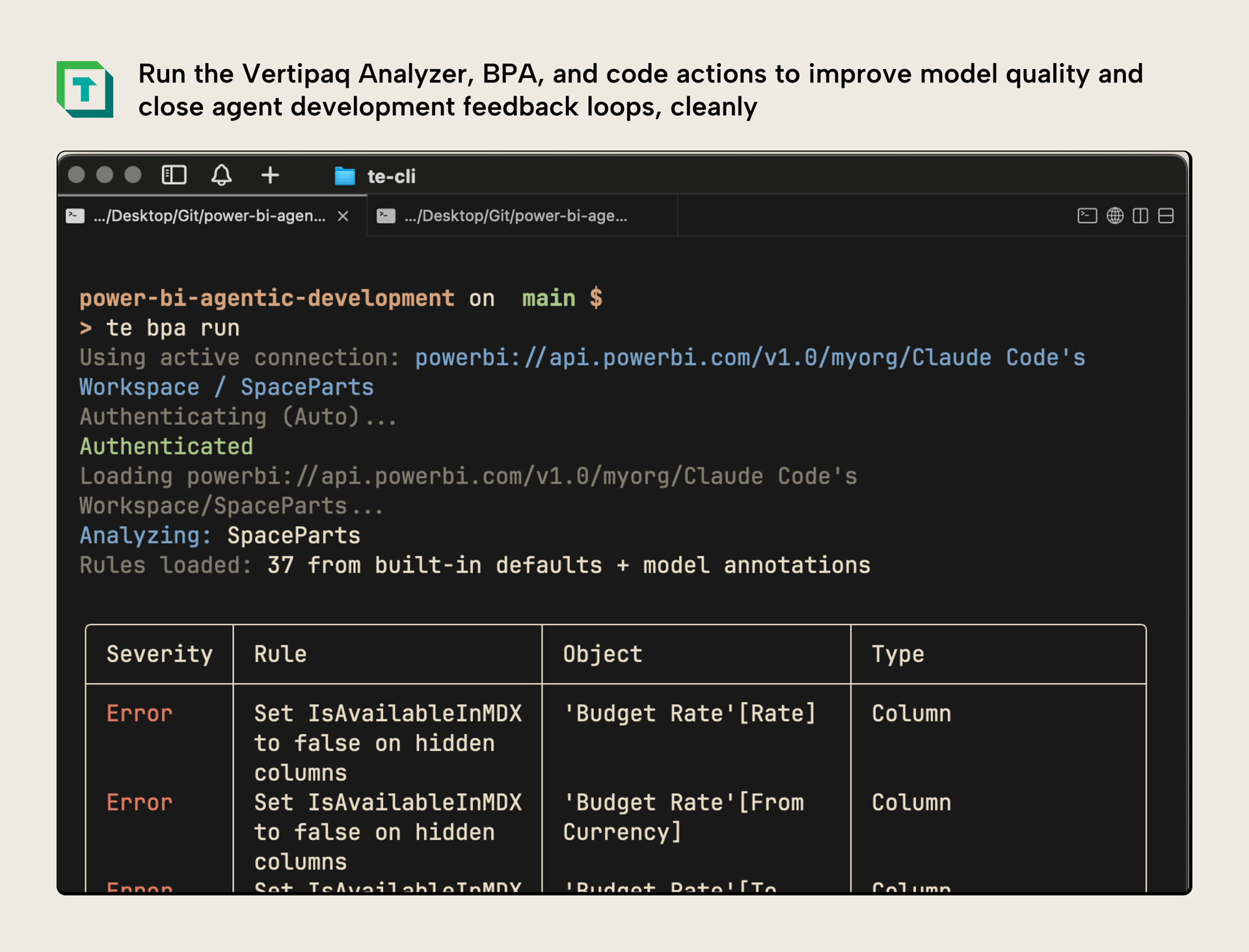
The tool has full access to the functionality in Tabular Editor that you know and love, like the VertiPaq Analyzer for memory optimization, the Best Practice Analyzer for finding and resolving issues and Code Actions, which provide smart warnings and can even enable auto-fix on model save and deploy:
What’s also unique to the CLI is that you can configure skills to help agents better use the CLI and develop semantic models. This agent setup works with any provider, from Claude Code to GitHub Copilot, and can be scoped to the user or project level. We’ve tested the CLI with various coding agents and experienced positive results, and we look forward to hearing your experiences, as well:
In this demonstration, you can see Claude Code using the Tabular Editor CLI without any skills or context to identify optimization opportunities. It can do this quite well out-of-the-box because it has access to the tools in the Tabular Editor UI designed and used for optimization, and familiar to the LLM from training data, alone. With skills this becomes even more powerful.
NOTE
To reiterate, the CLI is previewed in this article, but isn't yet available. It will be available in our next release in April.
These are just some of the features of the AI assistant and this new semantic model CLI; less than one fifth of what’s possible. The best is yet to come…
Further Reading
- Introducing the Tabular Editor CLI (Tabular Editor Blog). Describes the CLI and its command surface for validating, deploying, and automating semantic model workflows.
- AI Assistant documentation (Tabular Editor Docs). Covers provider setup, custom instructions, and AI assistant capabilities not fully described in this article.
- Fabric command-line interface (Microsoft Learn). Documents the Fabric CLI that agents can use for Fabric automation alongside semantic model tooling.
- Code execution with MCP: Building more efficient agents (Anthropic). Explains why agents often write code to call tools, which underpins the CLI-over-MCP argument made here.
In conclusion
We anticipate that agents will become a key part of semantic model development in the future. Already today, we see many examples of agents enhancing or expediting semantic model development workflows. We’re releasing two new features:
- The AI assistant is an entry to point for helping you work with AI in Tabular Editor. You use it in the user interface, where it can write and execute C# scripts, DAX queries, and use tools like the VertiPaq Analyzer and BPA.
- The Tabular Editor semantic model CLI, built for human developers first, and optimized to give agents the best tools available for model development and optimization. It can do almost everything that you can do in the Tabular Editor GUI, and works on any operating system.
We hope these new features help you develop better semantic models, faster!
Combine agentic workflows with Tabular Editor 3 and the CLI.
Give Tabular Editor a spin