
Key Takeaways
- Deploying shouldn't rely on availability: Publishing from Power BI Desktop relies on you and the permissions your account has. A
Deploystage after theValidatestage takes the same commit and deploys it to the workspace as a service principal, so deploys no longer depend on anyone's account or laptop. - Live assets should have matching commits: If the pipeline deploys assets such as models and reports, you should know which version is live. The pipeline can write the commit into the asset so it's always clear which commit is live.
- Only the pipeline should deploy: CI/CD is not just about having the right tools; it is mostly about behavior and following the agreed-upon practices.
This summary is produced by the author, and not by AI.
WARNING
You can download the TE CLI here: tabulareditor.com/download-tabular-editor-cli. It is in limited public preview until December 31, 2026. We recommend against using the CLI in production CI/CD pipelines during preview, as commands, flags, and outputs may change before general availability. The preview build will stop functioning after December 31. After the preview period, a license will be required. We welcome your feedback.
In our first and second parts of the "Deploy it right" blog series, we showed how source controlling a semantic model and validating every change made to the model already buys you a full history of every change and an automatic check on every push. Checking every change automatically is the CI in CI/CD (Continuous Integration); in this entry, we add the CD (Continuous Deployment) by letting pipelines do the deploys rather than you, yourself. Gone are the days of guessing which version of the model is live.
What you'll need for this part of the series:
- Git (as in part 1)
- The TE CLI, installed on your PATH, and its Linux archive committed to
tools/te/in your repository (as in part 2) - Python 3.10 or later and pbir-cli (as in part 2)
- An Azure DevOps or GitHub repository with the pipeline from part 2
- A workspace on a Fabric or Premium capacity, with the capacity's XMLA endpoint set to read-write, and your model published to it once from Power BI Desktop, with its data source credential set in the model's settings
- A service principal with a client secret, added to that workspace as Contributor, and allowed in the tenant setting Service principals can call Fabric public APIs
A publish can undo a checked change
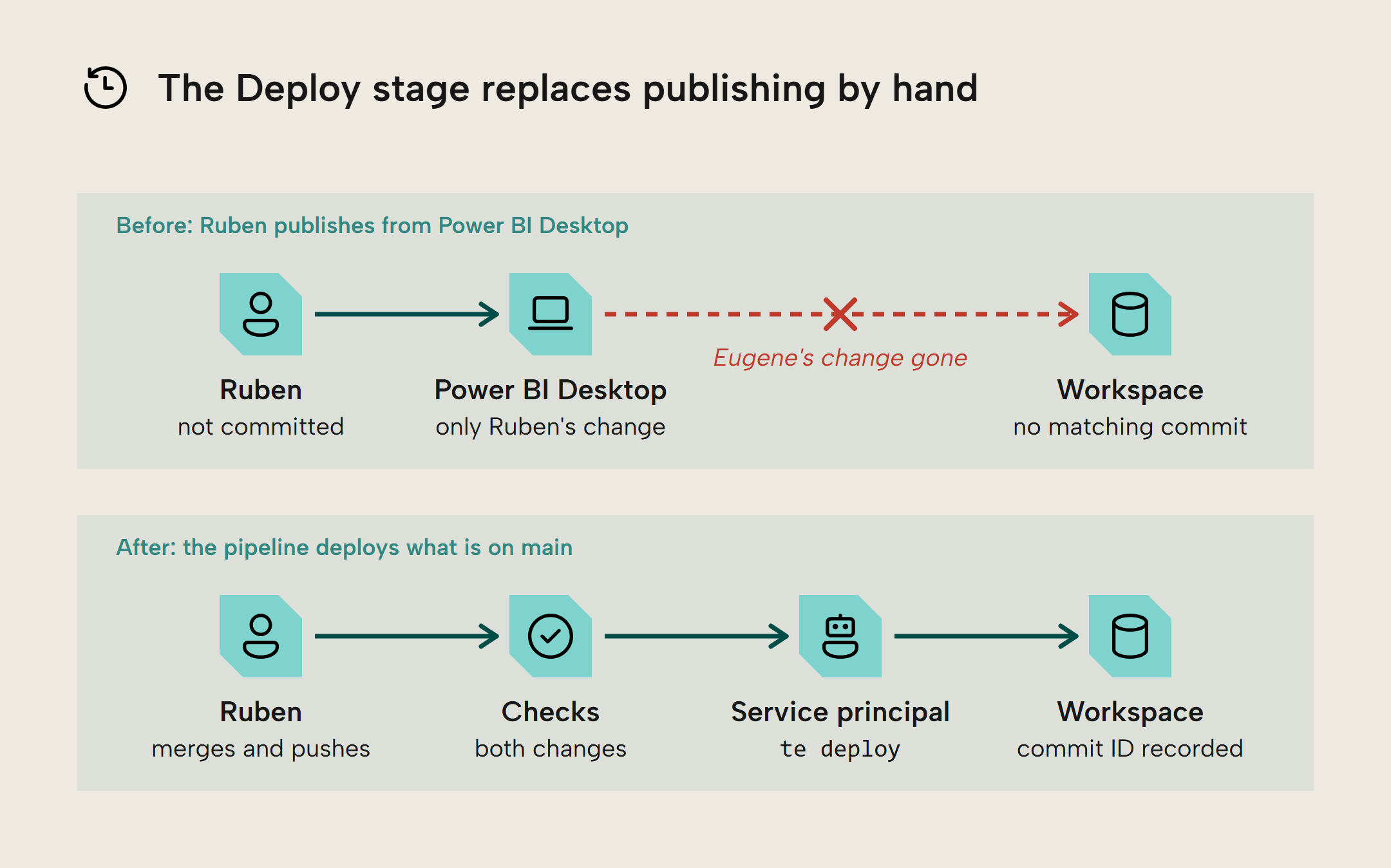
Eugene and Ruben still work at SpaceParts, Tabular Editor's fictional daughter company -- for now. In part 2, they set up a pipeline in Azure DevOps that checks every push to main, to ensure that models are valid, BPA rules are followed, and reports still find the fields they need. The pipeline up until now does not move any changes, so either Eugene or Ruben still has to update the workspace where their colleagues open the report. Eugene pushes his change to the main branch, waits for the checks to pass, then publishes from Power BI Desktop on his laptop. Ruben, careless as he is, publishes his own change without pushing or first pulling from the repo -- meaning he does not have the change Eugene published the day before and nukes it from the workspace.
Eugene finds his change missing from the workspace and asks Ruben for the commit that matches the published model, but none does because Ruben just published without committing to the main branch. Eugene's changes aren't lost (Git, remember), but they both want to prevent another incident like this. They need one single way to deploy so stepping on each other's toes isn't possible.
If you click the Publish button in Power BI Desktop and publish it to a Fabric workspace, it's your identity (you@company.com) doing the deploying, from your device. Microsoft calls this publishing: Power BI Desktop uploads the model including its data and replaces the model in the workspace. When a pipeline deploys with a tool like the TE CLI, it only uploads the model's definition, and the model in the workspace keeps its data and any credentials already set.
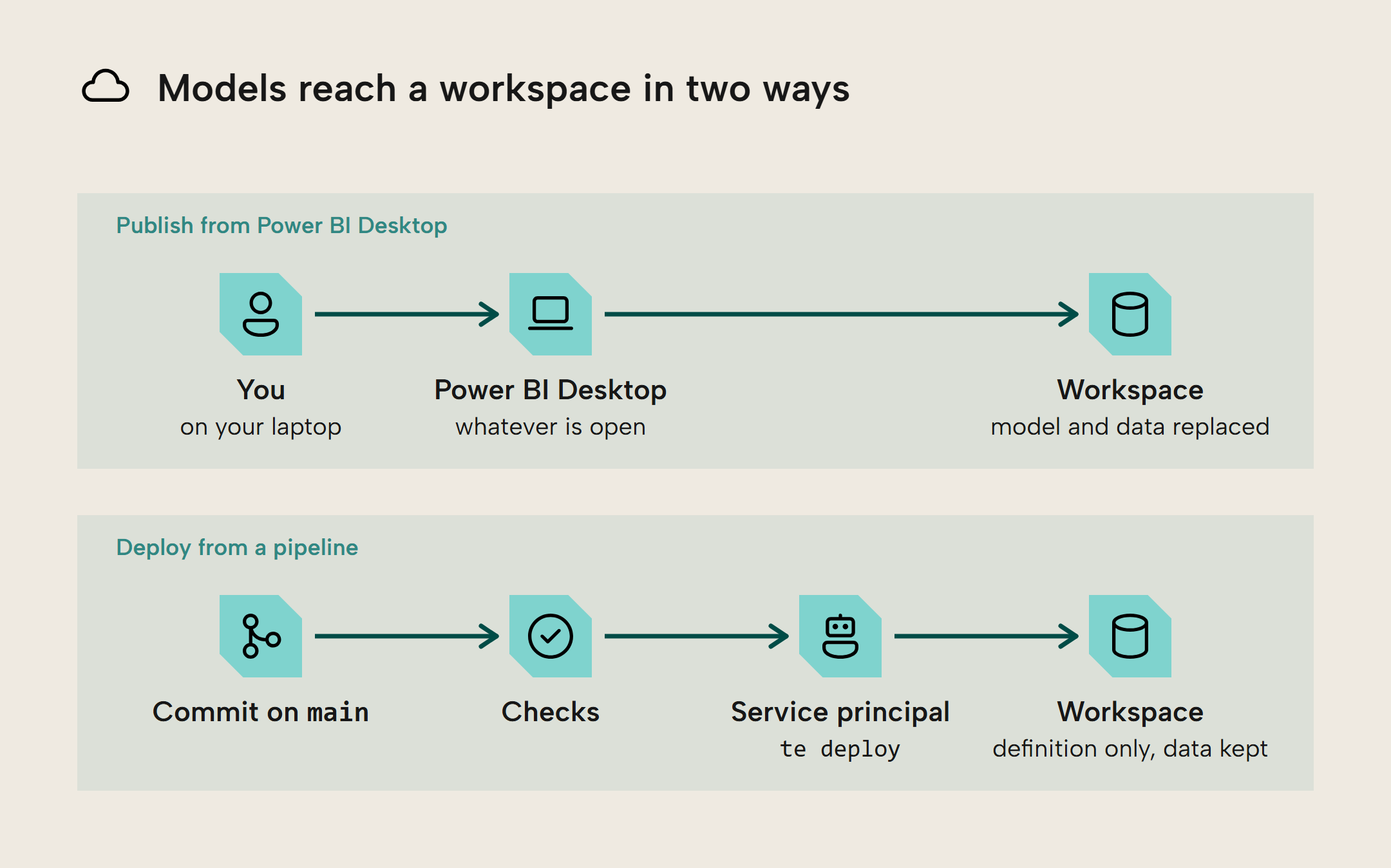
Publishing from Power BI Desktop can be an adequate process, but it relies on you and the permissions your account has. With Power BI Desktop, you also publish whatever is open on your machine, whether or not it passed the checks from part 2, and nothing records which Git commit, if any, the published model matches. Power BI Desktop also makes changes on its own, such as adding hidden date tables or creating relationships when you load new tables. It's easy to publish changes from Power BI Desktop that you didn't make yourself. With models saved as text in Git, those changes are highlighted in the diff before you commit, and a pipeline only deploys what you committed and checked.
Deploying from the pipeline
In this part, we transition from deploying ("publishing") from Power BI Desktop to letting a pipeline handle the deploys using a service principal. To the pipeline of part 2, we add a Deploy stage after the Validate stage. That new Deploy stage takes the same commit and deploys it to the workspace as a service principal.
A service principal
You could also let a dedicated identity take care of deploying: a service principal. A service principal is an identity for an application instead of a person. You create it once in Microsoft Entra ID and give it access to the workspace. The pipeline then signs in as the service principal using a client ID and a client secret. Now, deploys no longer depend on anyone's account or laptop.
NOTE
You may need some help from your Fabric Admin to make this work.
- The tenant setting Service principals can call Fabric public APIs must include your service principal; it's on by default for new customers and can be limited to a security group, i.e. an Entra group for your service principal(s).
- The tenant setting Allow XMLA endpoints and Analyze in Excel with on-premises semantic models must be enabled; it's on by default.
- The capacity's XMLA Endpoint setting must be set to Read Write.
- The service principal needs the Contributor role or higher on the workspace, which grants it the write permission to all semantic models in the workspace.
A service principal makes changes in your workspace, so it has to sign in like any user with credentials. The service principal needs 3 credentials:
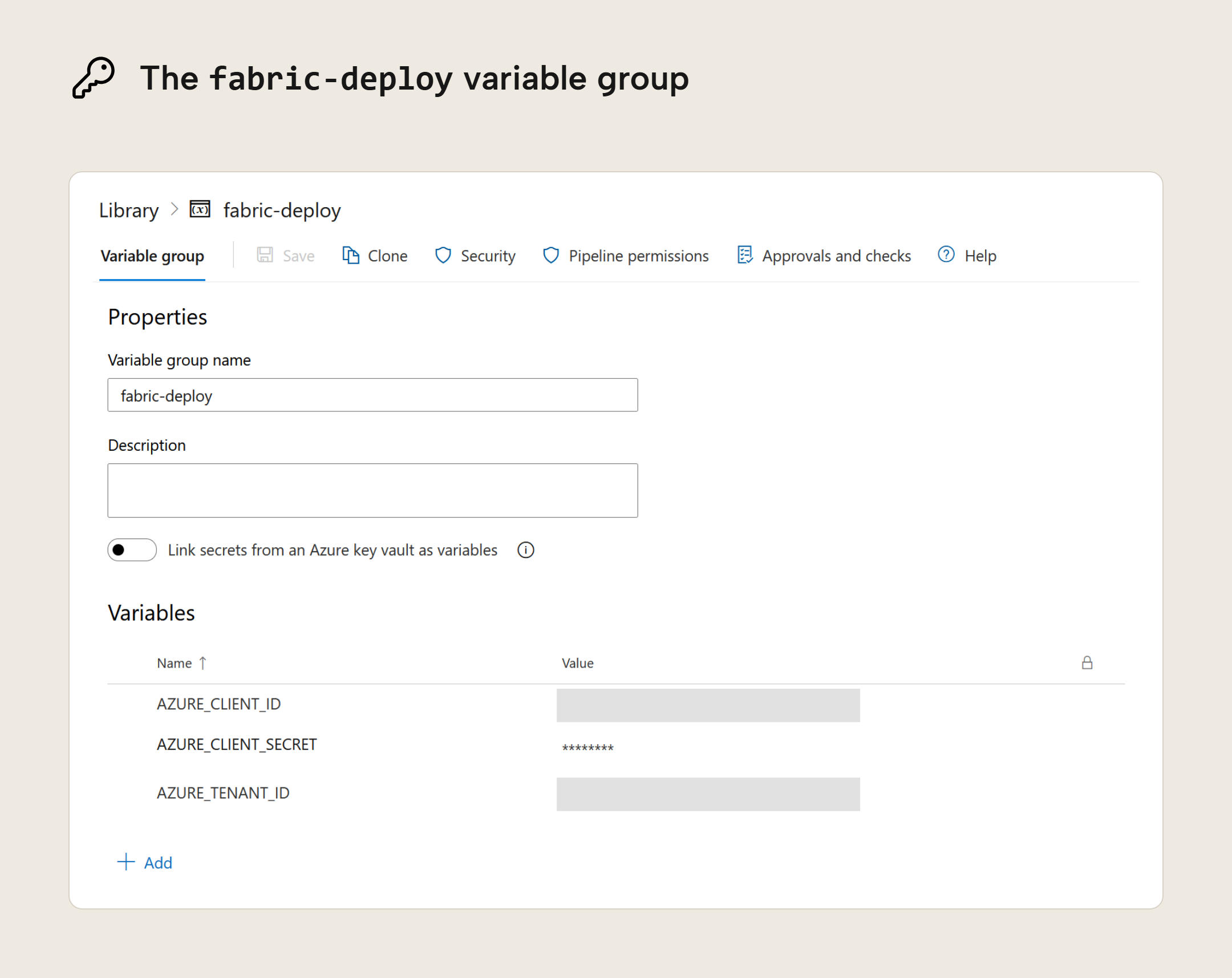
AZURE_TENANT_IDidentifies your organization's Microsoft Entra tenantAZURE_CLIENT_IDidentifies its app registrationAZURE_CLIENT_SECRETis its client secret, which works like a password
When the Deploy stage runs, it will read those 3 values from a variable group named fabric-deploy, in our example. You create it under Pipelines > Library and mark AZURE_CLIENT_SECRET as secret with the lock icon. In GitHub Actions, credentials like these are stored as repository secrets.
The Deploy stage
In Azure DevOps, a stage is a group of jobs, and a job is a group of steps that runs on one machine. Our pipeline now has two stages: Validate, with the two jobs (Model and Report) from part 2, and Deploy. A stage only starts when the stage before it passed. GitHub Actions has no stages; there, a job waits for other jobs with needs.
The TE CLI te deploy command lets the pipeline perform a metadata-only deploy, meaning that it will only update the model's definition but not any data loaded to the model nor any data source connections and credentials configured for the model. This way, metadata-only changes like adding or changing measures don't require waiting for import models' data cache to upload or refresh. Changes that affect loaded data such as M partitions or calculated objects do need a refresh. For those, the te refresh command reloads or recalculates the data.
Remember that Eugene and Ruben need to update the semantic model in the workspace so it contains both their changes. Ruben has to play by the rules again; he commits the change that's still only on his laptop and tries to push. Git refuses because he lacks Eugene's commit. After pulling and merging the changes, the main branch on his laptop has both changes. To deploy the main branch with both changes to the workspace, they add the Deploy stage:
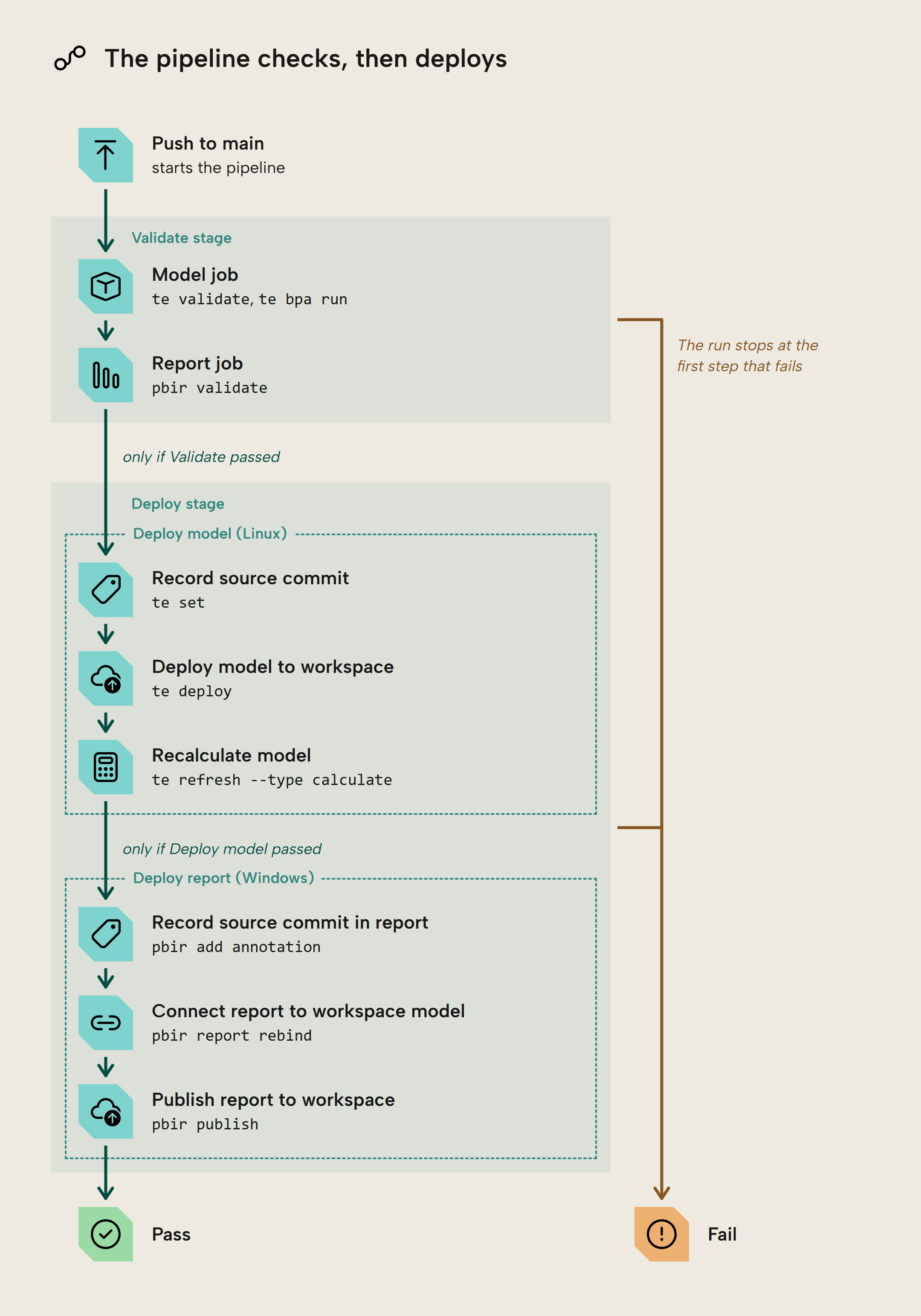
Ruben had not committed his changes before publishing, so the model in the workspace doesn't have a matching commit. This is a problem because, as in part 1, Git's history only helps if you can match it to the live model. The pipeline knows which pushed commit to the main branch kicked it off, and writing that commit ID into the model as an annotation (a named value you can store in the model) lets anyone check the workspace to see which commit is deployed. By adding the step Record source commit before deployment and letting it use te set to write this run's commit ($(Build.SourceVersion)) as a value to the SourceCommit annotation, they can match up the live model to the exact Git commit.
The report also has to reach the workspace. If they continue publishing it from Power BI Desktop, they will replace the model (the .pbip contains both the report and the model) and undo what the pipeline deployed. In the repository, the report points to the model folder next to it, so they need to add the step Connect report to workspace model, which uses pbir report rebind to point it at the model in the workspace. Finally, they add the step Publish report to workspace, which uses pbir publish -f to overwrite the report. The report gets the same commit ID as the model: before it is connected, the step Record source commit in report uses pbir add annotation to write the ID into the report as a SourceCommit annotation.
NOTE
New models published to an empty workspace need their data source credentials configured before the first refresh. With XMLA deployment you can't set this credential. A person can take over in the model's settings and set it, or the service principal can set it through the Power BI REST API as owner. Credentials configured for published models aren't disturbed by deploys.
The report's metric pickers are field parameters, and a metadata-only deploy leaves these calculated tables empty until they are recalculated, so the visuals that use them would show errors. We therefore need to add the step Recalculate model after the deploy to run te refresh --type calculate, which recalculates the tables from the data already in the model without reloading from the data sources. The steps Deploy model to workspace and Recalculate model sign in as the service principal. Azure DevOps passes plain variables from a variable group to every step, under their own names. A pipeline step needs to be handed secrets such as AZURE_CLIENT_SECRET (from the variable group) through the env: block, so both steps that use the TE CLI have such a block.
  - stage: Deploy
    dependsOn: Validate
    variables:
      - group: fabric-deploy
    jobs:
      - job: Model
        displayName: Deploy model
        pool:
          vmImage: ubuntu-24.04
        steps:
          - checkout: self

          - script: |
              tar -xzf ./tools/te/te-*-linux-x64.tar.gz -C ./tools/te
              echo "##vso[task.prependpath]$(Build.SourcesDirectory)/tools/te"
            displayName: Set up Tabular Editor CLI

          - script: te set . -p "Annotations[SourceCommit]=$(Build.SourceVersion)" --model "Invoiced Sales.SemanticModel" --save
            displayName: Record source commit

          - script: te deploy --model "Invoiced Sales.SemanticModel" --target-server "Order to Cash" --target-database "Invoiced Sales" --auth env --execute --force --ci azure-devops
            displayName: Deploy model to workspace
            env:
              AZURE_CLIENT_SECRET: $(AZURE_CLIENT_SECRET)

          - script: te refresh --type calculate -s "Order to Cash" -d "Invoiced Sales" --auth env --execute --force --no-progress
            displayName: Recalculate model
            env:
              AZURE_CLIENT_SECRET: $(AZURE_CLIENT_SECRET)

      - job: Report
        displayName: Deploy report
        dependsOn: Model
        pool:
          vmImage: windows-2025
        steps:
          - checkout: self

          - task: UsePythonVersion@0
            inputs:
              versionSpec: "3.12"

          - script: pip install pbir-cli==0.9.32
            displayName: Set up pbir-cli

          - script: pbir add annotation "Invoiced Sales.Report" --name SourceCommit --value $(Build.SourceVersion)
            displayName: Record source commit in report

          - script: pbir report rebind "Invoiced Sales.Report" "Order to Cash.Workspace/Invoiced Sales.SemanticModel"
            displayName: Connect report to workspace model
            env:
              FAB_TENANT_ID: $(AZURE_TENANT_ID)
              FAB_SPN_CLIENT_ID: $(AZURE_CLIENT_ID)
              FAB_SPN_CLIENT_SECRET: $(AZURE_CLIENT_SECRET)

          - script: pbir publish "Invoiced Sales.Report" "Order to Cash.Workspace/Invoiced Sales.Report" -f
            displayName: Publish report to workspace
            env:
              FAB_TENANT_ID: $(AZURE_TENANT_ID)
              FAB_SPN_CLIENT_ID: $(AZURE_CLIENT_ID)
              FAB_SPN_CLIENT_SECRET: $(AZURE_CLIENT_SECRET)
The line dependsOn: Validate makes the Deploy stage wait for the checks, and the line dependsOn: Model lets the Report job wait on the Model job. Each job spins up a fresh machine and sets up tools as in part 2.
NOTE
To use this pipeline yourself, copy the full pipeline file from the sample repository and replace the workspace, model and report names with yours. pbir-cli needs the .Workspace, .SemanticModel and .Report endings to tell which kind of item it's handling, so keep those.
The pipeline in action
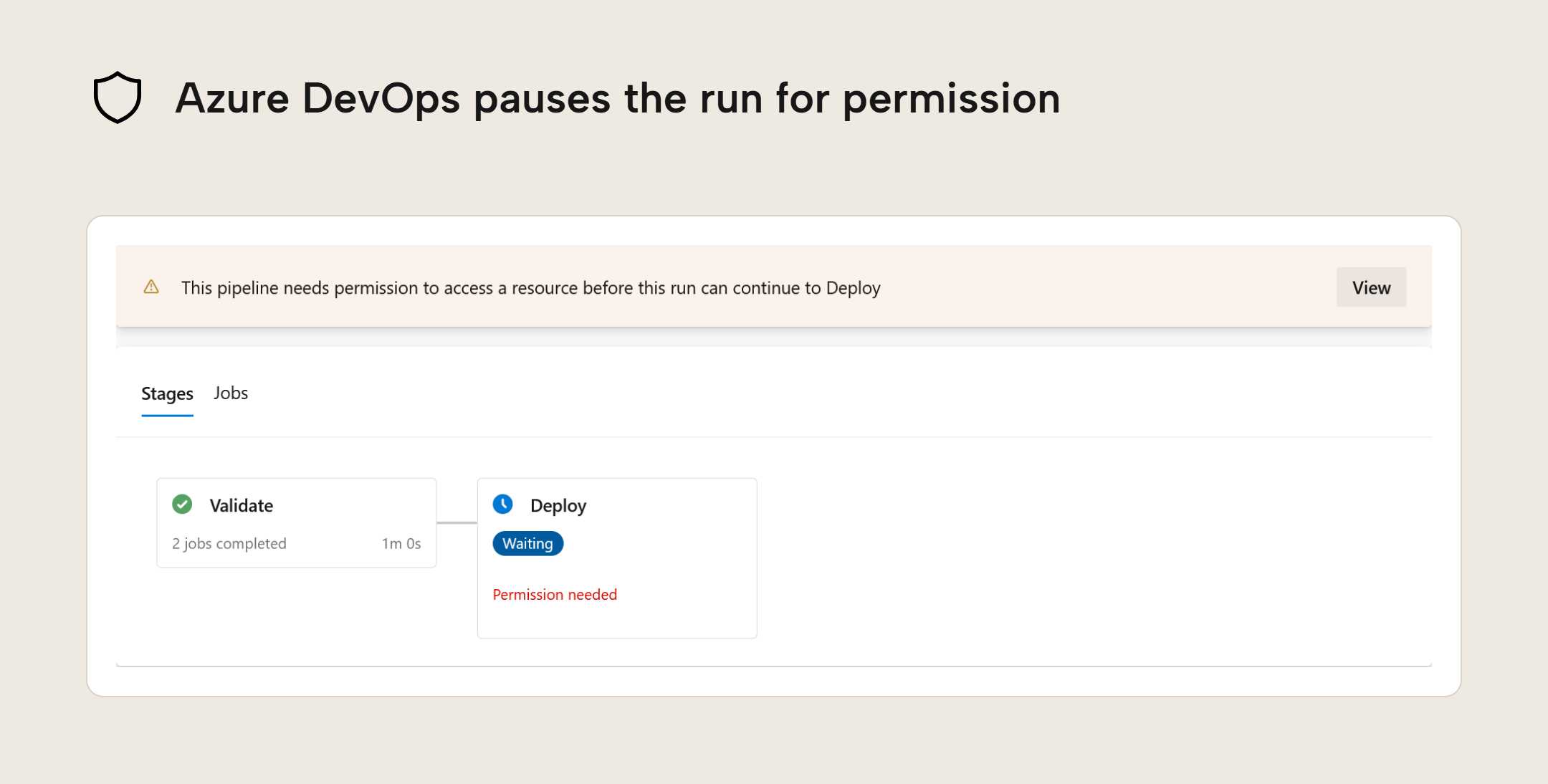
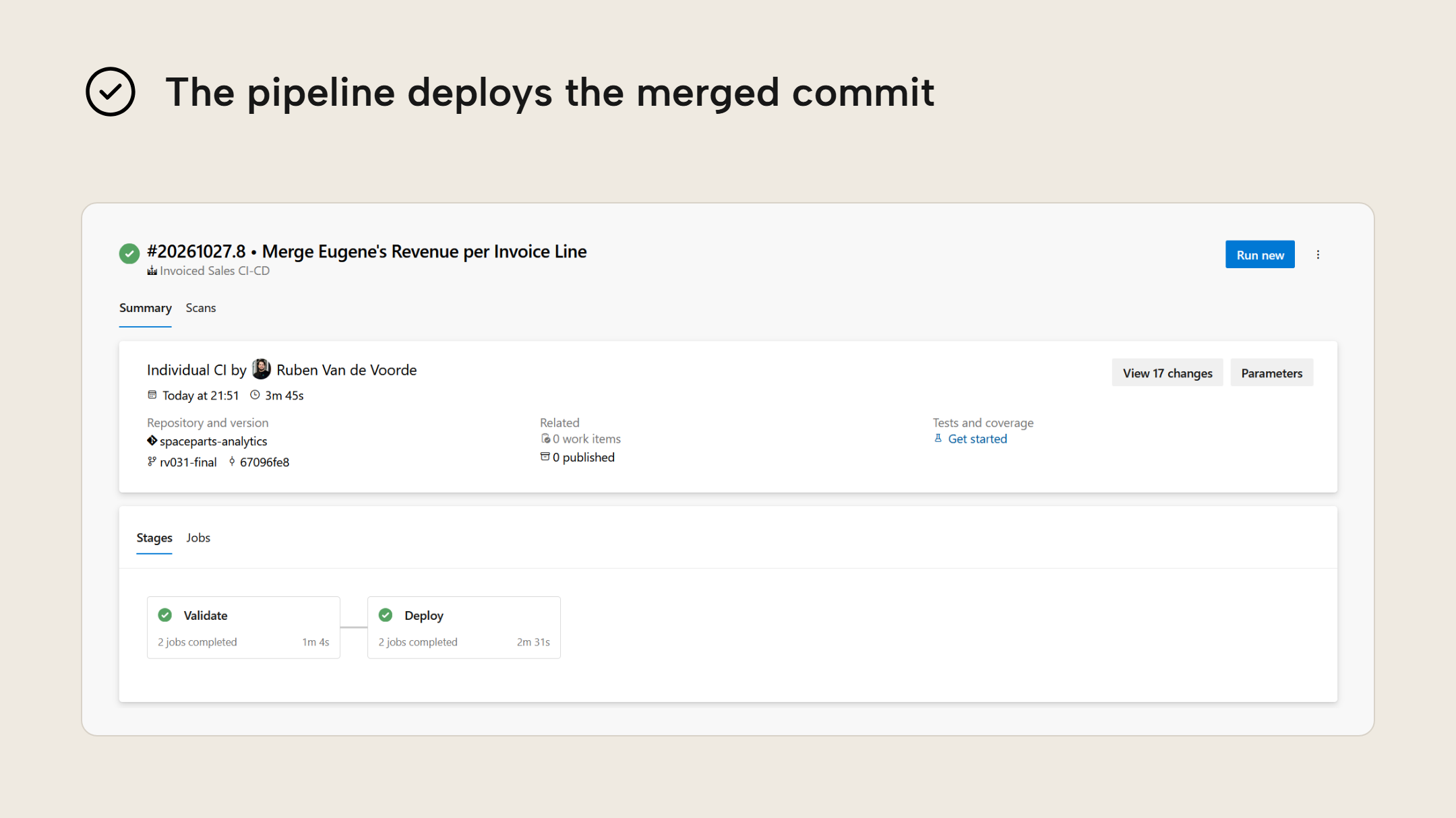
Finally, we can see the thing in action. Ruben pushes his merge to main, which kicks off the pipeline. The first time a pipeline uses the variable group, the run waits until someone who manages the group clicks Permit in Azure DevOps. In later runs, the pipeline will just re-use the variable group instead of waiting for a click.
The pipeline runs on every push to main
- 3b07f1c
- e41d9a2
- next commit
-
Validate model
- Validate model
- Best Practice Analyzer
-
Validate report
- Validate report
-
Deploy model
- Record source commit
- Deploy model to workspace
- Recalculate model
-
Deploy report
- Record source commit in report
- Connect report to workspace model
- Publish report to workspace
-
Semantic model
Old version Source commit: none Not deployed by the pipeline yet -
Report
Old version Source commit: none Not deployed by the pipeline yet
Which version is live?
Eugene would like to know whether the pipeline worked and his change is now back in the workspace. With te query, he runs the DAX function INFO.ANNOTATIONS() against the workspace model to see which commit is deployed.
te query -s "Order to Cash" -d "Invoiced Sales" -q 'EVALUATE FILTER(INFO.ANNOTATIONS(), [Name] = "SourceCommit")'

Using cached credentials
╭─DAX Query────────────────────────────────────────────────╮
│ EVALUATE                                                 │
│ FILTER ( INFO.ANNOTATIONS ( ), [Name] = "SourceCommit" ) │
╰──────────────────────────────────────────────────────────╯
Validating query...
Executing query...

  [ID]  │ [ObjectID] │ [ObjectType] │ [Name]       │ [Value]                                  │ [ModifiedTime]
 ───────┼────────────┼──────────────┼──────────────┼──────────────────────────────────────────┼─────────────────────
  12076 │ 1          │ 1            │ SourceCommit │ 67096fe81967590959575a198c36201e38ec2313 │ 27/10/2026 20:53:25

1 row(s) in 138ms
NOTE
If your shell is the command prompt, you'll need double quotes: -q "EVALUATE FILTER(INFO.ANNOTATIONS(), [Name] = ""SourceCommit"")". In Windows PowerShell 5.1, you'll need a backslash before the inner quotes: -q 'EVALUATE FILTER(INFO.ANNOTATIONS(), [Name] = \"SourceCommit\")'.
This is the ID of Ruben's last pushed commit, and since Eugene's commit comes before it on main, both changes made it in. Reports can't receive DAX queries, but the pbir-cli can list annotations added to reports by downloading them:
pbir download "Order to Cash.Workspace/Invoiced Sales.Report" -o live
cd live
pbir annotations list "Invoiced Sales.Report"

                 Annotations in Invoiced Sales.Report
  Name            Value                                       Level
  SourceCommit    67096fe81967590959575a198c36201e38ec2313    Report

Total: 1 annotation(s)
The report annotation has the same commit ID as the model, i.e. the report in the workspace is the one that the checks validated against this model. As long as only the pipeline deploys to the workspace, these IDs tell you which commit is live. If either comes back empty, someone published that item from Power BI Desktop, because the pipeline is the only one that writes the annotation.
So Eugene and Ruben agree that from now on, only the pipeline deploys to the workspace from pushes to the main branch. They both remain contributors to the workspace, so nothing stops either from throwing a wrench in the works by publishing from Power BI Desktop again. CI/CD is not just about having the right tools; it is mostly about behavior and following the agreed-upon practices. Even the best-designed CI/CD process falls apart when developers stop playing by its rules.
Wrapping up the story, here is where Eugene and Ruben were at the start of this blog, and where they are now:
Further Reading
- CI/CD Integration (Tabular Editor Documentation). This guide covers using the TE CLI in pipelines, with further guidance for the deployment steps used here.
- Semantic model connectivity and management with the XMLA endpoint in Power BI (Microsoft Learn). This reference covers XMLA connectivity and permissions relevant to deploying and querying the semantic model.
- Set secret variables (Microsoft Learn). This guide explains secret variables and why a secret needs an explicit
env:mapping for each step that uses it.
Conclusion
In this third part of the blog series, we added a Deploy stage to the pipeline that in part 2 only performed checks but moved nothing. Now, the pipeline moves the changes from the main branch of the Git repository -- the one we set up in part 1 -- to the Fabric workspace. A service principal authenticates so deploying is no longer contingent on people's availability, and the pipeline tags deployed models and reports with commits so it's always clear which version is live. However, these changes still go straight to Production. Every push to main reaches the workspace users consume from, and the checks only run after the push. In part 4, we add peer review in the form of pull requests (PRs) and key user review in the form of workspaces to separate development from UAT (user acceptance testing) from production. Finally, part 5 adds automated regression tests to catch incorrect numbers.
Take your semantic models further with Tabular Editor.
Give Tabular Editor a spin