.jpg?width=50&height=50&name=Johnny%20Headshot%2005%2013%20Low%20Res%20(10%20of%2013).jpg)
Key takeaways
- Set up the SQL Warehouse first: Before connecting Tabular Editor, you need a configured Databricks SQL Warehouse, choosing the right warehouse type, cluster size, and scaling.
- Gather your connection details: The SQL Warehouse provides the connection details you'll use to connect Tabular Editor to Databricks.
- Install the Simba Spark ODBC driver: This driver is the additional software needed to connect Tabular Editor 3 to Databricks.
- Then you're ready to build: With the warehouse, connection details, and driver in place, Borp is ready to build their first semantic model on Databricks.
This summary is produced by the author, and not by AI.
Before connecting
Borp is more comfortable finding their way around Databricks. They understand the requirements from their business users, have a first semantic model in mind, and know which Databricks tables they need.
Before connecting Tabular Editor, they still need a Databricks SQL Warehouse, connection details, and the Simba Spark ODBC driver. This article covers those prerequisites.
This article is part 4 of the series; part 3, How to explore data in Databricks with Unity Catalog covers the data discovery work that tells Borp which tables and metadata matter for the model.
SQL warehouse setup
In the world of data lakehouses you’ll often hear the term “separation of storage and compute” bandied about. This means that the storage of data in files, is kept separate from the compute engine you will use to query this data. This gives you freedom of choice in terms of what engine you use and for which tasks.
Databricks has a few different compute types built into it. Clusters are generally used for data engineering and data science work, and these can be created with different configurations depending on intended use.
But the SQL Warehouse compute type is optimized for BI workloads and is the recommended engine for working with Power BI.
Before building a semantic model, you should ensure that the SQL Warehouse (or perhaps Warehouses, as you can have more than one set up) has a suitable configuration.
There are 3 things to think about:
- The type of SQL Warehouse. This can be Serverless, Pro or Classic
- The cluster sizes in the SQL Warehouse
- The number of clusters.
Warehouse type
Serverless SQL Warehouses are provisioned on demand. Whilst to the naked eye the cost of these warehouses might be more, the fact they’re ephemeral and spin up and down rapidly means that often they require less uptime overall, which offsets this cost. Serverless is the most flexible and feature rich option, including features such as the Photon query engine, Predictive I/O and Intelligent Workload Management. It’s currently the default for new Databricks workspaces.
If your warehouse usage is going to be constant and more predictable, you may wish to opt for a Pro warehouse. Whilst these are cheaper to run per hour, the longer spin-up times mean they tend to be left on for longer, which drives up their cost. These warehouses are less suited to on-demand or inconsistent usage patterns.
Classic SQL Warehouses are a more basic option with only entry level Databricks SQL features. Whilst these can be okay for rudimentary exploratory work, it provides only entry-level performance.
Full documentation on SQL Warehouse types is available here.
Cluster size
Cluster size refers to the size of each node used in the cluster. Databricks takes a “t-shirt” size approach, meaning you can select sizes from 2X-Small all the way up to 4X-Large. The size you choose should be dependent on the volume of data you need to query, the complexity of the queries and the level of query latency you expect.
Bigger volumes of data typically require larger clusters, whilst increasing your cluster size can also reduce latency.
Scaling
The scaling option is where you can set minimum maximum limits for the number of clusters being used. Whilst changing the cluster size can be considered the “scale up” option, setting the number of clusters is about “scaling out”, which means the ability to deal with the number of concurrent queries running against your warehouse.
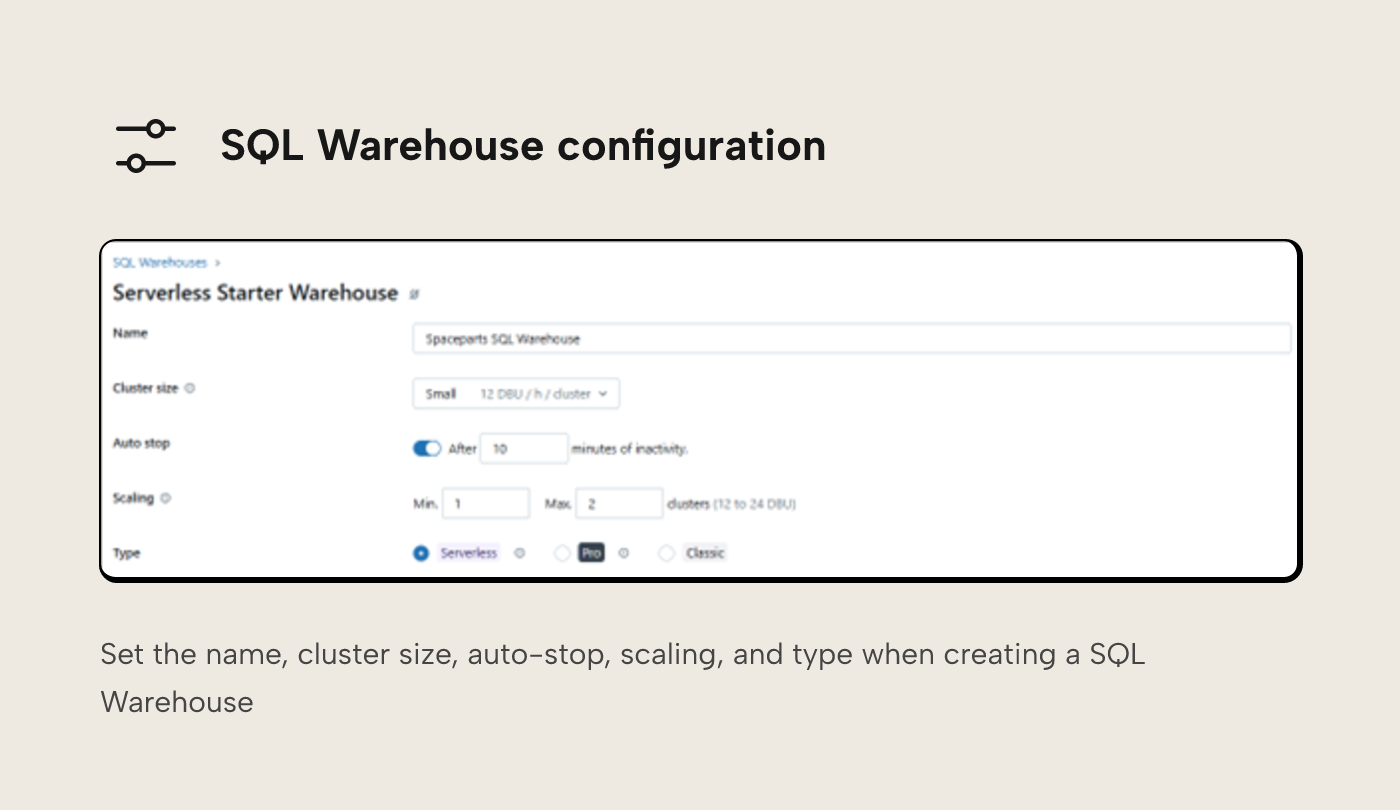
SpaceParts SQL warehouse
Having discussed it with the data engineering team, Borp decides that a Serverless SQL Warehouse with a cluster size of Small and scaling of minimum 1 cluster, maximum 2 should fit their needs.
They don’t need the warehouse to be “always on” as he will be importing data into Power BI once a day for use by his end users, so serverless feels like a good choice. The data volume for his first model will be relatively modest, with his largest fact table being 17 million rows so SMALL feels like an okay size to start with, and they won’t need much concurrency – the only “user” of the connection will be their Power BI semantic model.
Any of these configuration options can be changed at any point too, so Borp knows that they can monitor the performance of his semantic model refreshes and revisit these settings if needed.
Connection details
The last piece of information Borp needs is the SQL Warehouse connection details. They’ll need these when they connect Tabular Editor to Databricks. These can be found on the connection details tab of the SQL Warehouse.
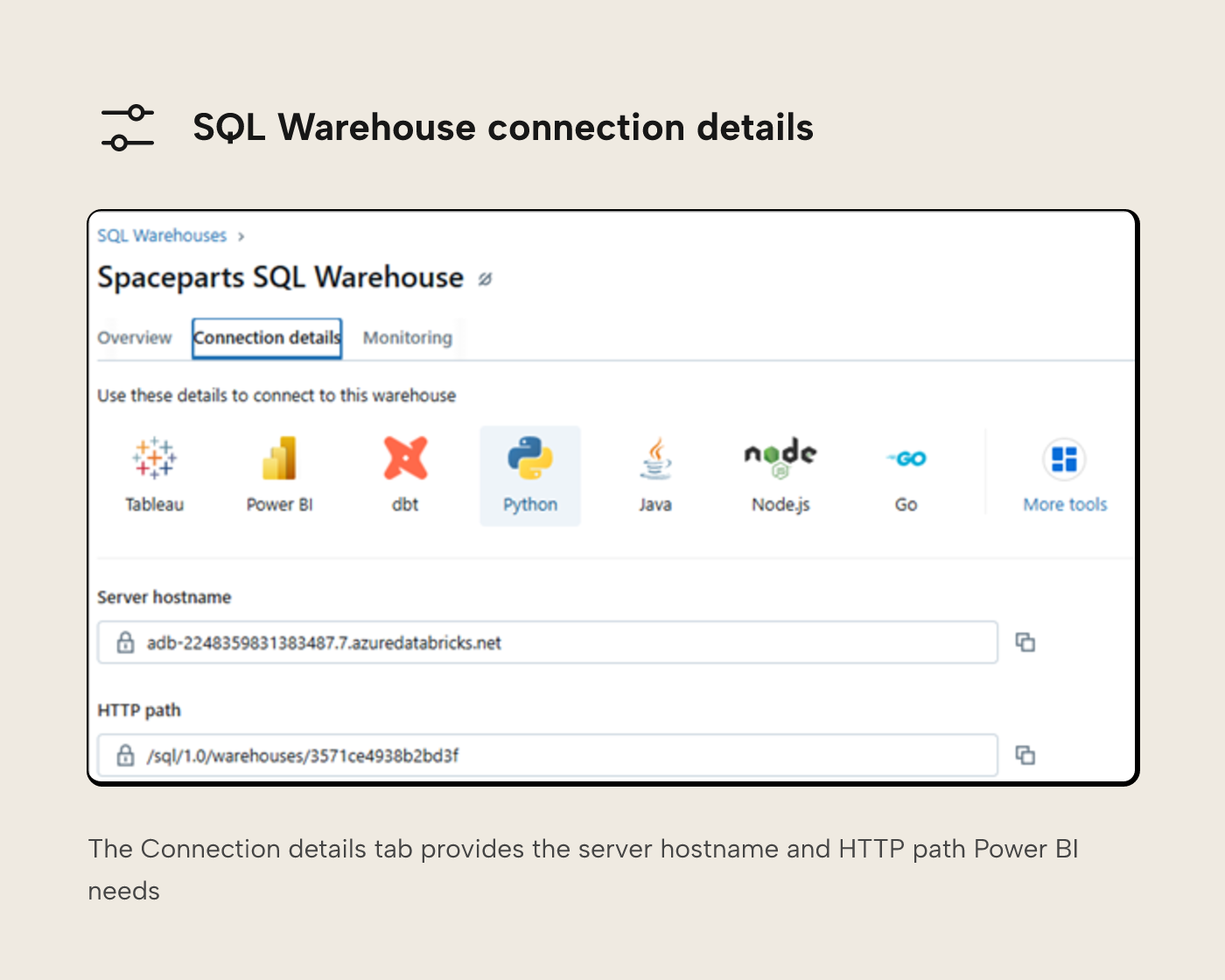
The Server hostname and the HTTP path are the pieces of information Borp should make a note of.
Simba Spark ODBC driver
The first time you try to use Tabular Editor 3 with Databricks, you may well be greeted with the following message:
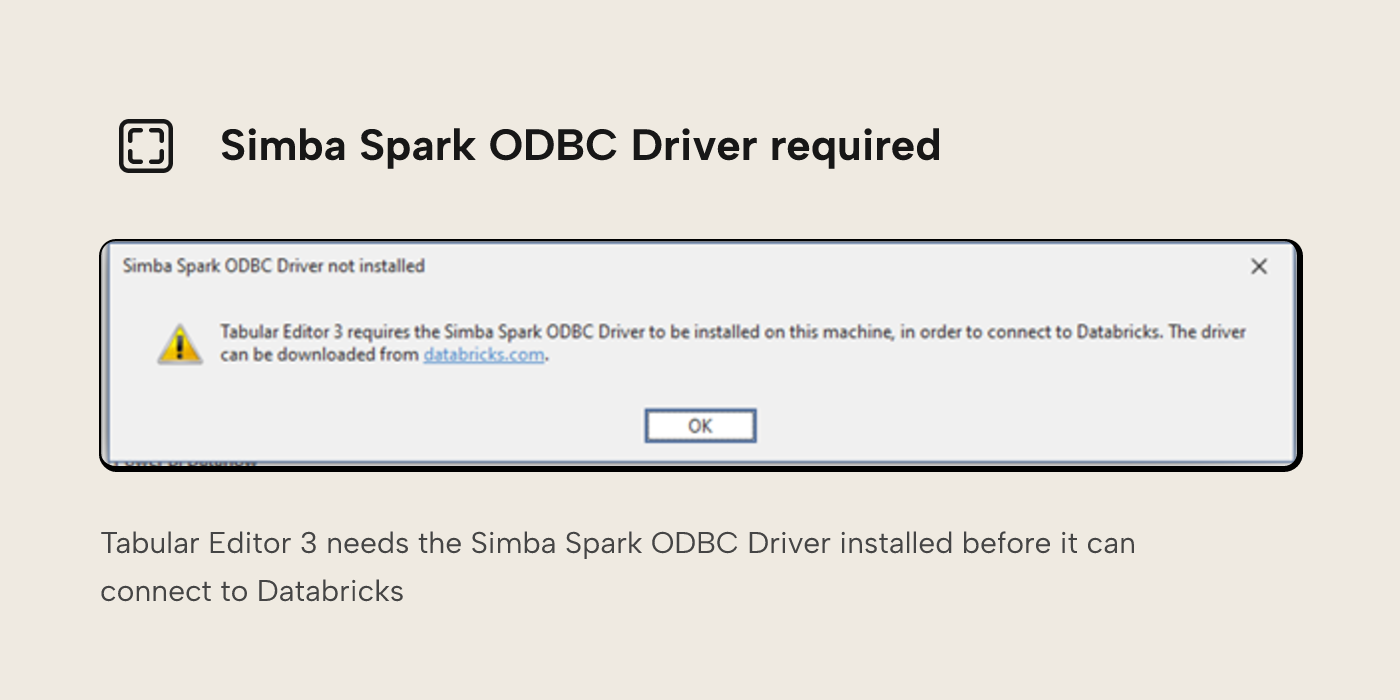
In order for Tabular Editor 3 to connect with Databricks, an extra piece of software needs to be installed, the Simba Spark ODBC driver. Installation of this software is what allows you to browse tables and inspect data in Databricks from inside Tabular Editor.
The driver is available to download at https://www.databricks.com/spark/odbc-drivers-download/.
Tabular Editor 3 is only available on Windows operating system, so you’ll want to download and install the Windows version of the driver. This is a Databricks approved driver and is used for connectivity between Databricks and several other major pieces of software.
If you don’t have permissions to install on your machine, you may need assistance from your IT department. Further documentation relating to the driver is available here.
Next steps
The Databricks SQL Warehouse is configured, Borp has connection details, and the Simba Spark ODBC driver is also installed on their computer alongside Tabular Editor 3.
The build process comes next, now that the connection prerequisites are in place.
For further reading
- How to explore data in Databricks with Unity Catalog (Tabular Editor). Covers data exploration in Unity Catalog and Databricks SQL, which informs the table selection decisions Borp is now ready to execute.
- How to build a Power BI semantic model from Databricks data (Tabular Editor). Covers importing tables into Tabular Editor 3, running scripts for naming, relationships, and descriptions, and deploying the model to Fabric.
- What is Unity Catalog? (Microsoft Learn). Background on the permissions model governing SQL Warehouse access, relevant when requesting SELECT rights or troubleshooting connection issues.
- Direct Lake overview (Microsoft Learn). Context for how Fabric can consume Databricks Delta tables differently from standard Import mode.
In conclusion
With the Databricks SQL Warehouse configured, the connection details in hand, and the Simba Spark ODBC driver installed alongside Tabular Editor 3, Borp now has everything needed to connect the two. The next article is part 5, How to build a Power BI semantic model from Databricks data, which walks through importing tables, shaping the model, and deploying it.
Get Databricks SQL Warehouse ready for smoother semantic modeling in Tabular Editor 3.
Give Tabular Editor a spin